
Magnetometer calibration
Open Setting → General. These switches control device-wide settings. The Tracker detail page has a separate button for calibrating one Tracker's magnetometer.

Magnetometer switch
The Magnetometer switch enables or disables the magnetometer for the Tracker set. Its state is sent through the USB dongle; if the receiver is offline, the setting will sync when the receiver reconnects.
The interface warns that magnetometer can cause more drift. Do not turn it on as a routine first-run fix. Only change it if you are following a tested setup instruction or troubleshooting step.
Calibrate one Tracker's magnetometer
- In Device, click the Tracker you need to calibrate.
- Check that the Tracker is online and its Magnetometer status is On. The calibration button stays disabled if the system or this Tracker's magnetometer is off.
- Click Magnet Calibration.
- Click the ? help icon and copy the figure-eight movement with the Tracker.
- Keep moving the Tracker until the sphere fills or the counter reaches 300/300. Sampling stops automatically at 300 points.
- Click Confirm to close the calibration window.
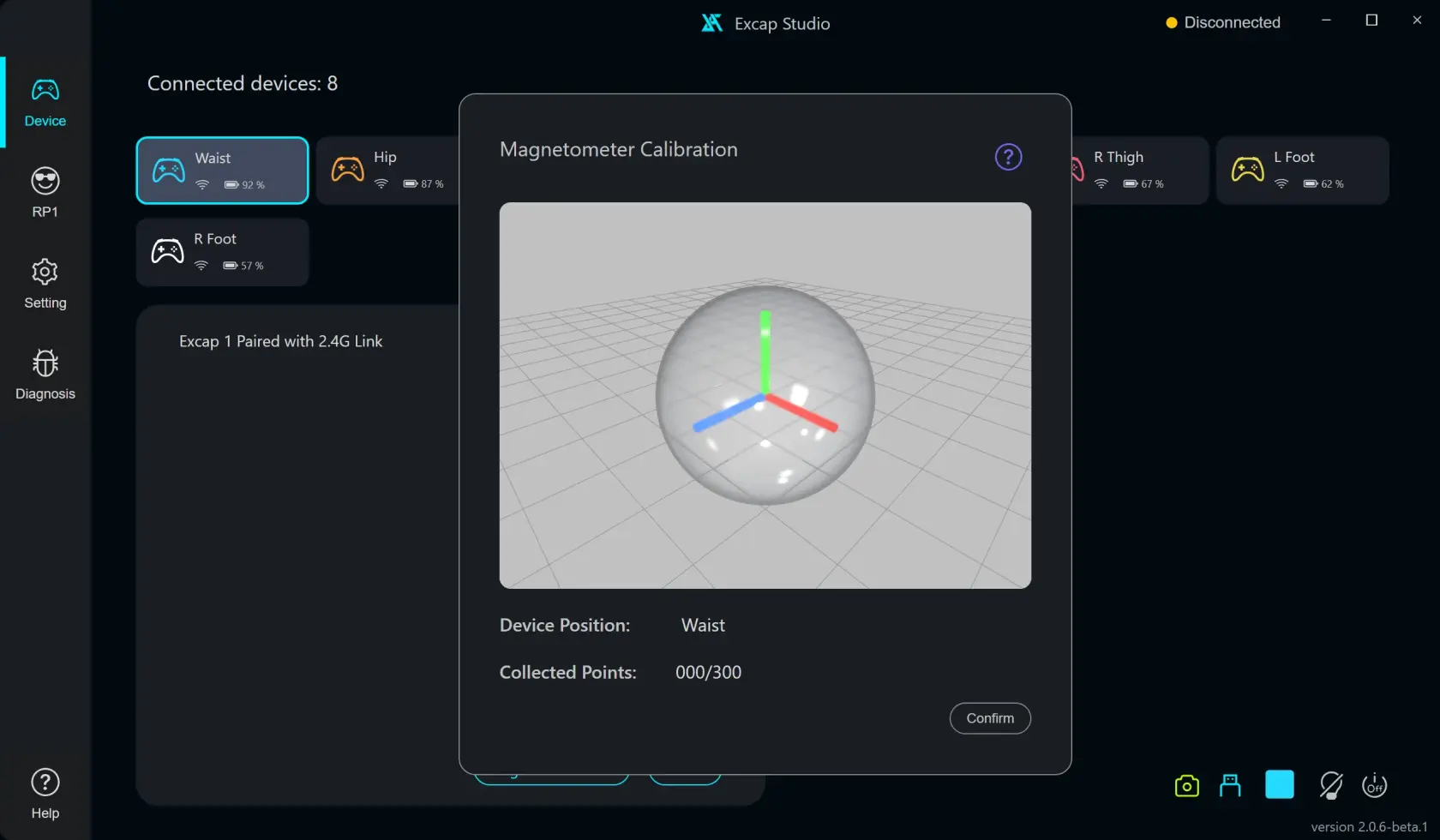
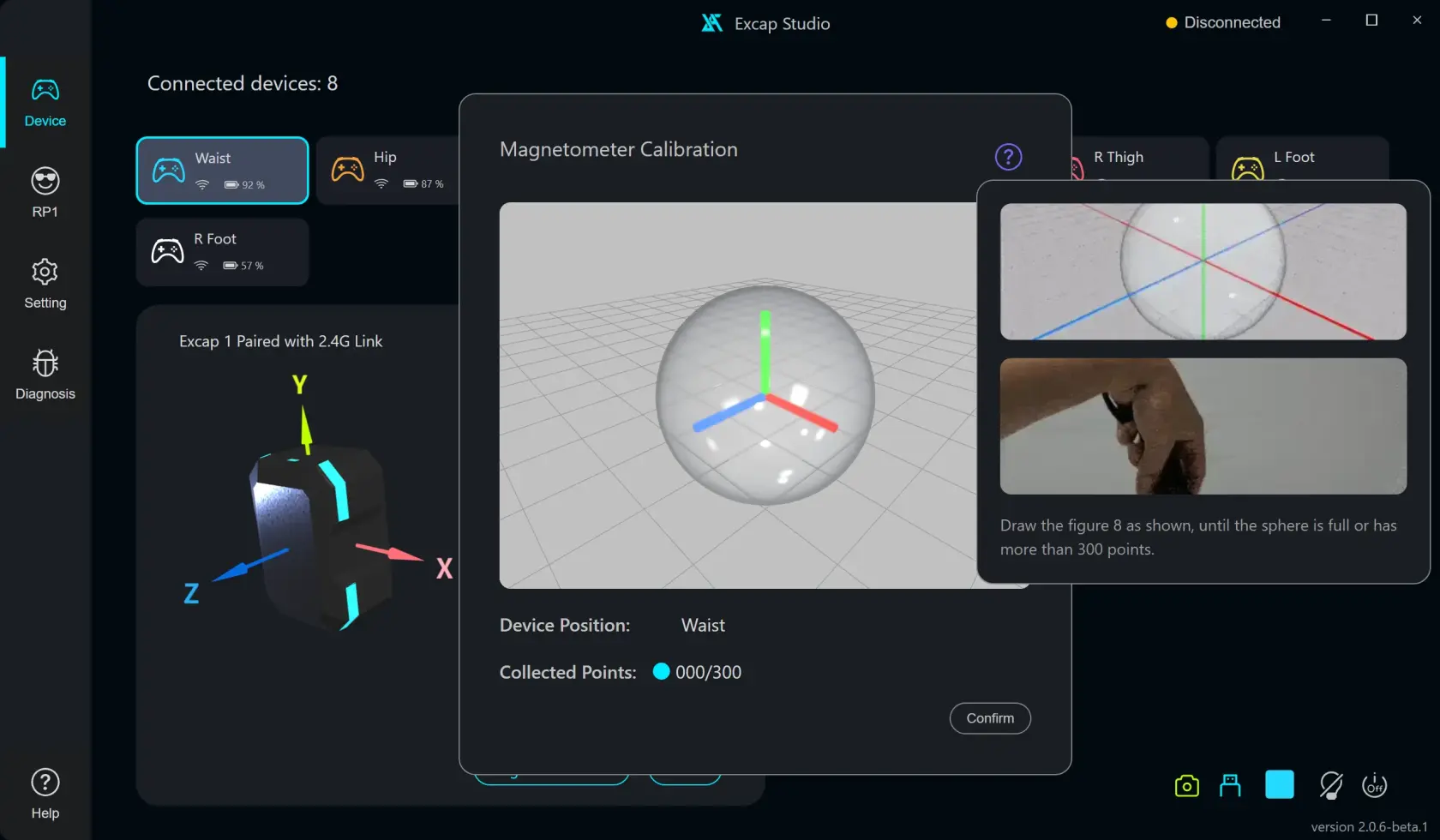
If the counter does not move: keep the Tracker online and magnetometer On. Reopen the calibration window and follow the displayed figure eight. The number counts collected points, not seconds.
Issues found while exploring
- One switch controls all Trackers' magnetometers, while calibration opens for a selected Tracker. The interface does not make this difference clear, and it warns that enabling the magnetometer can add drift.
- The figure-eight directions are inside a small help popover. A new user may miss the instructions before starting.
For vibration controls, see Haptics and vibration.