
4. Calibrate and VRChat
Connect and put on your headset, then start SteamVR. Wait until SteamVR shows the headset as tracked; just opening SteamVR does not connect the headset. Keep the eight Trackers powered on and assigned to the right body parts. If the headset is not live in SteamVR, Excap cannot send this full-body tracking data into SteamVR or VRChat.
Get Excap ready
- At the top of Excap Studio, choose SteamVR as the data forwarding mode. This selects the destination; it does not connect the headset for you.
- Open RP1. Check that the headset is tracked. In the Mocap dropdown on RP1, choose Standard Mocap for the supplied eight-Tracker layout.
- Check Player Height. Type your real height in centimeters, or use Auto Measure after the headset is tracking in SteamVR.
- If you have your own humanoid VRM, GLB, FBX, or ZIP model file, drag it onto the RP1 preview. Excap scans its skeleton and shows the model preview. You can continue with the built-in preview if you do not have a model file yet.
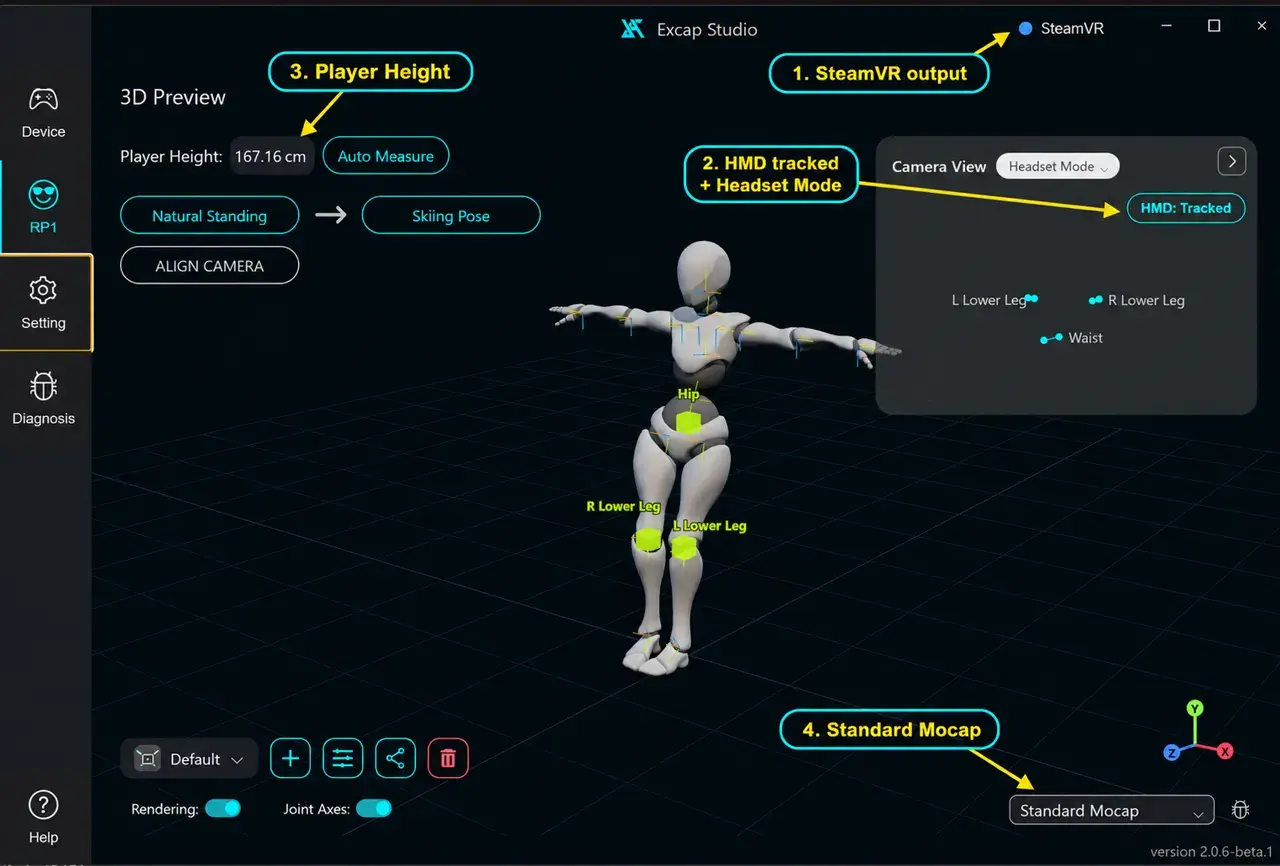
This is an annotated layout example for the four checks above. The SteamVR, HMD tracked and Standard Mocap labels are edited guide annotations; confirm the live state in your own RP1 screen.
Ready when: SteamVR is selected, the headset is tracked, and the body preview is visible in RP1. An imported model improves proportion matching, but is optional for the first body-following check.
Copy the two pose pictures in order
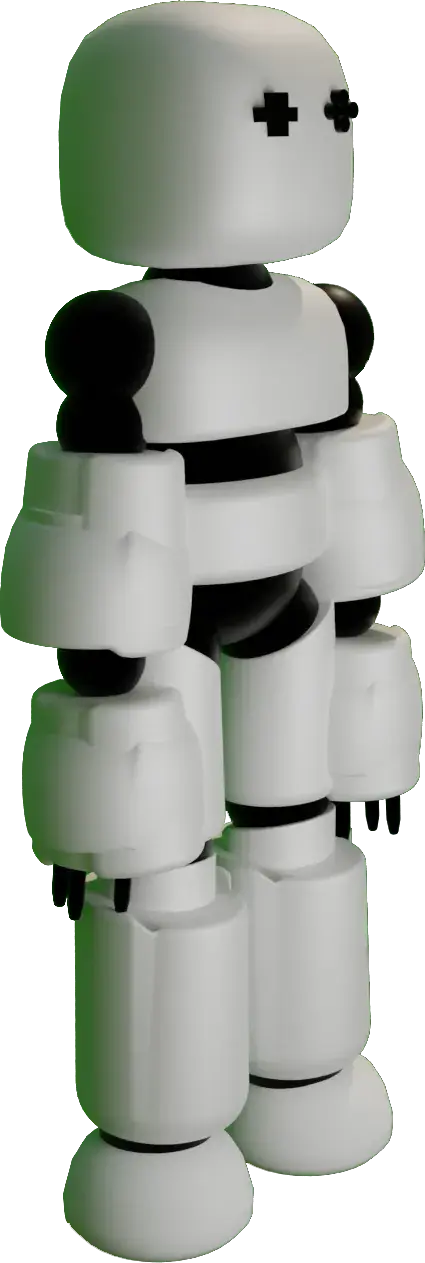
- Click Natural Standing on RP1. Face forward, stand upright, and relax both arms at your sides like the picture. Hold still for the three-second count. Wait for Natural Standing Pose completed.
- Click Skiing Pose. Bend your knees and lean forward. Bend your elbows as if holding ski poles, with your upper arms back and forearms forward, like the picture. Hold still for the three-second count. Wait for Skiing Pose completed.
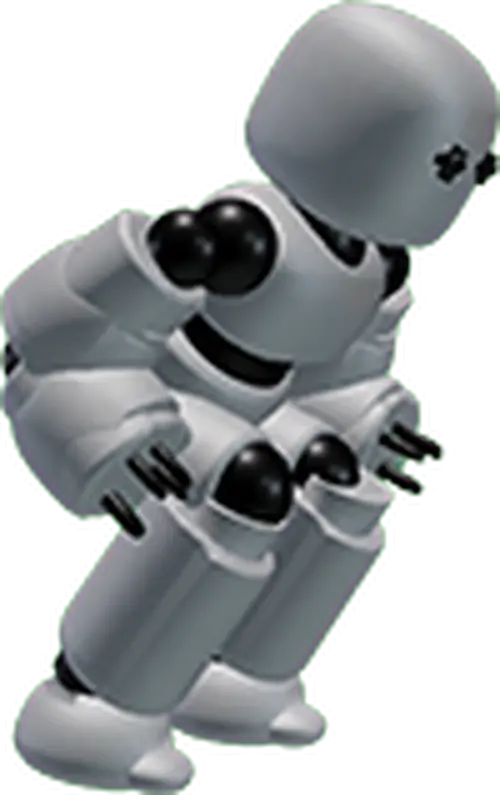
If Skiing Pose says a joint tilted too little: bend that part more and repeat Skiing Pose. If Natural Standing failed, check that all required Trackers are online and correctly bound, then start the two poses again in order.
Enter VRChat and check the first success
- Launch VRChat through your working SteamVR setup. Enter a world with a mirror and clear floor space. If you cannot find a mirror yet, look down at your avatar's legs for a quick first check.
- Open VRChat's Quick Menu and choose Calibrate FBT. Check that the body tracking points match the parts where you wear the Trackers.
- Stand upright and face forward. Press both controller Interact buttons, usually both triggers, at the same time to finish VRChat calibration.
- Look at the mirror. Take a small step, turn slowly, and bend your knees. Check that your avatar's waist and legs follow you for one minute without a sustained loss of tracking.
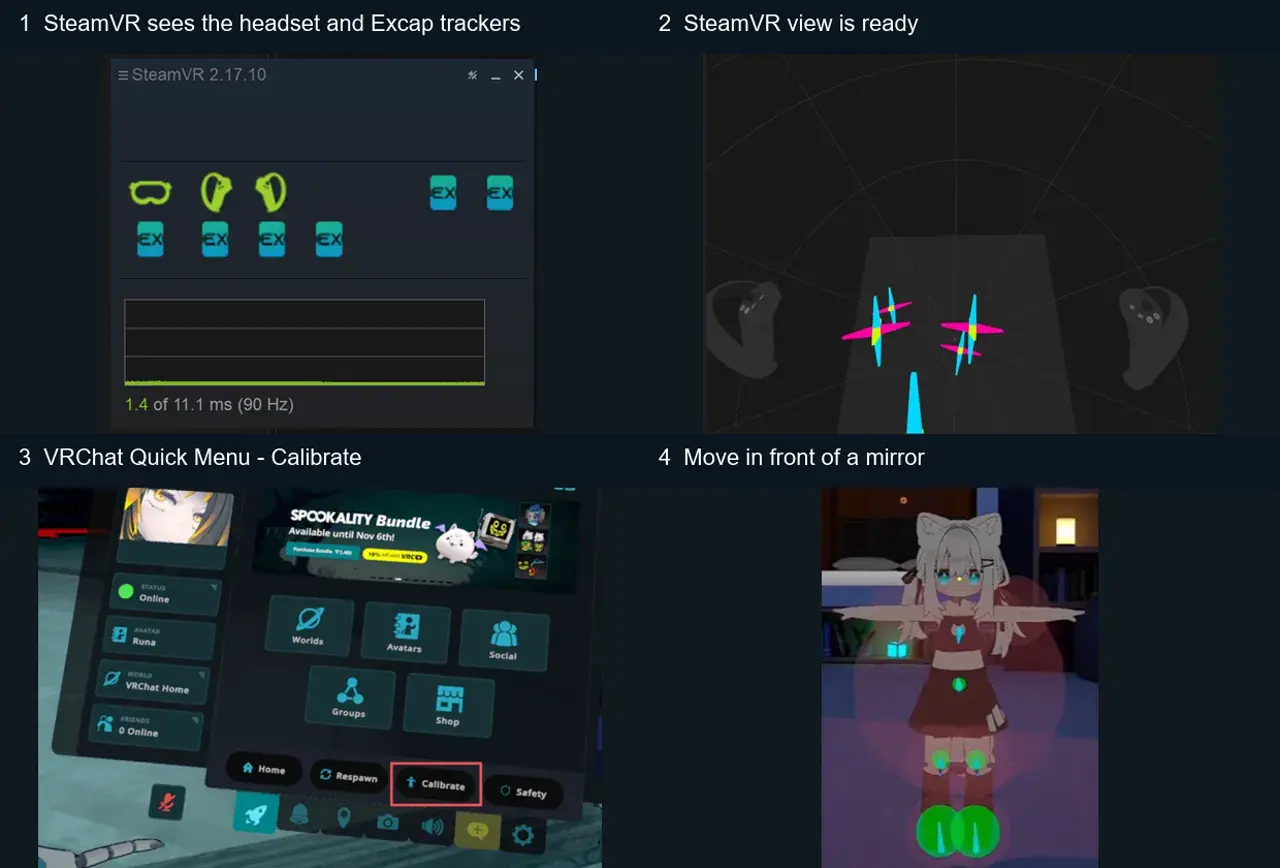
Use the four panels in order: SteamVR ready → SteamVR view → VRChat Calibrate → move in front of a mirror and watch the avatar follow.
VRChat's official Full-Body Tracking guide describes its current Quick Menu calibration. The exact menu appearance can change with VRChat updates; check the current client before publication.
If there is no Calibrate FBT option: first check SteamVR shows the headset as tracked, then check Excap is sending to SteamVR and your Trackers are online and calibrated. If the headset is disconnected, connect or wake it and wait for SteamVR tracking before trying again. If the option appears but the avatar does not follow, check the eight body-part assignments in Device, then repeat VRChat calibration. The first-use recovery map gives a short path for each stopping point.