
Desktop Mode camera setup
Desktop Mode was proposed after version 2.0.0 and is experimental. Use it at your own risk. It is not part of the normal first-use route, and its behavior may change or fail in a future build.
Desktop Mode sends the camera image directly to the PC over USB. It does not need Wi-Fi.
Quick test
- Connect the camera to the PC with USB.
- Open Setting → General → Camera and wait for Cable Connected.
- Choose Desktop Mode.
- Open RP1 → Camera View and aim the camera at the front-facing Tracker lights.
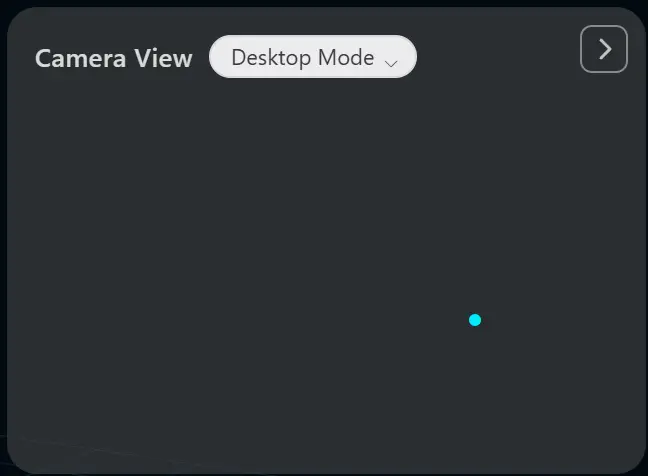
The expected result is moving raw light points in Camera View. This is only a camera-view test. The current build does not run the Headset Mode yaw-correction path, and Desktop Cali / TIC is paused. Moving dots do not prove corrected full-body tracking.
For the supported full-body camera workflow, use Headset Mode. If you try Desktop Mode, keep a recovery path available and do not use it as the first setup for a child or first-time user.