
Camera modes and shared setup
The camera Mode tells Excap how it receives and uses the external camera. You can choose a mode in Setting → General → Camera → Mode. The same mode menu is also available above Camera View in RP1.
These camera choices are different from the Mocap algorithm. Use the Mocap combobox on RP1 to choose a motion algorithm; see Tracker controls and status. Use Camera Mode here to choose how the external camera connects.
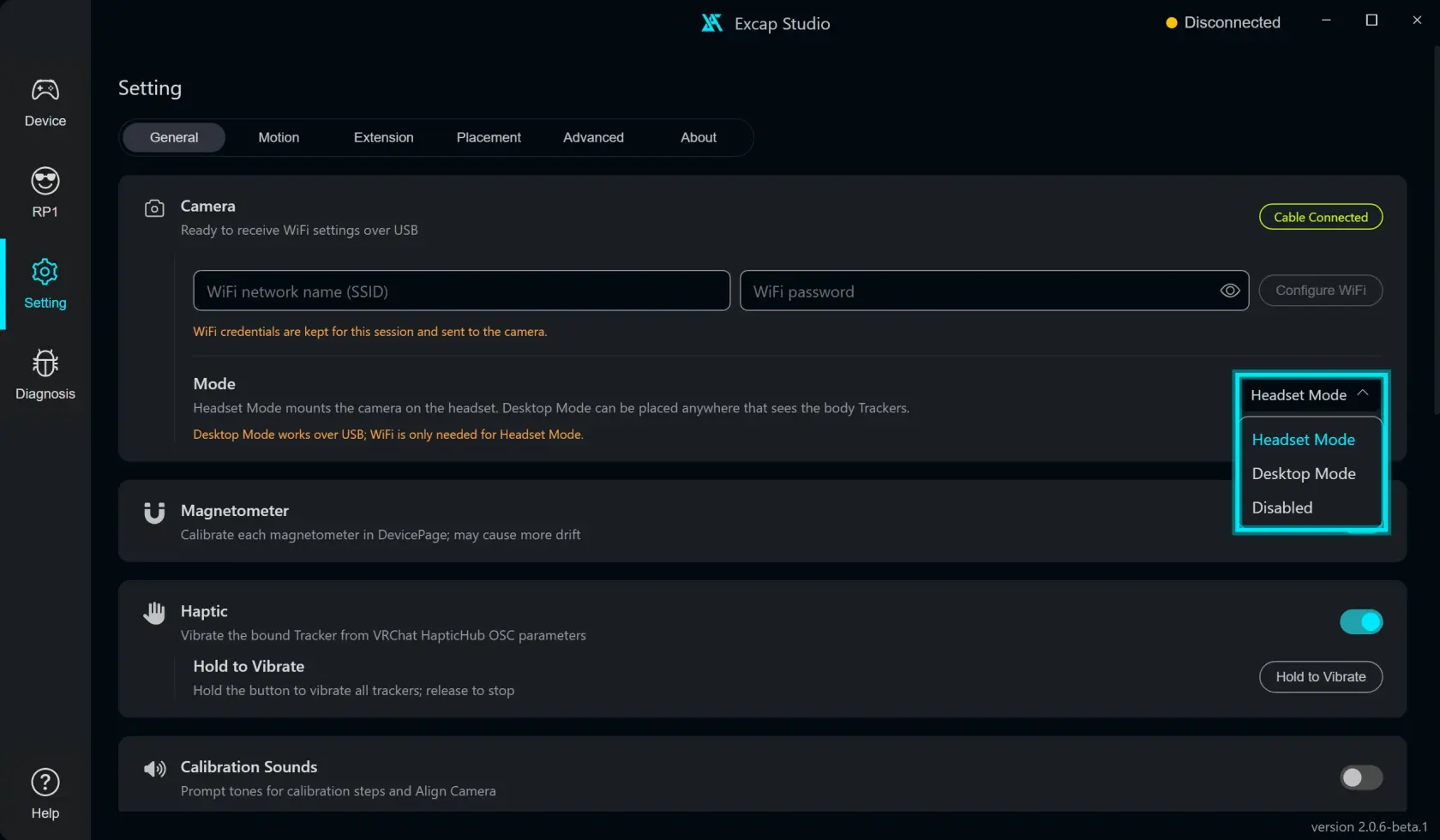
| Mode | Connection | What the current app does |
|---|---|---|
| Headset Mode | 2.4 GHz Wi-Fi after USB setup | Shows body marker points and applies camera yaw correction after Natural Standing is calibrated |
| Desktop Mode | USB cable direct to the PC | Shows raw camera marker points. Desktop calibration is paused in this build |
| Disabled | No camera data | Stops camera input |
For a full-body session with the supplied camera, use Headset Mode. Use Desktop Mode to view raw points over USB. It does not currently replace Headset Mode for yaw correction.
Understand the camera status
- Cable Connected means camera data is reaching the app over USB. Use this for Desktop Mode or to send Wi-Fi details.
- Camera WiFi settings sent means Excap wrote your network details to the camera while it was on USB.
- Wi-Fi Online means the app is receiving camera data over the network.
- Camera Off means camera input is disabled in the app.
The “sent” message is not the same as “online.” Check the status again after moving the camera to its Wi-Fi setup.
What Camera View should look like
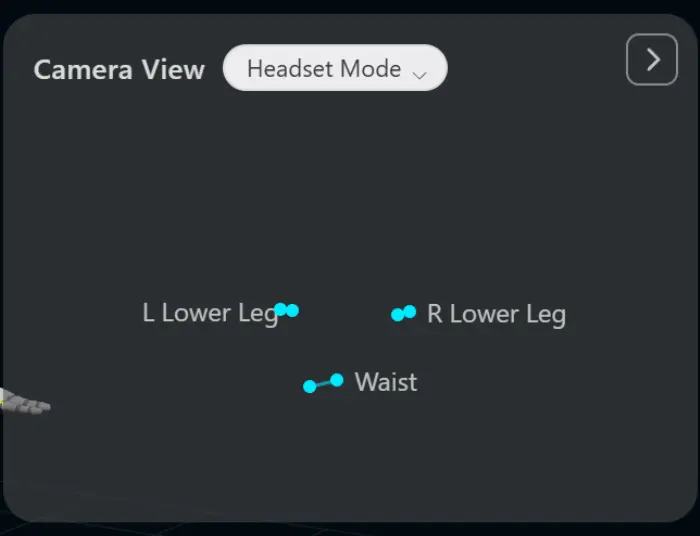
After the camera is online, open RP1 → Camera View. In Headset Mode, the view shows marker groups such as Waist, L Lower Leg, and R Lower Leg. This is a point view for camera tracking, not a normal webcam preview.
Wi-Fi band needed by this kit
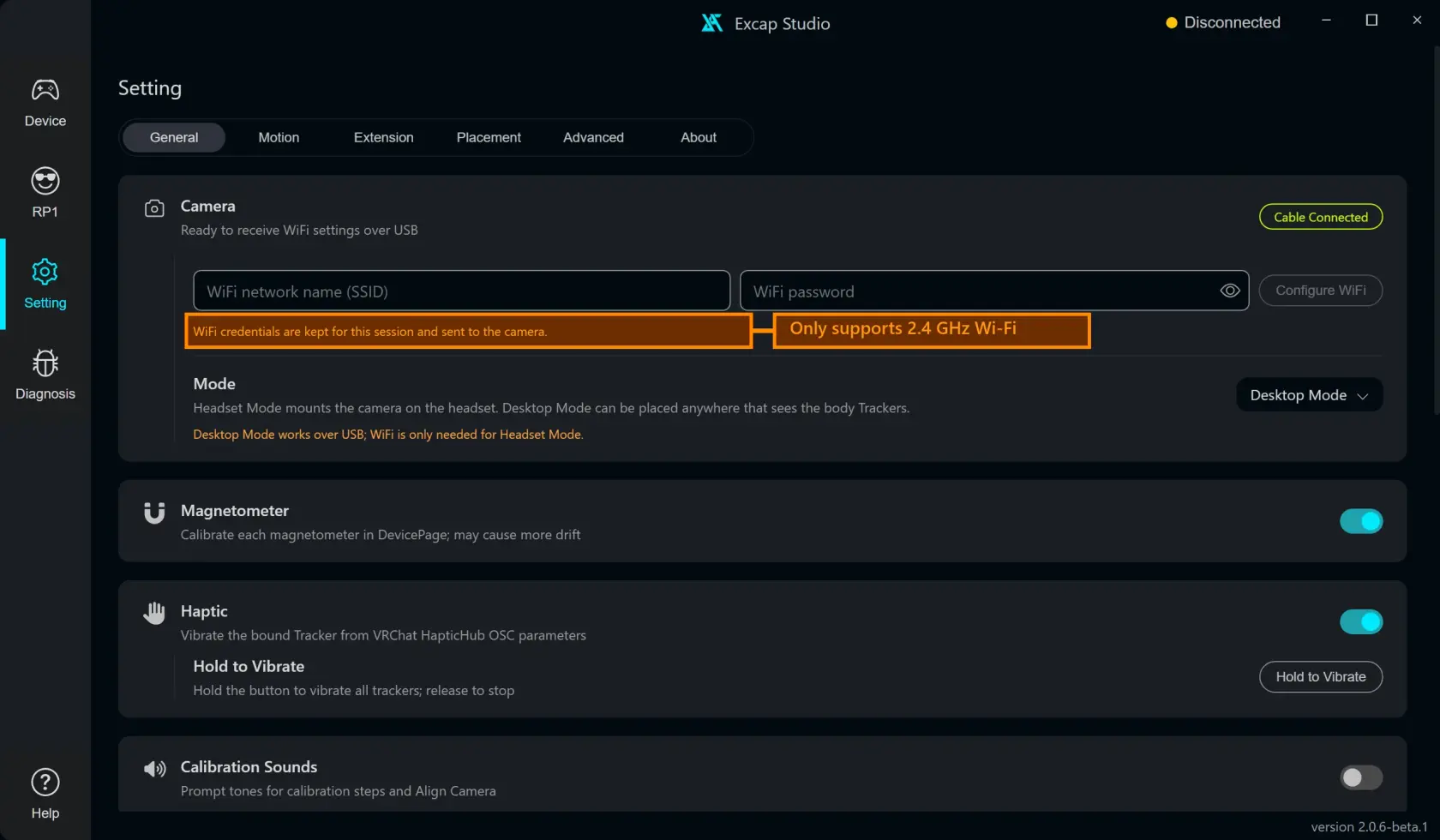
The supplied camera supports 2.4 GHz Wi-Fi only. Check the network band before sending settings. The app currently lists 5 / 6 GHz networks and does not block an unsupported band, although the camera hardware cannot use those networks.
Issue found while exploring
Current Camera settings can auto-fill the PC's active network, including a 5 / 6 GHz network. The field can still send it. A user sees “Camera WiFi settings sent” but may not know why the camera never reaches Wi-Fi Online. Excap should filter the list to 2.4 GHz or warn before sending an unsupported band. See the issue list.