
Haptic Setting
This chapter shows you how to enable haptic feedback in VRChat. You will launch the Excap Space world, copy a haptic-enabled avatar, turn on the OSC and haptics switches, and troubleshoot common problems.
Launch the World
Search for the world "Excap Space".
Use the link above to launch the world. In some cases, the world may not appear directly in search results.
Backup world for testing: Backup World
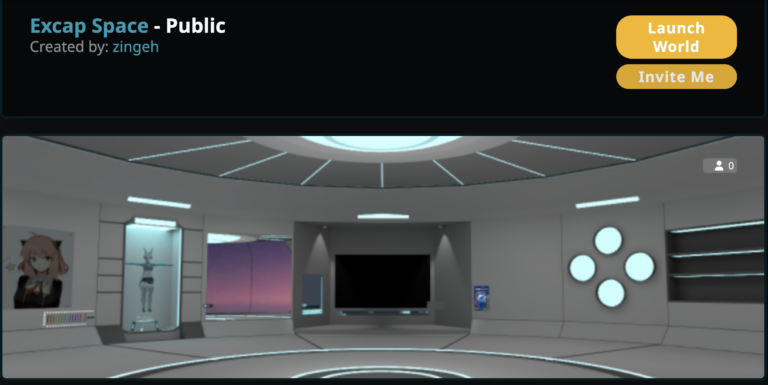
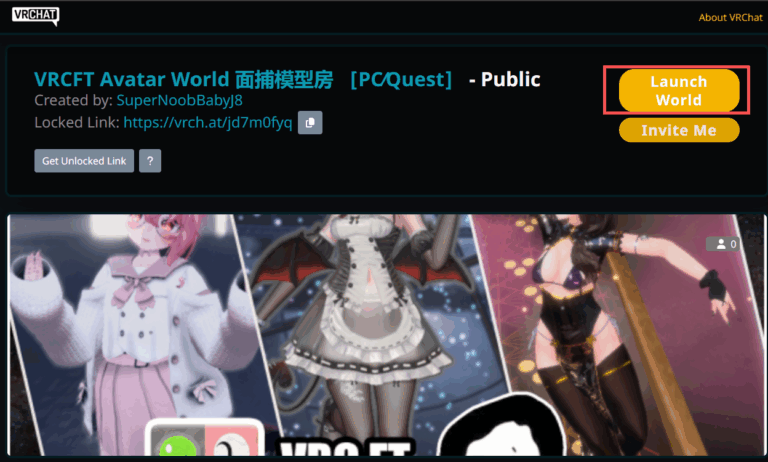
📝 Note: The Excap Space world provides a pre-configured environment for testing haptic feedback without needing your own avatar setup.
Copy the Haptic Avatar
Inside the world, copy the avatar that has haptic support enabled.
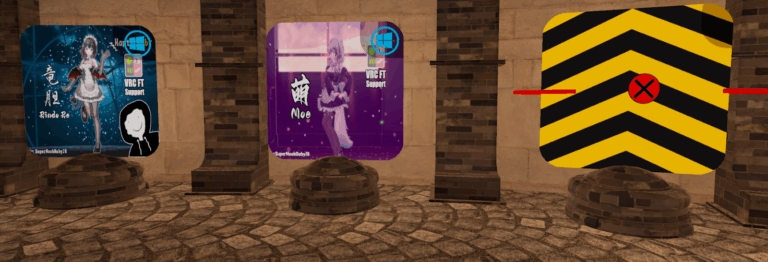
💡 Tip: If you do not see the copy option, make sure you are using the correct avatar pedestal in the world.
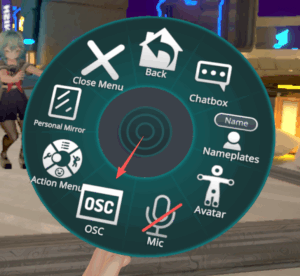
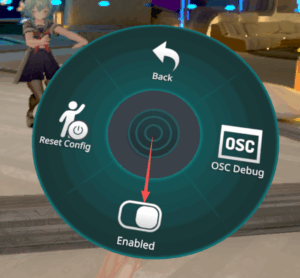
Turn on OSC
Enable the OSC switch in VRChat.
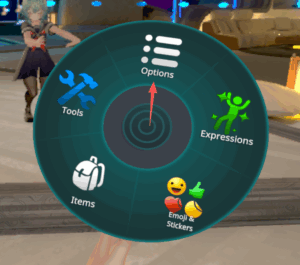
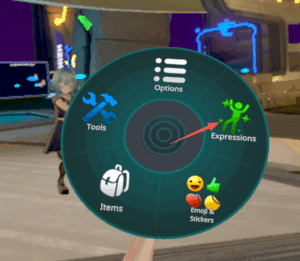
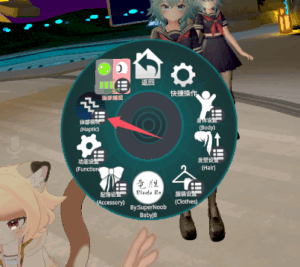
Turn on the Haptics Switch
Enable the haptics switch in VRChat.
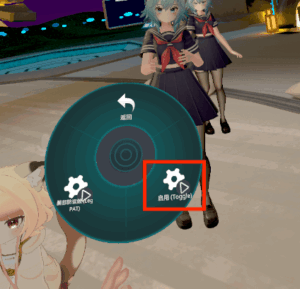
Enjoy Haptics with EXCAP FBT
The OSC device will be detected automatically. If the trackers do not vibrate, please contact EXCAP after-sales support.
Troubleshooting
Why is it not working?
Reason 1: The automatic OSC discovery may have failed. Enter the VR headset’s IP address manually.
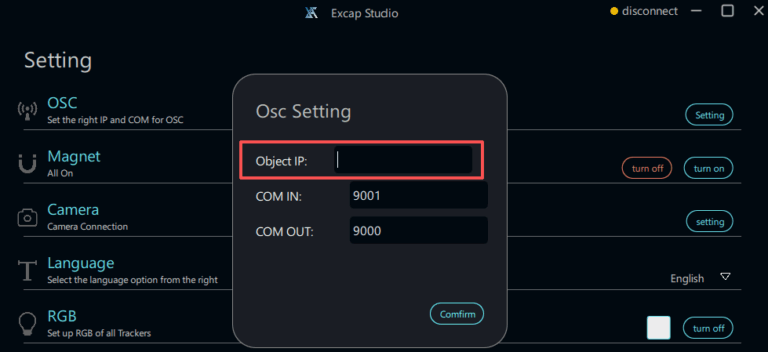
💡 Tip: You can find your headset’s IP address in the Wi-Fi settings on the headset itself.
Reason 2: The correct contact point was not touched. The blue circle is the collision detector.
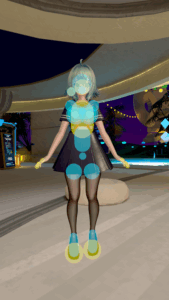
⚠️ Warning: Haptic feedback only triggers when your avatar’s collision detector overlaps a haptic zone. Make sure you are standing in the correct position.
⬅️ Previous: Camera Setting · Next: Other Settings ➡️