
Tracker Setting
This chapter covers the tracker-related options in Excap Studio. You will learn how to customize RGB lighting, rename devices, assign body parts, test haptic feedback, save settings to the tracker hardware, and read tracker status information.
Customize RGB
You can set the RGB color for each tracker individually, or apply one color to all trackers at once. There is also a button to turn all tracker lights off.
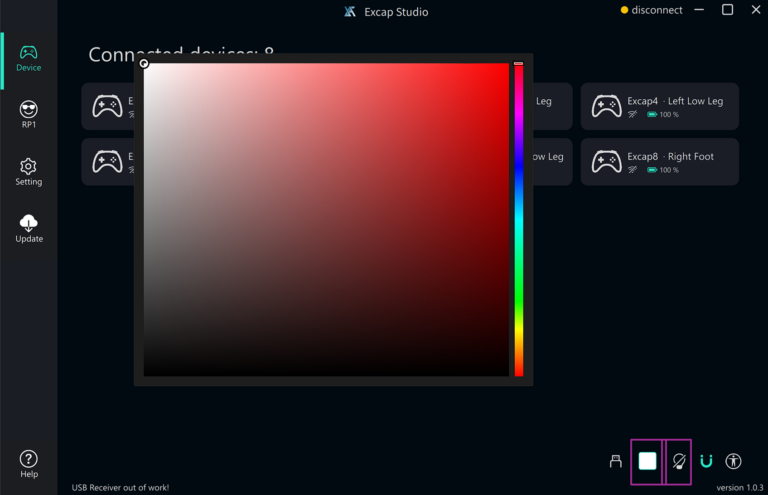
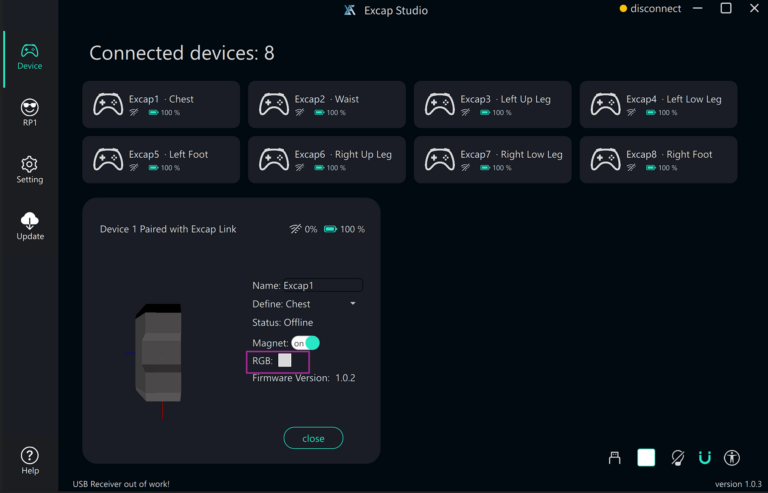
💡 Tip: Turning off the RGB lights can slightly extend battery life and reduces distractions in dark rooms.
Customize Device Name
EXCAP lets you assign a custom name to each tracker.
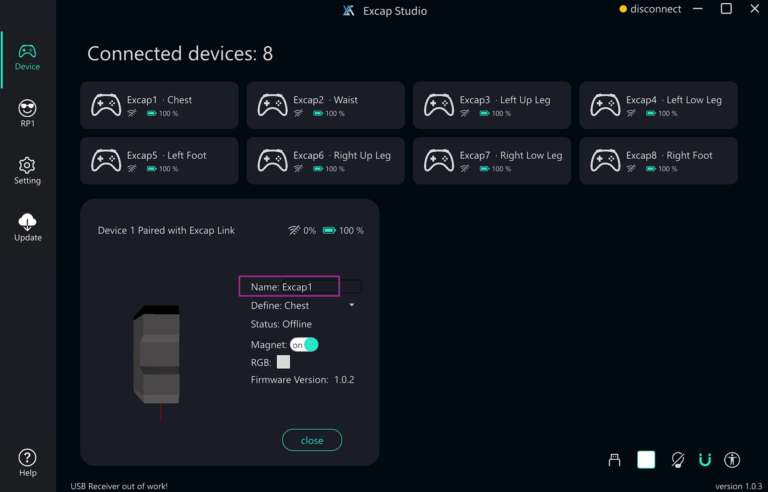
📝 Note: A custom name only makes the tracker easier to identify in the device list. It does not change the tracker’s body-part assignment.
Customize Body Part
In most cases, each tracker is automatically labeled with the correct body part. We have also opened this feature to manual assignment and plan to add more options in the future, such as glove trackers and sports-ring trackers.
Haptic Test
Each tracker contains a haptic motor. The intensity and timing of vibrations can be programmed.
Click Haptic Active or Haptic Deactivate to turn vibration on or off for testing.
✅ Good to know: Haptic feedback integration with VRChat and other games through OSC is planned for a future update.
Save All Your Settings
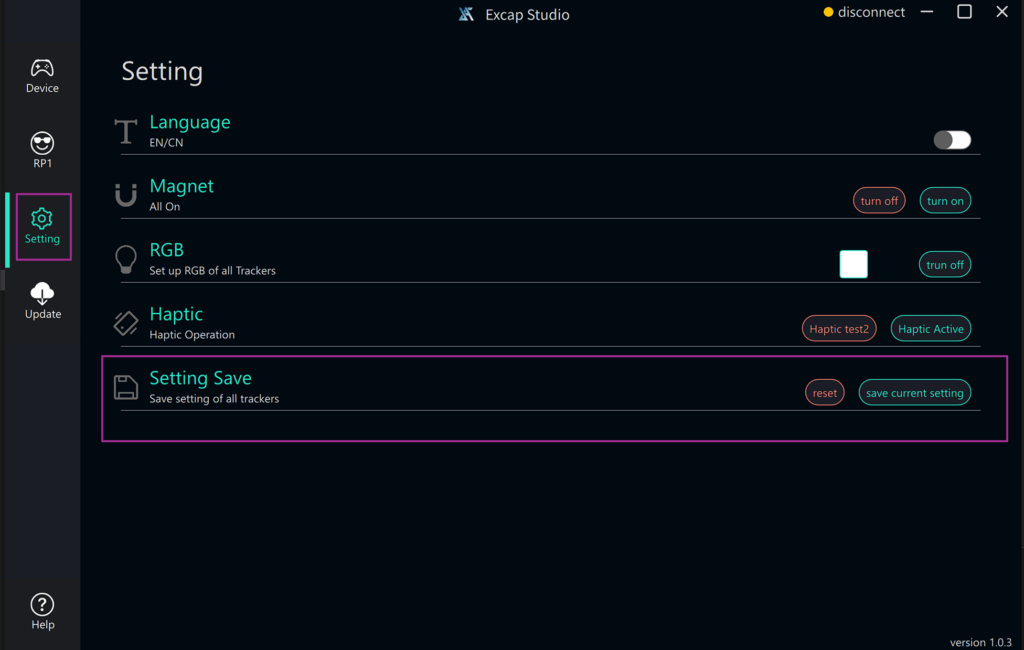
This operation saves only the RGB LED state and the magnetometer state to each tracker’s hardware memory.
All other settings are saved automatically on your PC.
⚠️ Warning: If you move the trackers to a different PC without saving the hardware settings, the RGB and magnetometer states may revert to their defaults.
Check Tracker Status
Each tracker card displays important information, including:
- Battery level
- Signal strength
- Online status
- Magnetometer status
- Firmware version
💡 Tip: If a tracker shows a weak signal, move the USB dongle to a different USB port or closer to your play area.
⬅️ Previous: Three Modes in EXCAP · Next: Camera Setting ➡️