
Connect with SteamVR
Connect with SteamVR
This chapter explains how to install Steam and SteamVR, launch Excap Studio in SteamVR mode, verify that your trackers are recognized, and troubleshoot common connection problems.
Install Steam and SteamVR
- Download and install the latest version of Steam from the official Steam website.
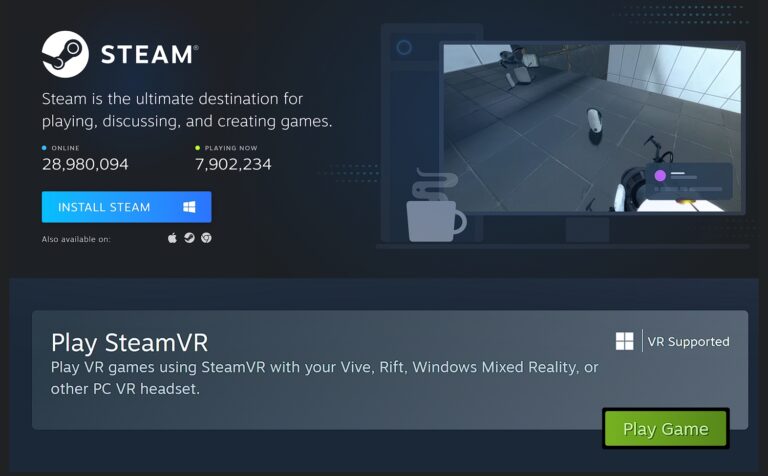
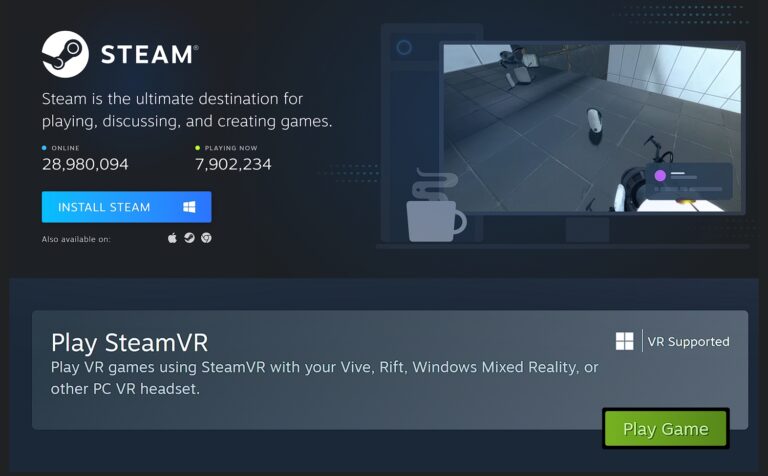
- Open Steam, then find and install SteamVR.
- Start SteamVR. You need SteamVR running to send all tracking data from Excap Studio into PCVR.
📝 Note: Make sure your VR headset is already connected and streaming to SteamVR before you start Excap Studio.
Start Excap Studio
Download and install the latest version of Excap Studio, then launch it.
By default, all data transmission is turned off when Excap Studio starts. We recommend selecting the transmission mode only after all trackers are connected correctly. Choose the data mode in the top-right corner of the window.
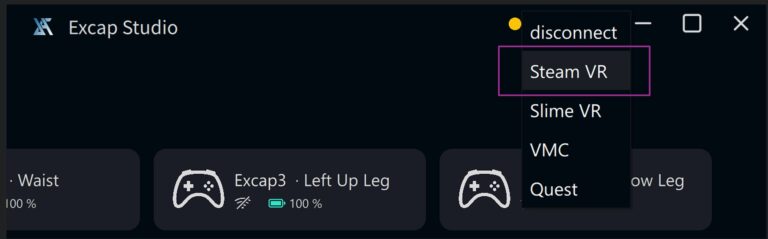
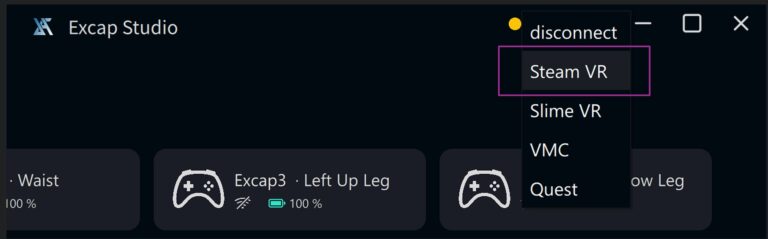
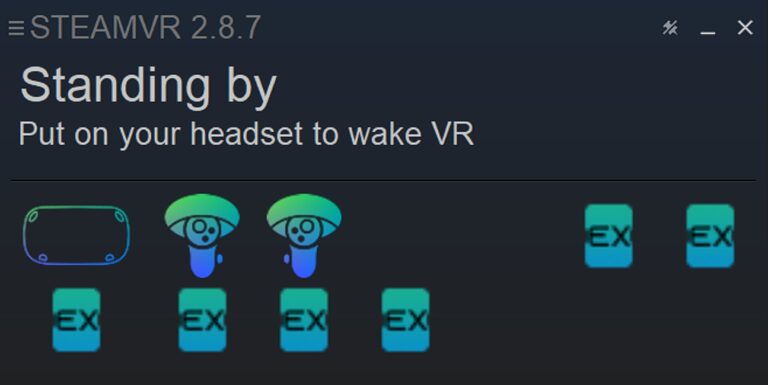
The SteamVR window will show your connected headset and 6 trackers.
📝 Note: Only 6 trackers are shown in SteamVR because of a limitation in the SteamVR driver itself. The other trackers are still tracked internally by Excap Studio.

Troubleshooting
- SteamVR must be fully initialized and your headset must be connected to SteamVR before you click Connect in Excap Studio.
- If the trackers do not appear or behave incorrectly in SteamVR, click Connect in Excap Studio again. You can also disconnect and then reconnect.
- If SteamVR crashes or freezes, restart Excap Studio after SteamVR has fully closed.
⚠️ Warning: Restarting Excap Studio is usually required after a SteamVR crash. Simply restarting SteamVR alone may not restore the tracker connection.
⬅️ Previous: Quick Start · Next: Connect with SlimeVR ➡️