
Connect with SlimeVR
This chapter shows you how to connect your EXCAP trackers to the SlimeVR ecosystem. You will install the SlimeVR Server, route EXCAP data through Excap Studio, and then complete the remaining setup inside SlimeVR.
Download and Install SlimeVR
SlimeVR is currently the largest open-source full-body tracking platform for VR. It provides a rich and convenient way to connect FBT devices. You can download and install SlimeVR Server v0.13.2 from GitHub.

📝 Note: Use the linked version unless you have a specific reason to use a newer release. Different versions may have different setup steps.
Start Excap Studio
Download and install the latest version of Excap Studio from the Elecholic downloads page, then launch it.
By default, all data transmission is turned off at startup. We recommend selecting the data transmission mode only after all trackers are connected correctly. Choose the data mode in the top-right corner of the window.
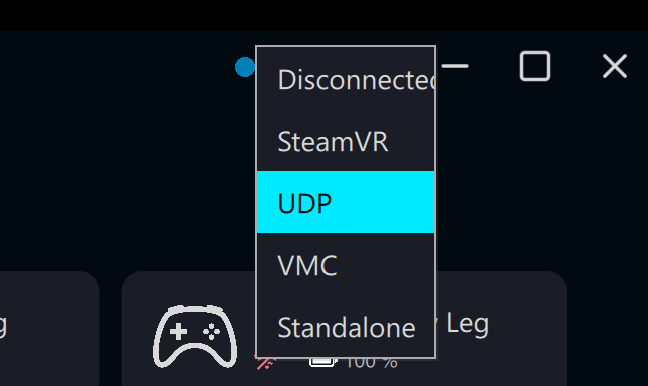
💡 Tip: Make sure all eight trackers are powered on and listed in Excap Studio before switching to SlimeVR mode.
After Connecting
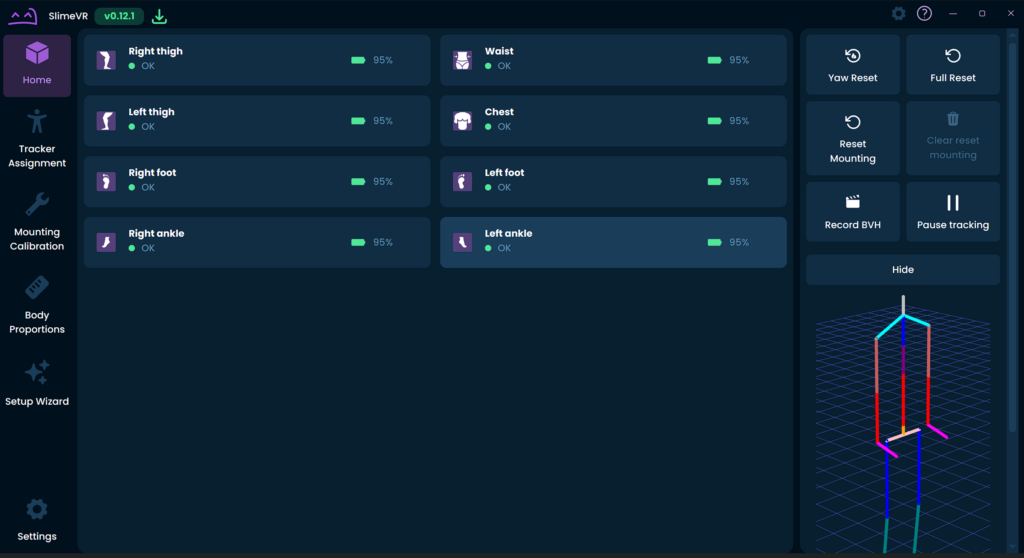
Once the connection to SlimeVR is established, 8 trackers will appear in the SlimeVR Server. This usually takes about 10 seconds.
In this mode, Excap Studio acts only as a data router: it sends tracker data to SlimeVR. All further setup and calibration must be done inside SlimeVR. Follow the official SlimeVR documentation for configuration instructions.
✅ Good to know: No additional settings are required in Excap Studio after the SlimeVR connection is active. If something is wrong, check SlimeVR’s tracker configuration first.
⬅️ Previous: Connect with SteamVR · Next: Connect with Standalone ➡️