
Enter Game and Calibration
Your trackers are connected and Excap Studio is running. Now for the fun part — let's jump into VR and calibrate your body so every movement feels natural. 🎯
Choose Your Connection Mode
Select the mode that matches your headset in the top-right corner of Excap Studio.
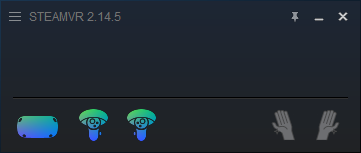
- SteamVR — for PCVR headsets such as Index, Vive, or Pimax.
- Standalone — for Quest, Pico, or other standalone headsets running VRChat.
Make sure your headset has already connected to SteamVR or VRChat before you continue.
📝 Note: Haven't installed Steam, SteamVR, or VRChat yet? Follow Connect with SteamVR or Connect with Standalone first, then come back here.
Reset Your Body Proportions
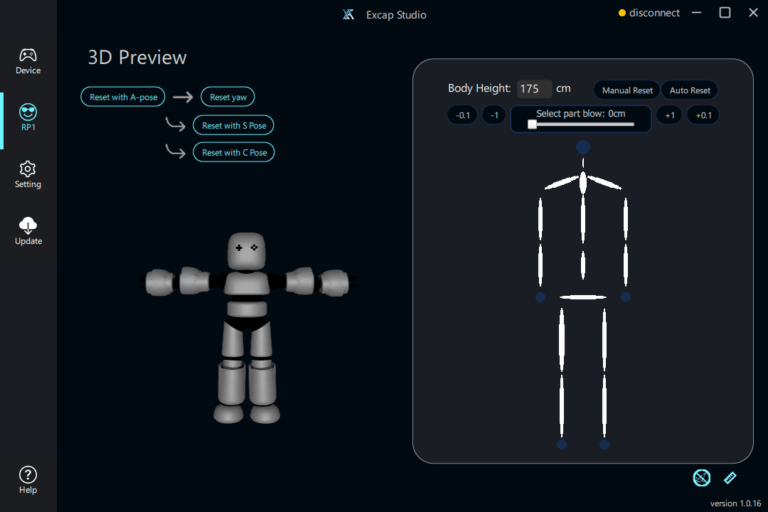
Click Auto Reset. Excap Studio will estimate your height from the headset position and calculate your body proportions. You can also type your actual height and then click Manual Reset.
Calibrate with A-Pose
Because wearing positions vary from person to person, you should calibrate the trackers before each use.
A-Pose: Face forward, stand up straight, and keep your feet about a fist’s width apart.
You can trigger the A-Pose reset in two ways:
- Short-press the button on the Chest tracker (less than 1 second, or the tracker may turn off).
- Click the Reset with A-Pose button in Excap Studio.
Calibrate Inside VRChat
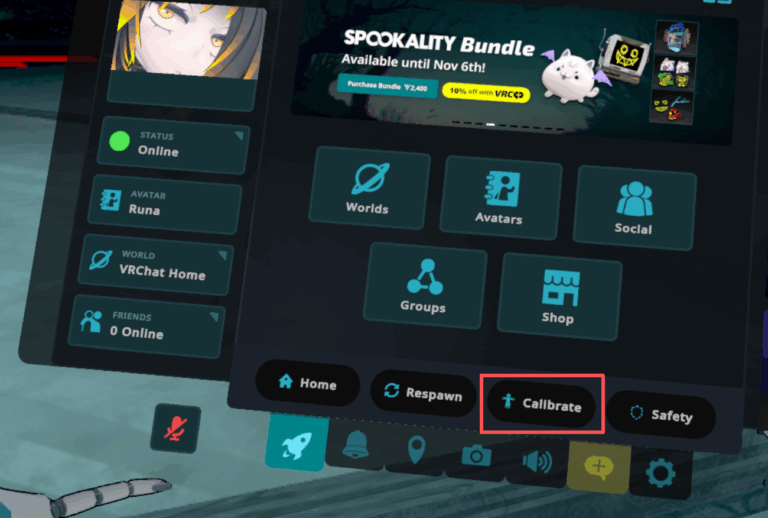
- Pull both controller triggers at the same time.
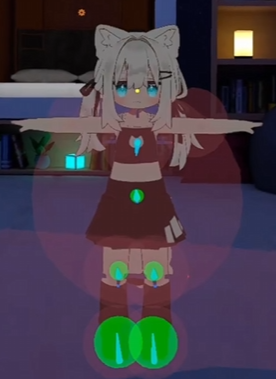
- Enjoy full-body tracking in VRChat! 🎉
⬅️ Previous: Download and Install · Next: Congratulations and What's Next ➡️