
Download and Install
Great — your trackers are out of the box and ready to wear. Now let's get Excap Studio installed, the drivers ready, and your trackers powered on. Follow the five steps below and you'll be up and running in just a few minutes. 🚀
Step 1: Download Excap Studio
- Go to the Downloads – Elecholic page.
- Download and run
Excap Studio.exeto install the software.
Step 2: Install the CH340 Driver
On the same Downloads page, download and install CH340.exe. Even if you already have a CH340 driver installed, please install this specific version to avoid compatibility problems caused by older driver versions.
⚠️ Warning: The driver is required for the USB dongle to communicate with your PC. If the dongle is not detected, the trackers will not appear in Excap Studio.
Step 3: Launch Excap Studio for the First Time
Double-click the Excap Studio shortcut to launch the application.
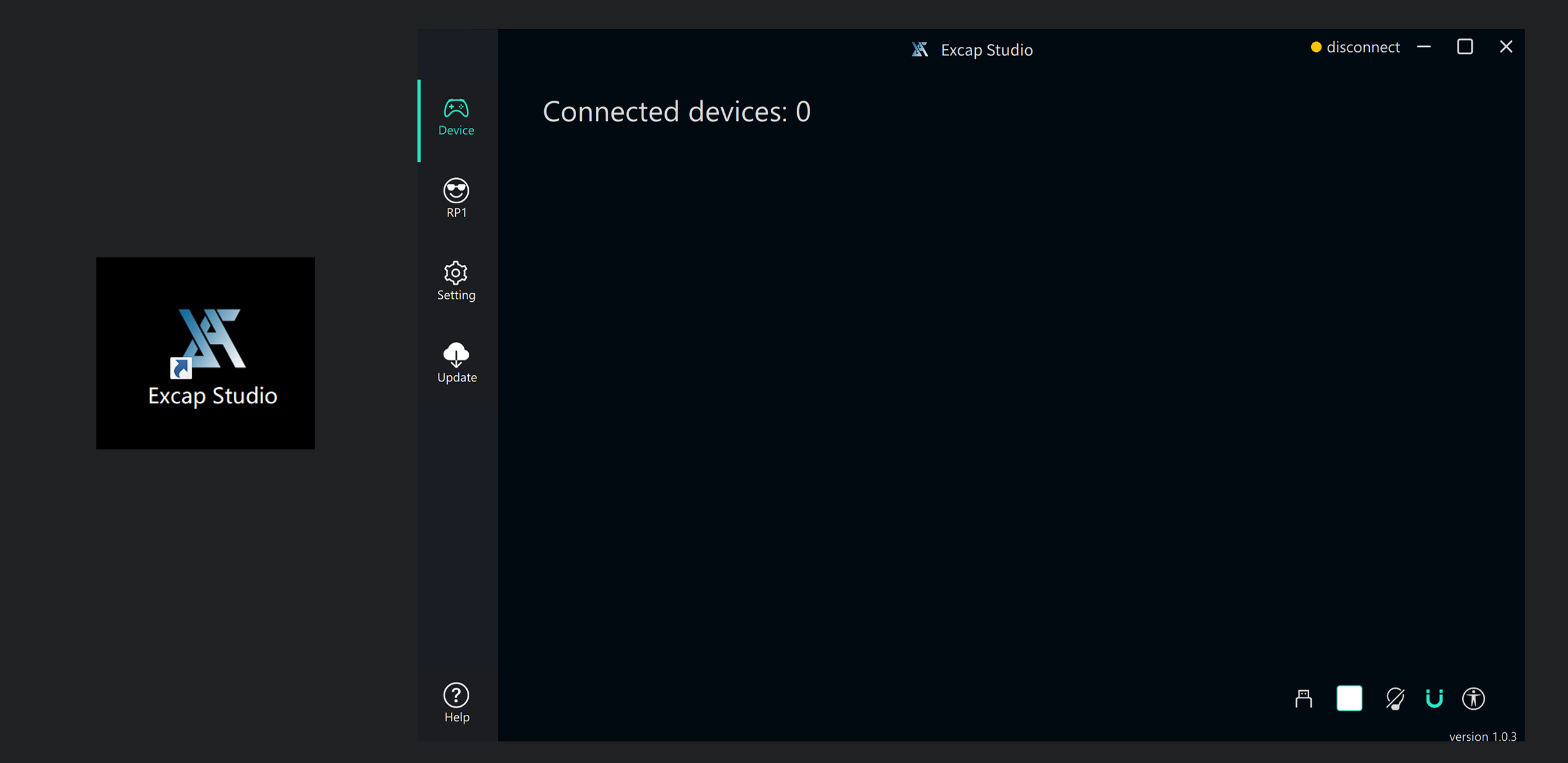
Excap Studio will automatically check whether the SteamVR driver and the Excap Link USB dongle driver are installed. If either is missing, the software will install it for you.
Step 4: Connect the USB Dongle
Plug the included USB dongle into your PC and check the device connection information in Excap Studio. If the dongle does not appear, go back to Step 2 and reinstall the CH340 driver.

💡 Tip: You can turn off every tracker at once by simply unplugging the USB dongle from the PC.
Step 5: Power On Your Trackers
- Wait until all 8 trackers are listed in the Excap Studio interface.
- Shake or tap a tracker and confirm that its entry in the device list highlights in response.
Basic Operation
| Action | How to do it |
|---|---|
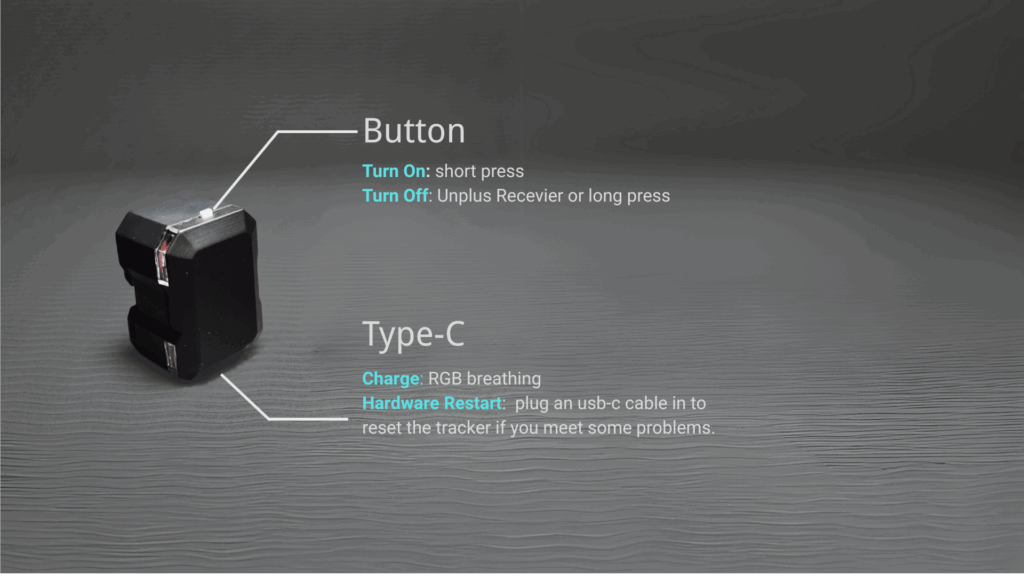
| Turn on | Short press the button |
| Turn off | Press and hold the button for 1 second, then release, or unplug the USB dongle |
| Charging | RGB light breathes |
| Fully charged | RGB light turns off |
⚠️ Warning: Pressing and holding a tracker button for 5 seconds puts it into pairing mode. Be careful to avoid accidental long presses.
⬅️ Previous: Unboxing · Next: Enter Game and Calibration ➡️