# Update firmware
Firmware updates use a direct USB connection. Update one device at a time and keep it connected until the app says the update is complete.
## Check the firmware versions
1. Open **Setting → About**.
2. Find the **Firmware** card. It shows the current and latest versions and whether connected devices are behind.
3. Click **Check Firmware Updates** and wait for the version check to finish.
4. Click **Update Firmware**.
## Update a Tracker
1. In the upgrade window, choose **Tracker Firmware**.
2. Connect the Tracker you want to update directly to the PC with a USB data cable. The app reads its Tracker ID and selects its COM port.
3. Check that the selected port names the Tracker ID you intend to update. If it does not appear, click **Refresh** after connecting it.
4. Click **Start Upgrade**.
5. Keep the Tracker connected. Do not unplug it or disconnect the USB cable while the progress screen is open.
6. When the app says **Upgrade Complete!**, disconnect and reconnect the Tracker, as the message instructs.
[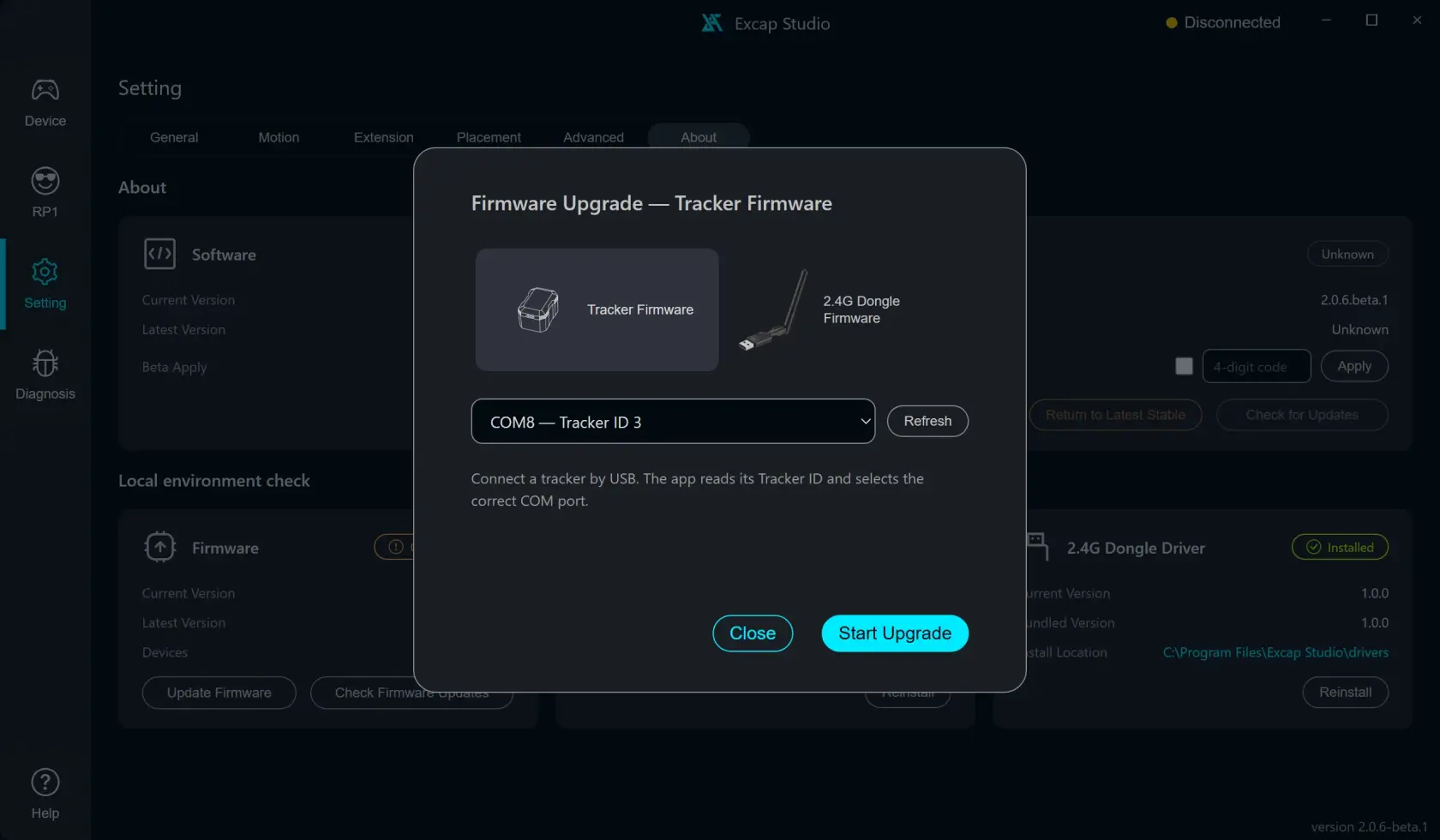](https://wiki.elecholic.tech/uploads/images/gallery/2026-10/scaled-1680-/img-047-webp.webp)Tracker firmware target with a scripted COM port and Tracker ID; no device is connected. · Open image at original size.[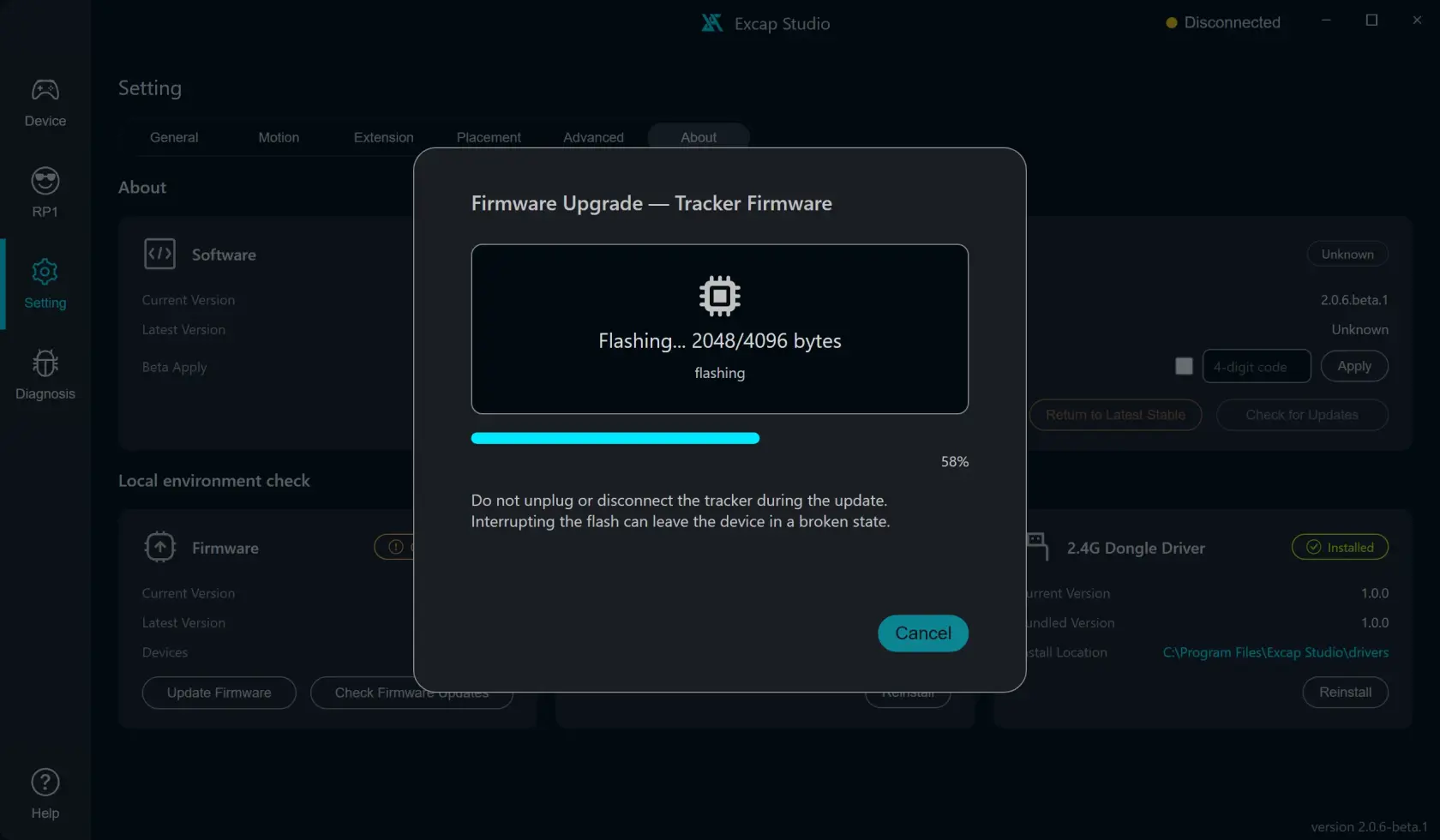](https://wiki.elecholic.tech/uploads/images/gallery/2026-10/scaled-1680-/img-048-webp.webp)Example firmware progress state. No firmware was downloaded or flashed. · Open image at original size.[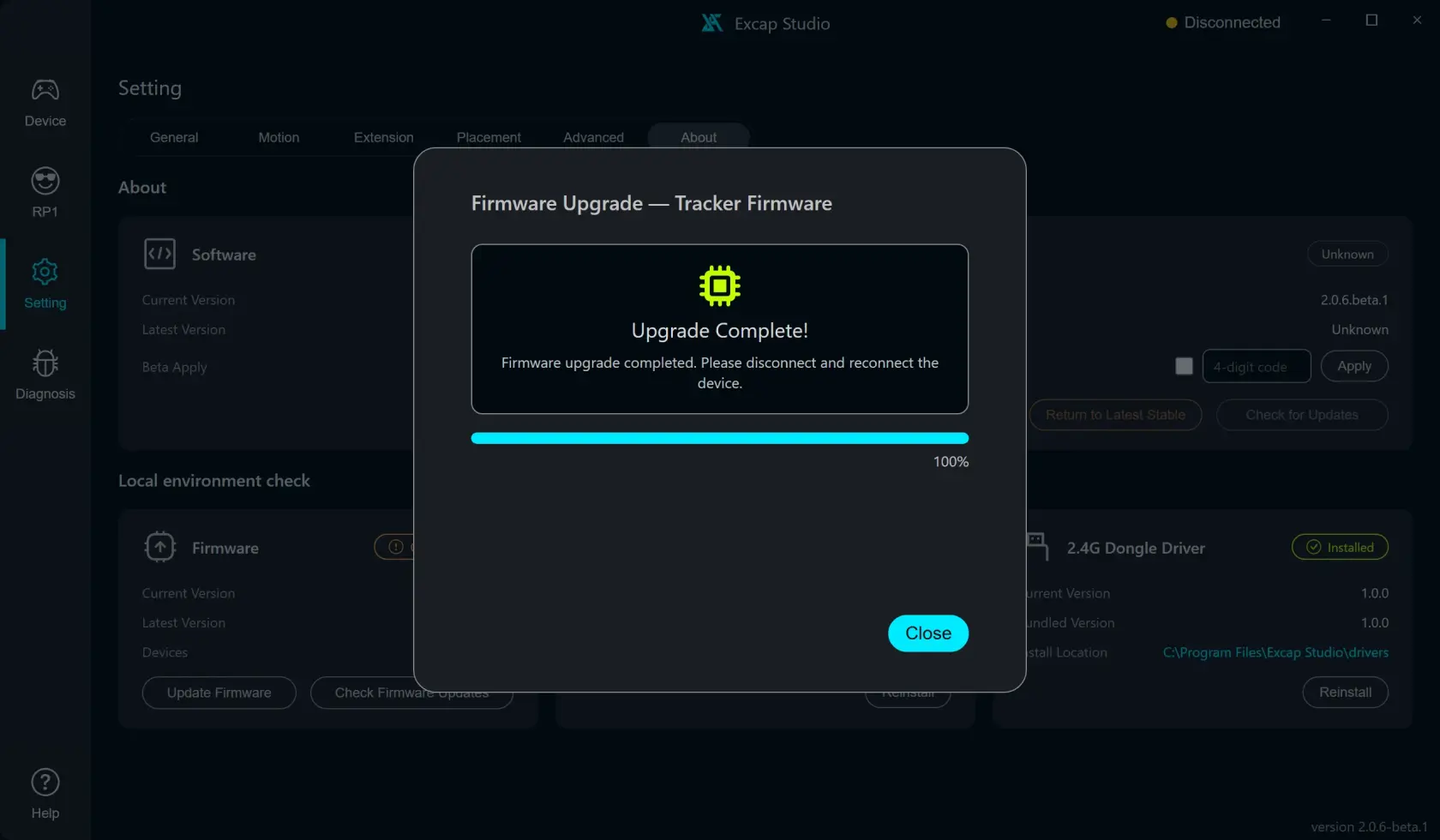](https://wiki.elecholic.tech/uploads/images/gallery/2026-10/scaled-1680-/img-049-webp.webp)Example Upgrade Complete state. No firmware was downloaded or flashed. · Open image at original size.The progress and completion pictures show scripted examples. No Tracker was flashed for these pictures.
## Update the 2.4G Dongle
1. In the upgrade window, choose **2.4G Dongle Firmware**.
2. Keep the Excap Link 2.4G Dongle connected to the PC. The app selects its COM port automatically.
3. If it is not listed, click **Refresh** and check the USB connection.
4. Click **Start Upgrade**.
5. Keep the Dongle connected until **Upgrade Complete!** appears.
6. Disconnect and reconnect the Dongle.
[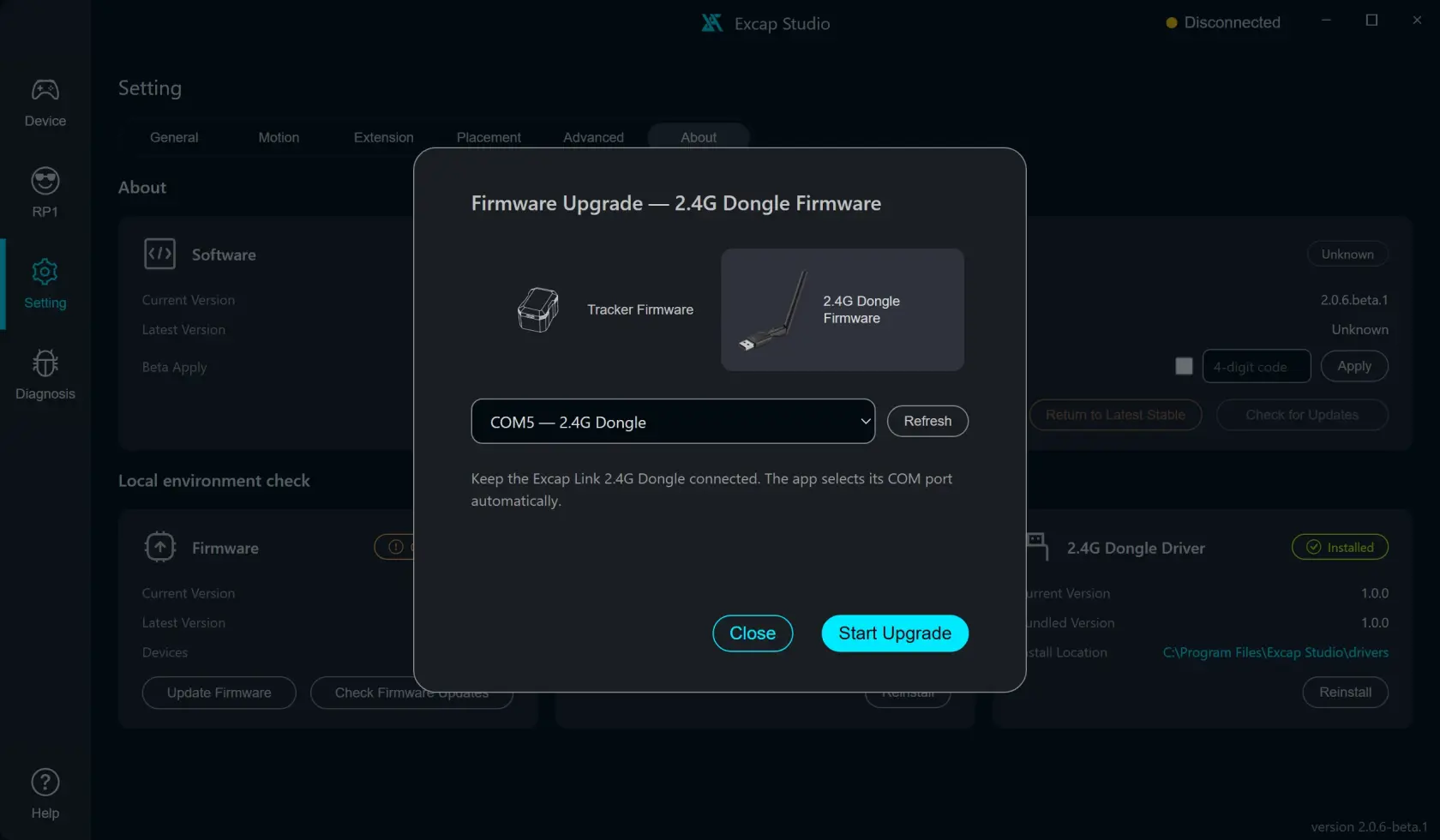](https://wiki.elecholic.tech/uploads/images/gallery/2026-10/scaled-1680-/img-050-webp.webp)2.4G Dongle firmware target with a scripted COM port; no device is connected. · Open image at original size.## If the port is missing or busy
- For a Tracker update, connect the Tracker directly to the PC, then click **Refresh**. For a Dongle update, check that the Excap Link Dongle is connected.
- Close any other program that may be using the USB serial port, such as a serial monitor, Arduino IDE, or another Excap instance. Then click **Refresh**.
- If the port still does not appear, open **Setting → About** and check **2.4G Dongle Driver** under **Local environment check**. The driver is included with Excap; you do not need a separate driver download. If the app says it is not detected, use its **Install** action, then click **Refresh** in the firmware window.
- If the error says no firmware URL is available, click **Check Firmware Updates** again. If it still fails, stop and contact support with the error message.
The update window disables interruption while firmware is being written. Wait for the result. If the update fails, reconnect the device and retry only after the app shows the device port again.