# Tracker controls and status
Open **Device** to see Trackers connected through the USB dongle. This page explains the settings for one Tracker and the controls above the device list.
[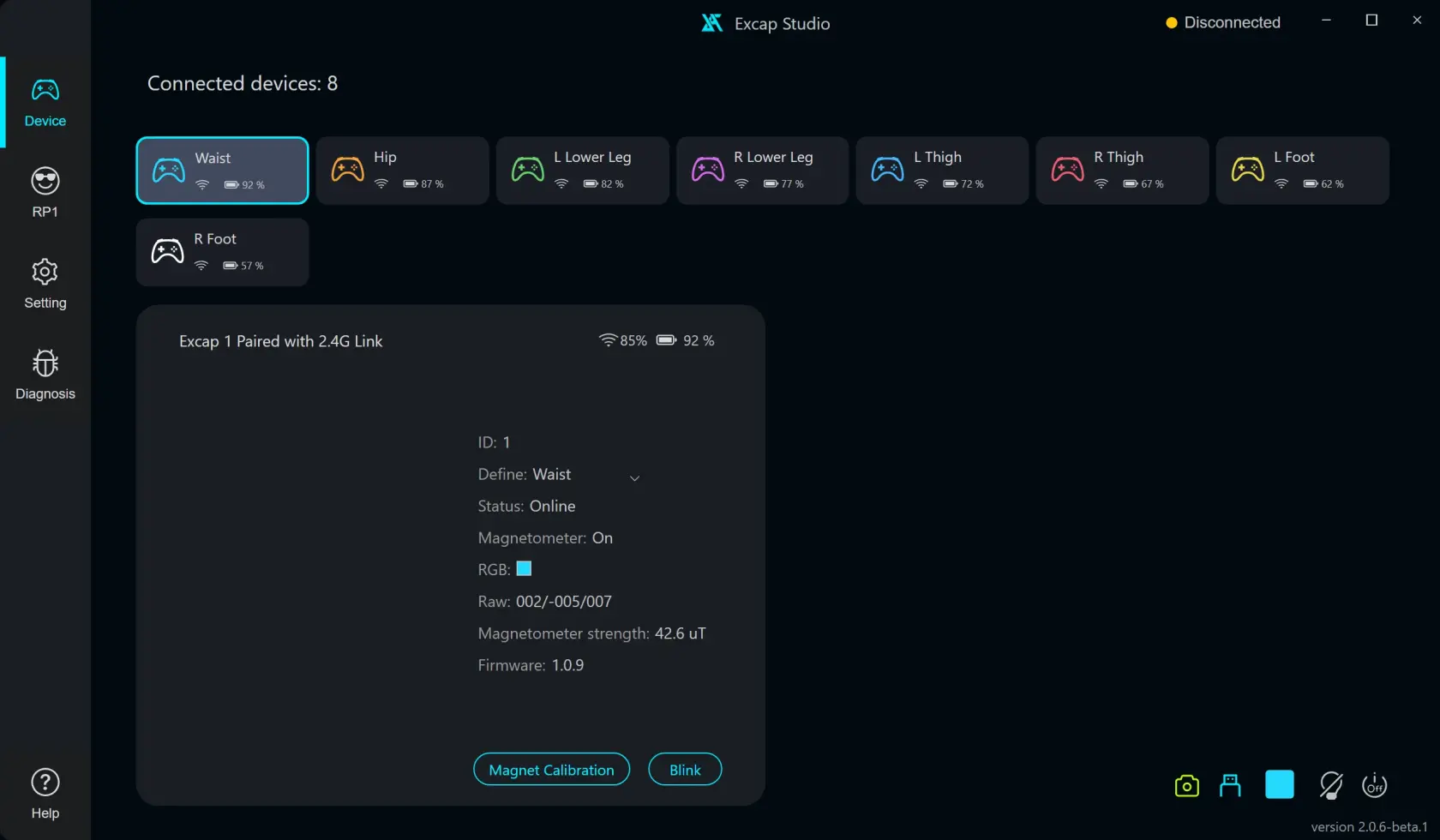](https://wiki.elecholic.tech/uploads/images/gallery/2026-10/scaled-1680-/5EZimg-024-webp.webp)Example Device page showing eight scripted Tracker cards and the selected Tracker details; not proof of live hardware. · Open image at original size.## Read one Tracker's details
1. Find its card in **Device**. The card shows its body-part label and online state.
2. Click the card to open its detail panel.
3. Read **ID**, **Define**, **Status**, **Magnetometer**, **RGB**, **Magnetometer strength** when available, and **Firmware**. Battery and signal are also shown with the card.
If its body-part label says **Null**, Excap has not assigned a body part yet. That does not mean the Tracker is broken. Use **Auto Joint Binding** from the Device right-click menu and choose the eight-Tracker layout.
The **ID** is a hardware ID. The current page has no custom nickname field. **Change ID** only appears when Excap detects duplicate IDs; it requires a wired USB maintenance flow. You do not need it for normal setup.
## Choose a color for one Tracker
1. Click a Tracker card.
2. In the detail panel, click its color button in the **RGB** row.
3. Click or drag in the large color area. Use the small hue slider to choose the color family.
4. Release to apply the selected color.
[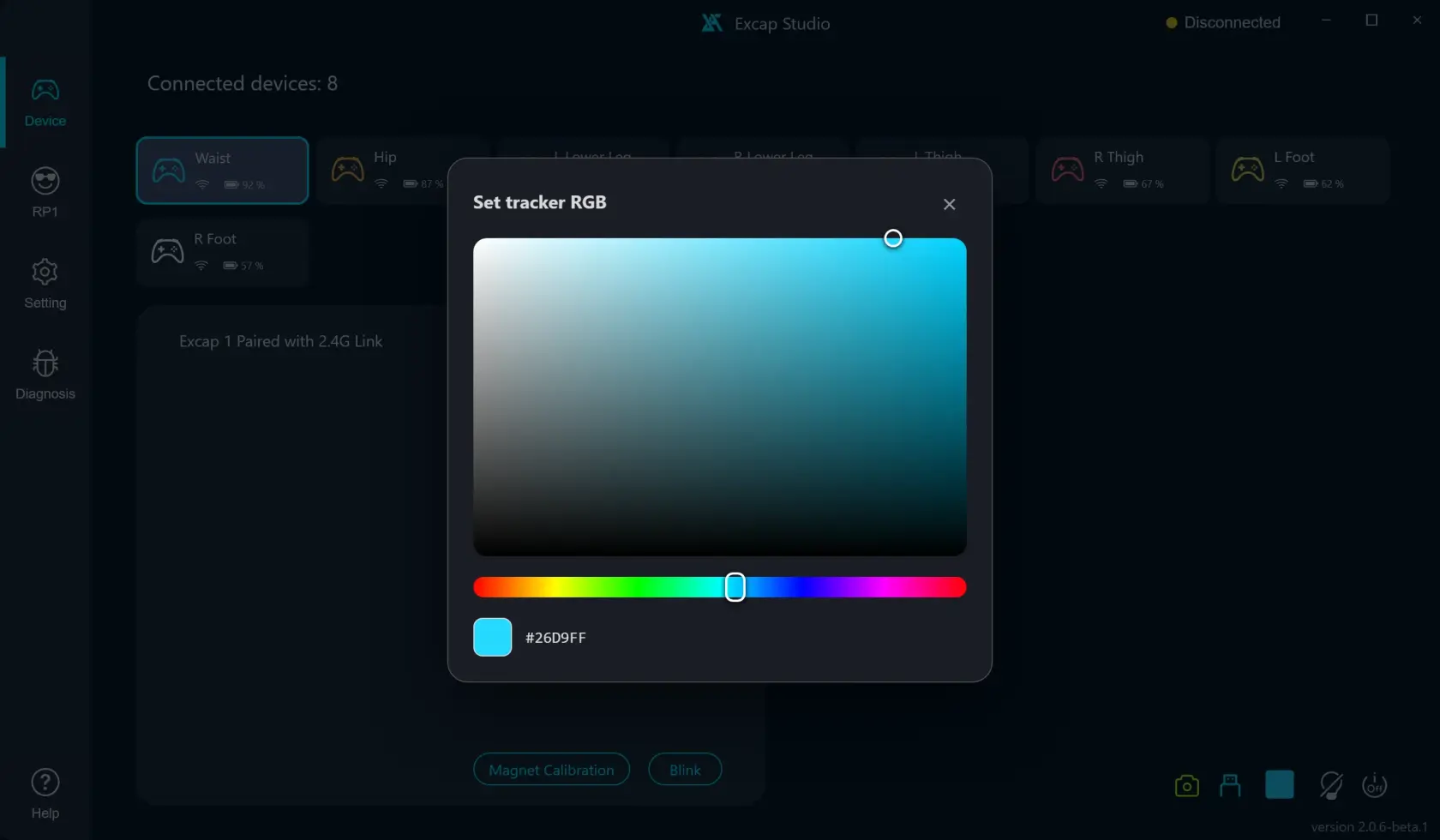](https://wiki.elecholic.tech/uploads/images/gallery/2026-10/scaled-1680-/img-035-webp.webp)Example individual Tracker RGB picker over a scripted Device screen; not proof of live hardware. · Open image at original size.The color appears on the connected Tracker. Excap saves the color to tracker hardware in the background. Keep the USB dongle connected while you change settings.
## Set or turn off every Tracker light
Use the color button at the top of Device to set the same color across Trackers. The light-bulb button next to it turns all Tracker lights off. These controls change LED color; they do not unassign or power off a Tracker.
[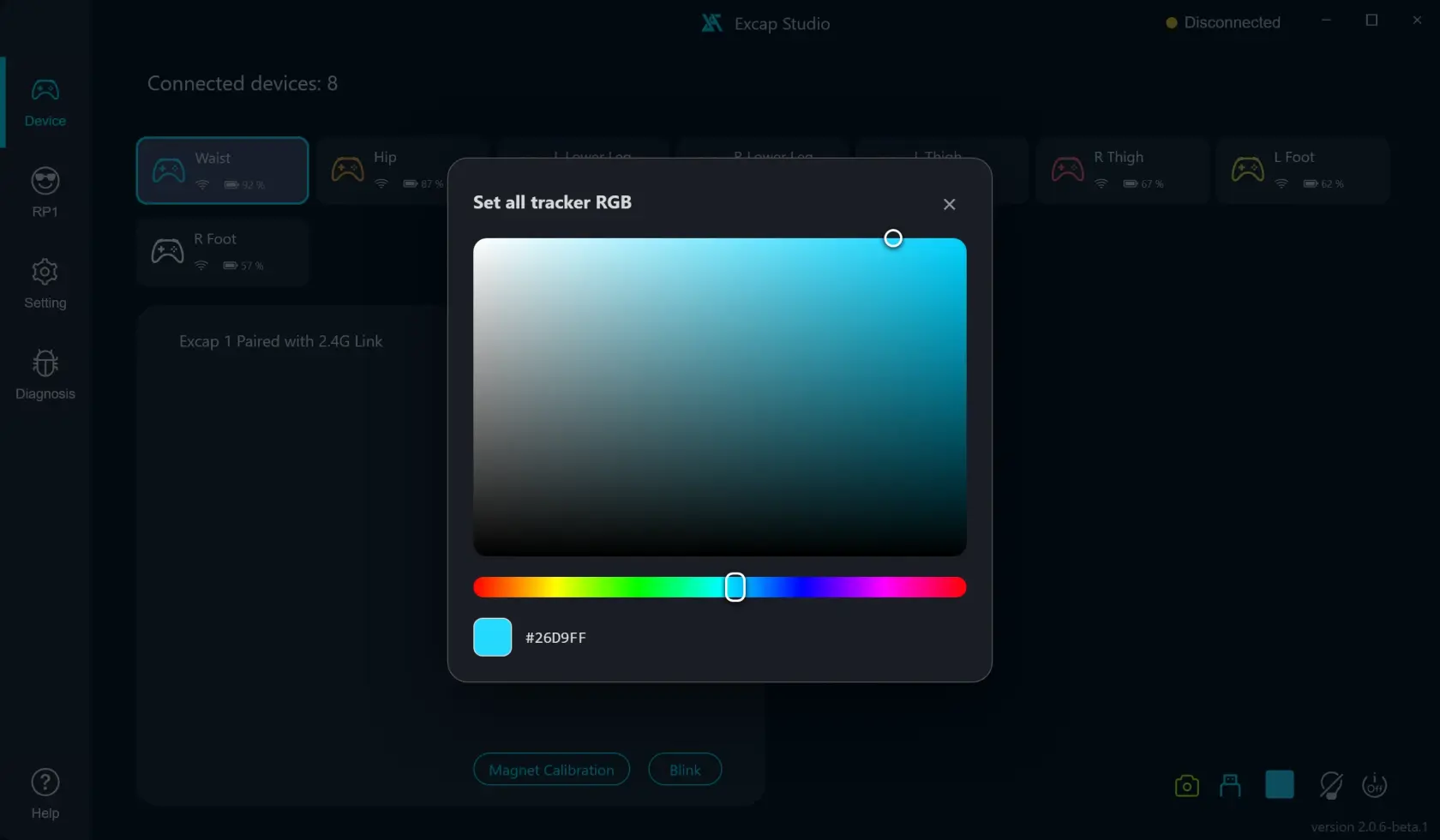](https://wiki.elecholic.tech/uploads/images/gallery/2026-10/scaled-1680-/img-025-webp.webp)Example all-Tracker RGB picker over a scripted Device screen; not proof of live hardware. · Open image at original size.When a connected camera uses the lights in Headset Mode, Waist or Hip and both lower-leg lights may turn green and other lights may turn off. The Tracker cards remain the source for checking online status. Excap restores your configured colors when the camera visual mode stops.
## Identify a Tracker with Blink
Click a card, then click **Blink** in its detail panel. The light flashes so you can match that card to the Tracker in your hand. Blink is unavailable when that Tracker is offline.
## See all the device controls
The buttons above Device also include the camera state, 2.4G dongle state, RGB controls and **Power Off Trackers**. Use **Power Off Trackers** when you finish a session. It sends a power-off signal to the connected Trackers as a group. It does not delete their saved records.
For a picture guide to the **Device** right-click menu, eight-Tracker binding, and RP1 manual binding, see [Device shortcuts and joint binding](https://wiki.elecholic.tech/books/excap-beginner-guide/page/device-shortcuts-and-joint-binding).
The app also has rotating **You know what?** tips. Turn **Tips** on in **Setting → General**. Tips appear by themselves for a short time; treat them as reminders, not as a setup checklist.
The app also has rotating **You know what?** tips. Turn **Tips** on in **Setting → General**. Tips appear by themselves for a short time; treat them as reminders, not as a setup checklist.
### Current interface facts to remember
- Change the **Define** body-part assignment in the selected Tracker detail or in the wearing-plan dialog.
- The current Device page shows a hardware ID; it does not rename each Tracker.
- There is no manual **Save All Settings** button. Excap saves LED and magnetometer hardware settings automatically when the receiver is available; an offline receiver can delay synchronization.
For the body-relative facing direction, see [Tracker placement](https://wiki.elecholic.tech/books/excap-beginner-guide/page/tracker-placement). For magnetometer calibration, see [Magnetometer calibration](https://wiki.elecholic.tech/books/excap-beginner-guide/page/magnetometer-calibration). For vibration, see [Haptics and vibration](https://wiki.elecholic.tech/books/excap-beginner-guide/page/haptics-and-vibration).