# Report a problem
Excap has two different feedback paths:
- Use **Help → Feedback** for a suggestion or general comment.
- Use the **Bug** button on the lower-right of **RP1** when a specific tracking problem happens.
## Method 1: send a diagnostic problem report
### 0. Check Diagnostic recording and saved/upload state
Open **Setting → General** and find **Diagnostic recording**. Check whether recording is enabled and whether **Saved diagnostic reports** contains an earlier report waiting to upload.
[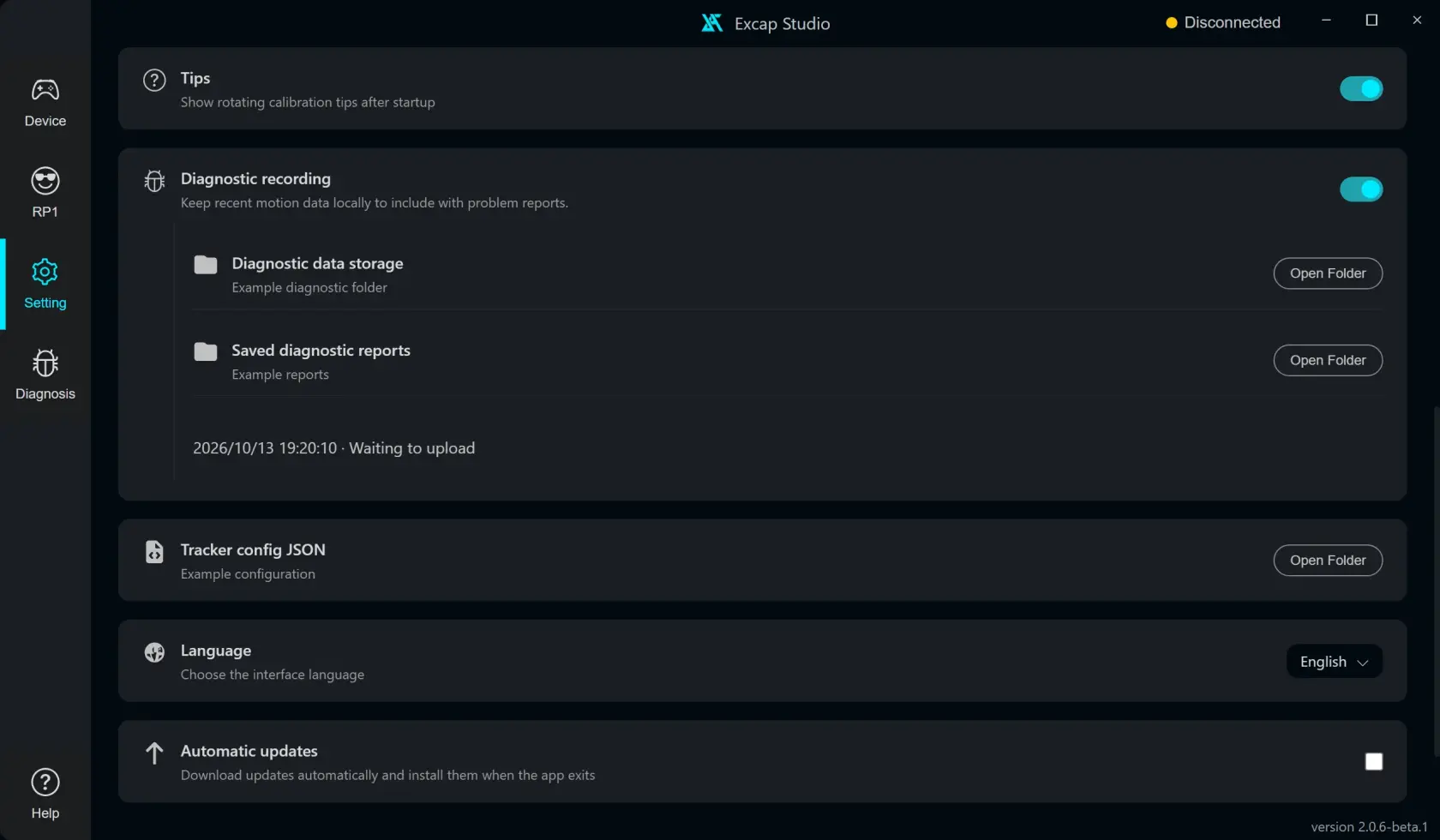](https://wiki.elecholic.tech/uploads/images/gallery/2026-10/scaled-1680-/img-065-webp.webp)Diagnostic recording storage and a saved report in Waiting to upload state; fixture data, no real report uploaded. · Open image at original size.### 1. Enable Diagnostic recording once
1. Open **Setting → General**.
2. Find **Diagnostic recording**.
3. Read the terms and choose **Agree and enable**.
[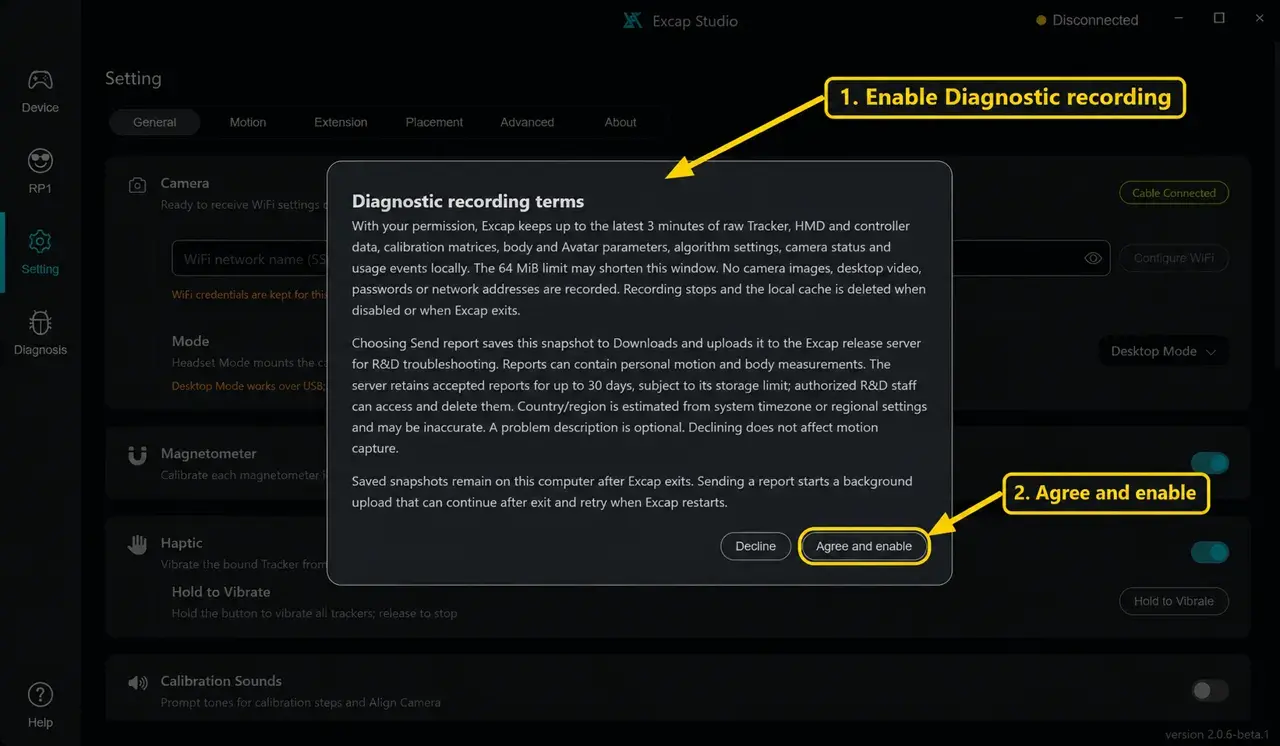](https://wiki.elecholic.tech/uploads/images/gallery/2026-10/scaled-1680-/img-062-webp.webp)Annotated Diagnostic recording terms: enable recording, review the terms, then choose Agree and enable; fixture state, no consent submitted. · Open image at original size.With your permission, Excap keeps up to the latest three minutes of Tracker, HMD and controller data, calibration data, body and Avatar settings, algorithm settings, camera status and usage events. It does not record camera images, desktop video, passwords or network addresses. The snapshot is kept locally after Excap closes. Sending a report uploads it for R&D troubleshooting; the terms shown by the app explain retention and access.
If you choose **Decline**, tracking still works, but the RP1 Bug button stays hidden.
### 2. Click Bug when the problem happens
1. Leave the problem visible if it is safe to do so.
2. Open **RP1** and click the **Bug** icon in the lower-right corner.
[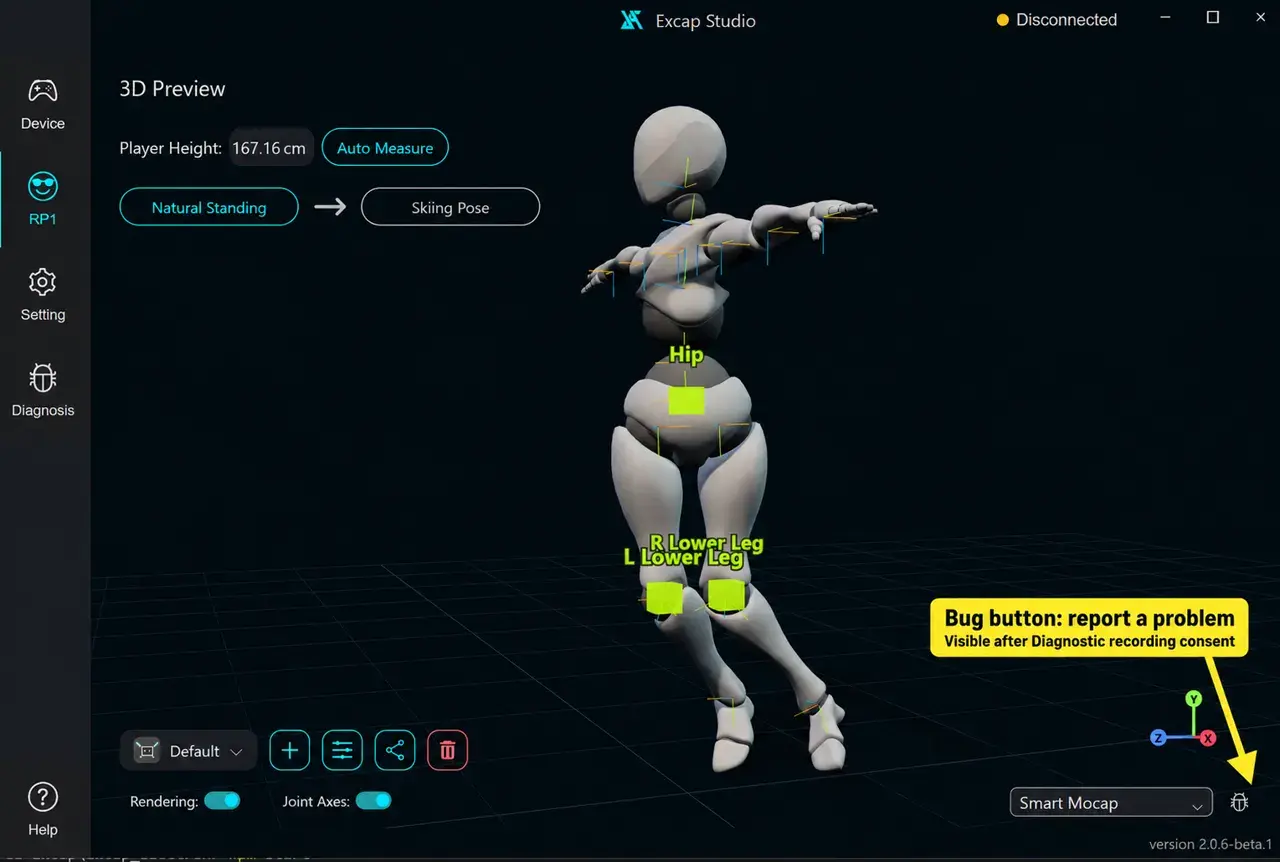](https://wiki.elecholic.tech/uploads/images/gallery/2026-10/scaled-1680-/img-061-webp.webp)RP1 screenshot with the lower-right Bug button annotated; the button appears after Diagnostic recording consent. · Open image at original size.The Bug icon is beside the **Mocap** selector. It appears only after Diagnostic recording is enabled.
### 3. Describe and send the problem
Choose the closest tags, such as **Tracking lost**, **Drift / rotation**, **Camera calibration**, or **Wrong position**. Write what you were doing, the last step that worked and what changed just before the problem. Then click **Send report**.
[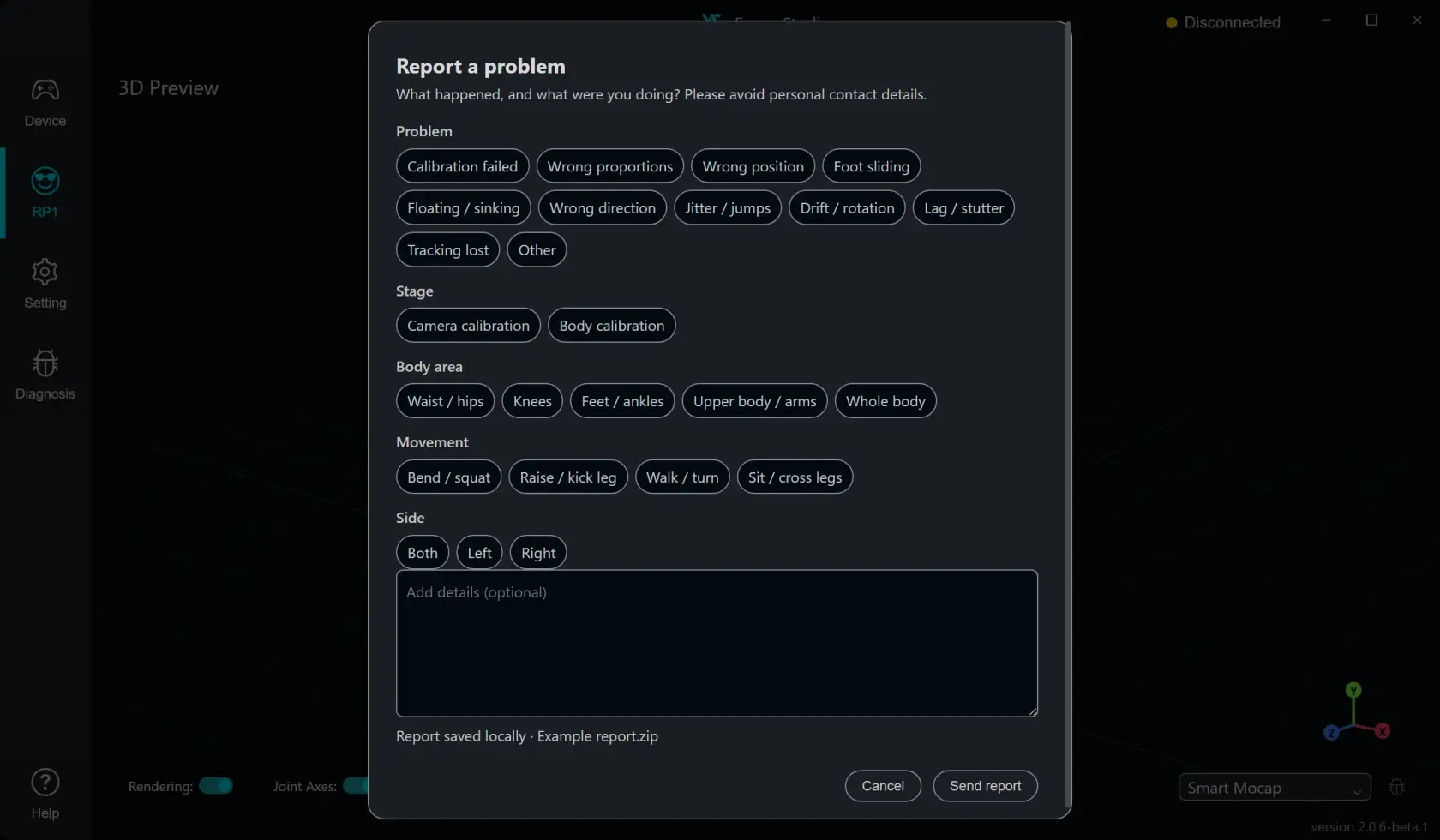](https://wiki.elecholic.tech/uploads/images/gallery/2026-10/scaled-1680-/img-063-webp.webp)Report a problem dialog with tags, optional details and Send report; fixture data, no report submitted. · Open image at original size.After clicking **Send report**, return to Step 0 to confirm that the report was sent or is safely waiting to upload.
Do not put Wi-Fi passwords, personal contact details, or other private information in the description. If the upload cannot start, retry it from **Setting → General → Saved diagnostic reports**.
## Method 2: send general feedback
Open **Help** at the lower-left, then choose **Feedback**.
[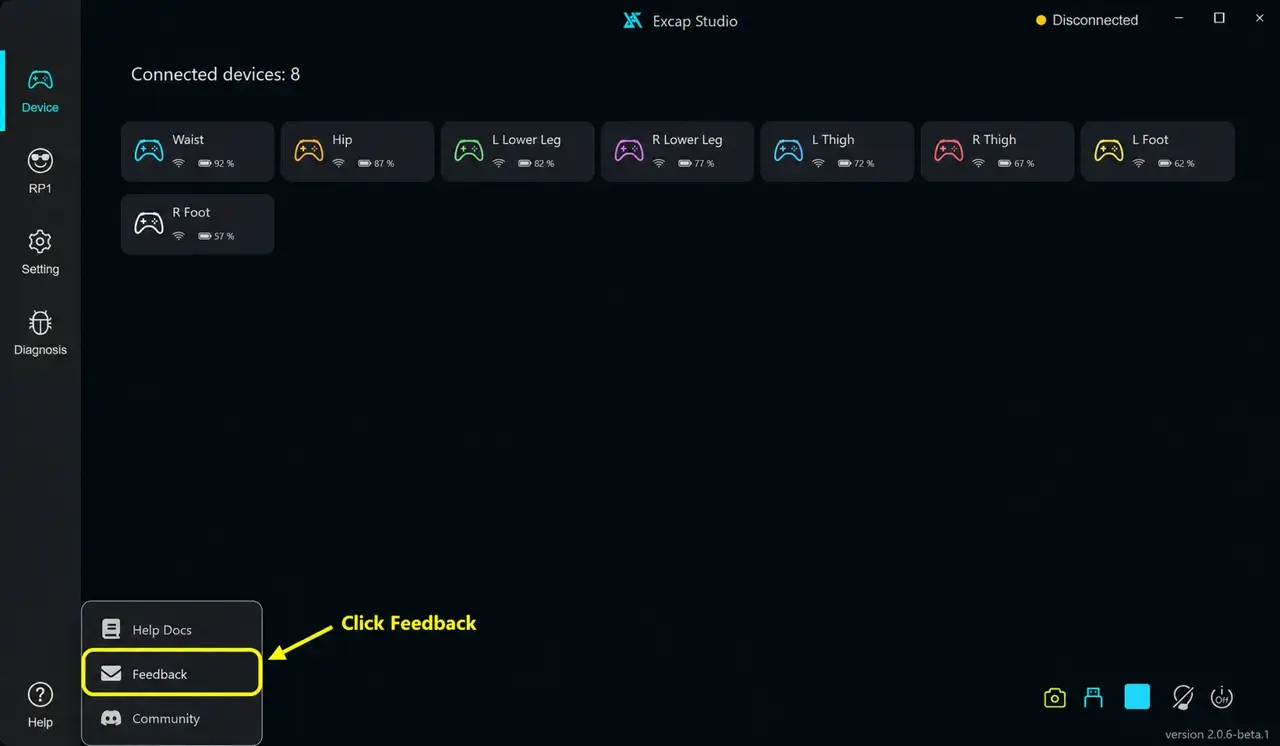](https://wiki.elecholic.tech/uploads/images/gallery/2026-10/scaled-1680-/img-064-webp.webp)Annotated Help menu with the Feedback row highlighted; fixture state. · Open image at original size.The Feedback window accepts a written message, optional contact information and up to four images. Use it for ideas, feature requests, documentation comments or anything that does not need motion diagnostics.
[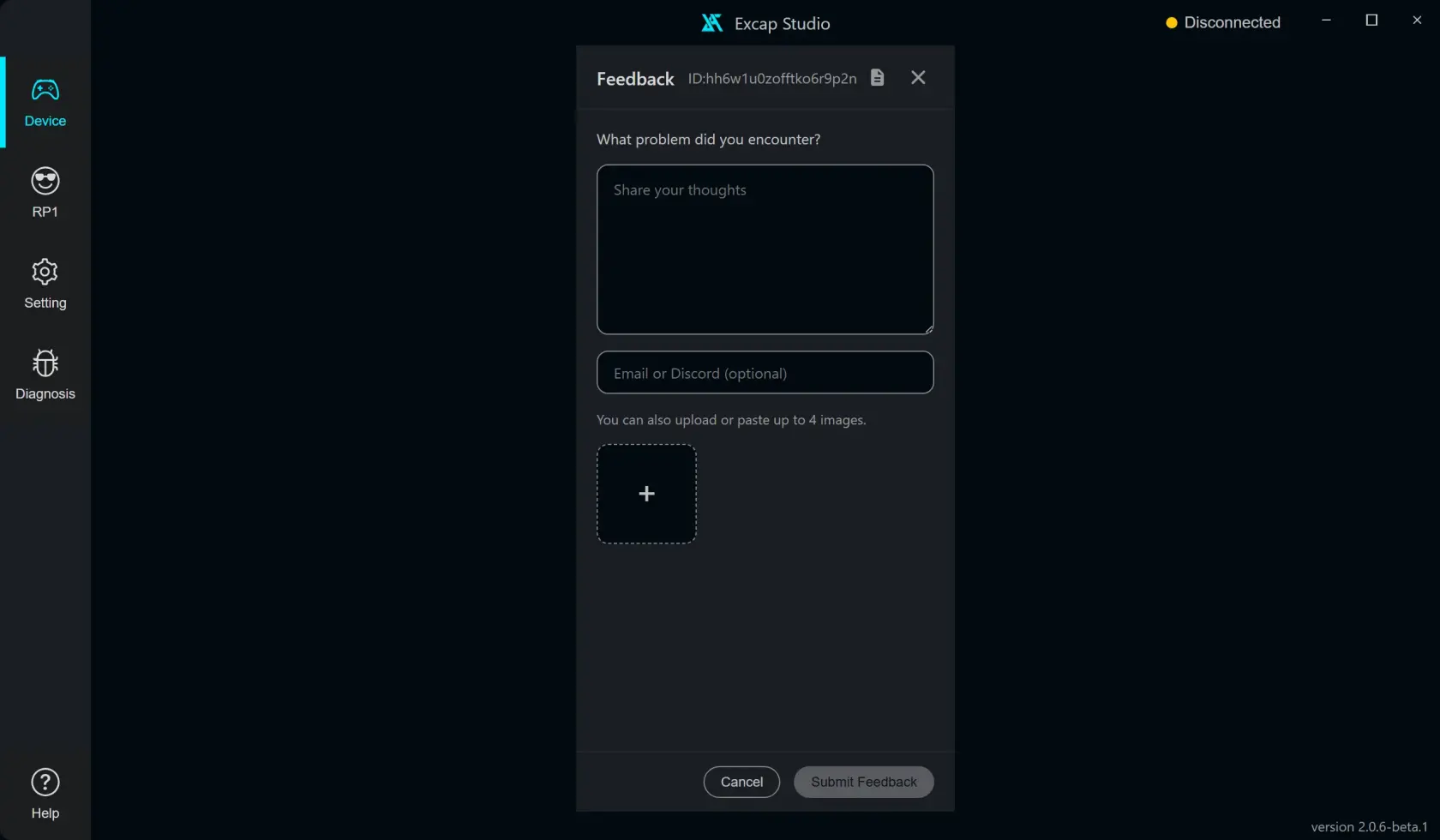](https://wiki.elecholic.tech/uploads/images/gallery/2026-10/scaled-1680-/img-067-webp.webp)Feedback window with message, optional contact and image attachment fields; fixture state, no feedback submitted. · Open image at original size.Write the message first; **Submit Feedback** becomes available after the text field is no longer empty. Adding an email or Discord name is optional.
For a short report, use this pattern:
> I was doing **\[step\]**. The last thing that worked was **\[check\]**. Then I saw **\[message/result\]**. It happened **\[once/every time\]** after **\[change, if any\]**.