Pair Trackers
If all your Trackers already appear online in Device, skip this page. Pairing is for a new or replacement Tracker, or for fixing a Tracker that needs a different channel.
Keep the Excap Link 2.4G Dongle connected to the PC during pairing. The app connects each Tracker to the PC by USB, one at a time.
Choose the right pairing mode
- Open Device and right-click an empty part of the page.
- Choose Wire Pair Trackers.
- Read the three choices before pressing Next.
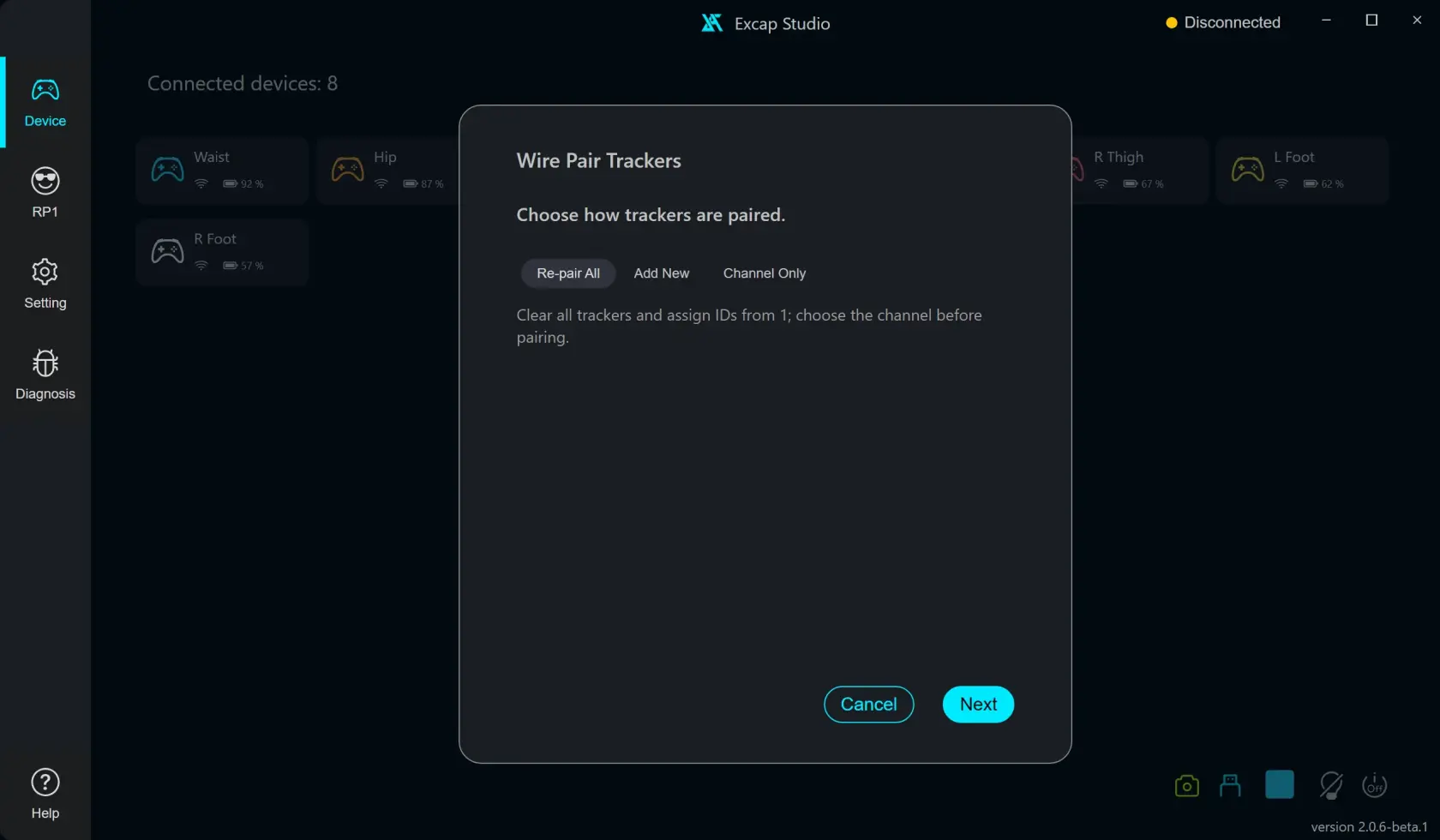
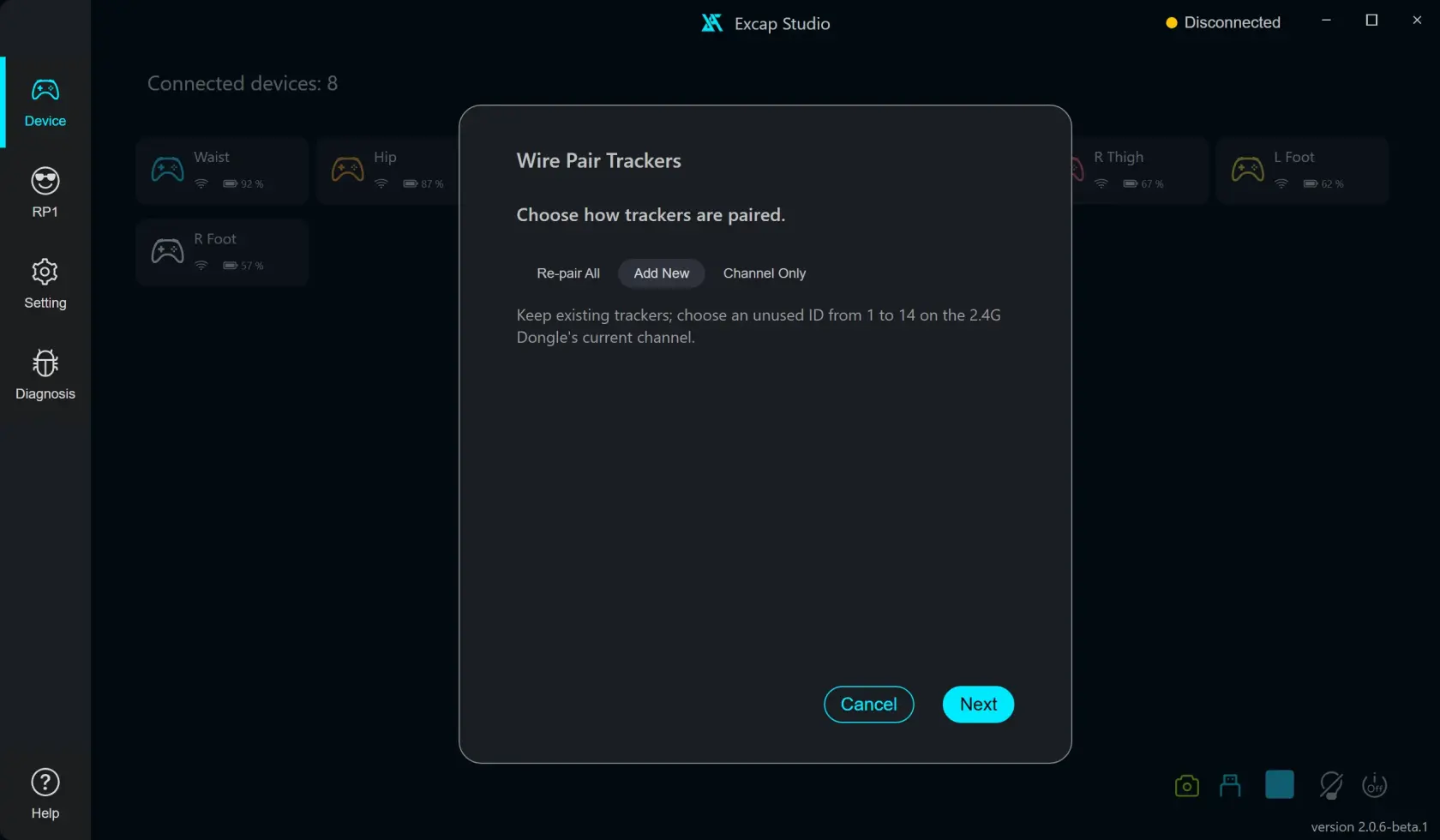
- Add New keeps existing Trackers and their IDs. Choose this when adding or replacing Trackers. It uses the Dongle's current channel and assigns an unused ID from 1 to 14.
- Channel Only keeps every Tracker ID and changes the channel. Use it only when you intend to move the Dongle and the Trackers you connect through this flow to another channel. Trackers left on another channel will not connect.
- Re-pair All clears all Tracker records from Excap and assigns IDs again starting at 1. Use this only when you mean to rebuild the whole set. You must pair every Tracker again, bind them again, and redo pose calibration afterward.
For a normal new or replacement Tracker, choose Add New. Re-pair All is selected when the dialog first opens, so check the choice before continuing.
Pick a channel when asked
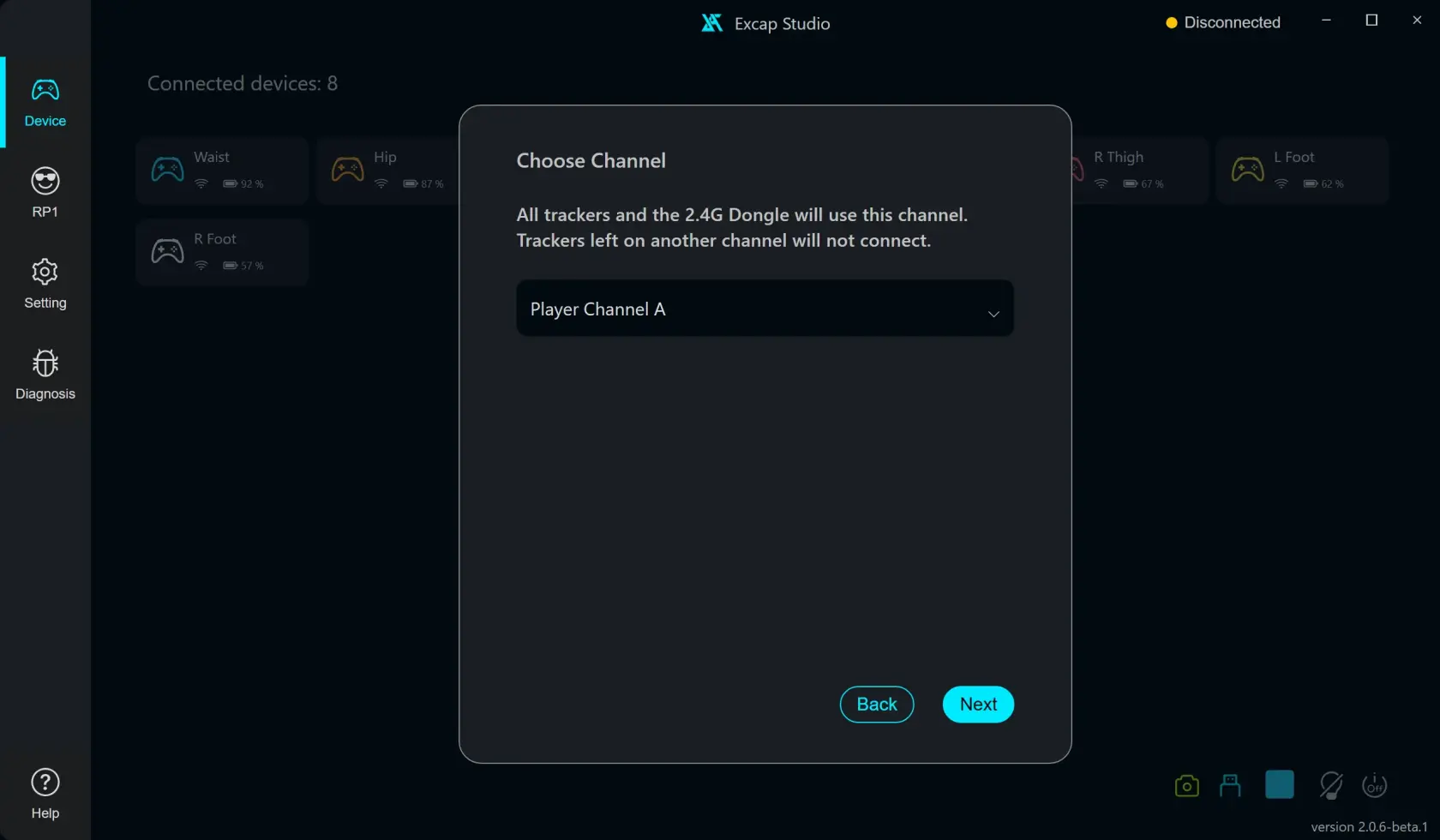
Re-pair All and Channel Only open the channel step. Choose Player Channel A, B, or C. The selected channel is used by the Dongle and each Tracker you pair. Trackers left on a different channel will not connect.
Add New skips this step and uses the Dongle's current channel.
Connect and pair each Tracker
- Click Next to start scanning.
- Connect one Tracker to the PC with its USB data cable. Keep the Dongle connected too.
- Wait for the app to read the Tracker ID and channel.
- Check the ID shown by the app. With Add New, leave the recommended unused ID selected unless you have a reason to choose another free ID.
- Click Pair this tracker and wait for the success message.
- Unplug that Tracker, then click Pair next tracker to connect another one. Repeat until every Tracker you intend to pair is listed.
- Click Finish & Exit, review the summary, then click Done.
If no Tracker is found within two minutes, check that the Dongle is online, connect the Tracker directly to the PC with a data-capable USB cable, and click Retry. If pairing fails while another program is using the USB serial port, close that program and try again.
After pairing, return to Device and check that the Tracker appears online. If you used Re-pair All, run Auto Joint Binding again and redo Natural Standing and Skiing Pose.