Headset Mode camera setup
Headset Mode attaches the supplied camera to your headset and uses 2.4 GHz Wi-Fi to send the view to Excap. It is the camera mode used by the first-success guide.
1. Connect the camera to your PC over USB
Use the camera's USB data cable. Open Setting → General → Camera and wait for Cable Connected.
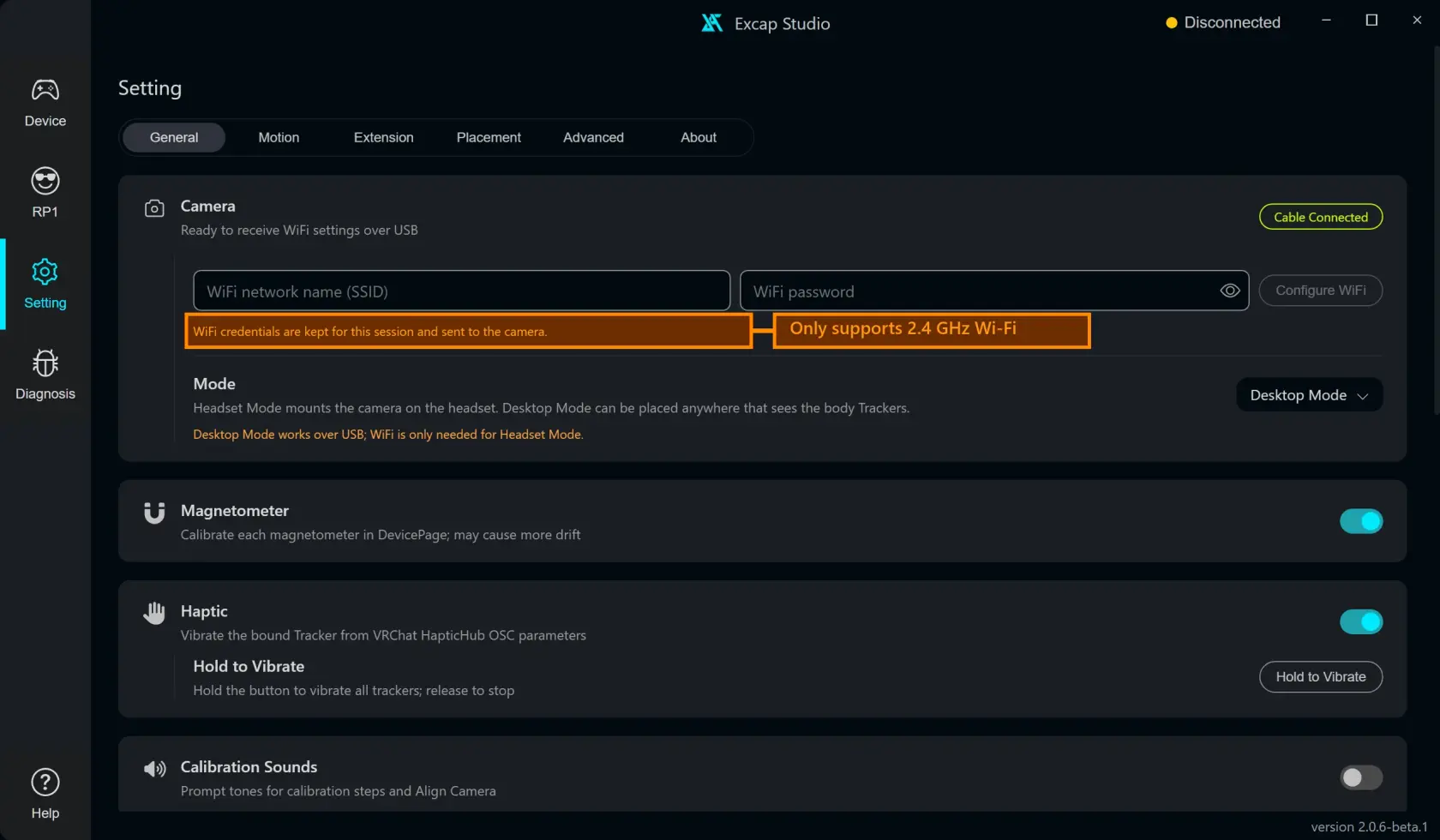
Ready when: the camera status says Cable Connected. This means the app can send the Wi-Fi setup; it does not mean the wireless setup has completed.
2. Select Headset Mode and send 2.4 GHz details
- Select Headset Mode in the Mode menu.
- Select the router's 2.4 GHz network. Check its displayed band before continuing.
- Enter its Wi-Fi password if needed.
- Click Configure WiFi.
Ready when: Excap says Camera WiFi settings sent. Wait until the camera later shows Wi-Fi Online before assuming it joined the network.
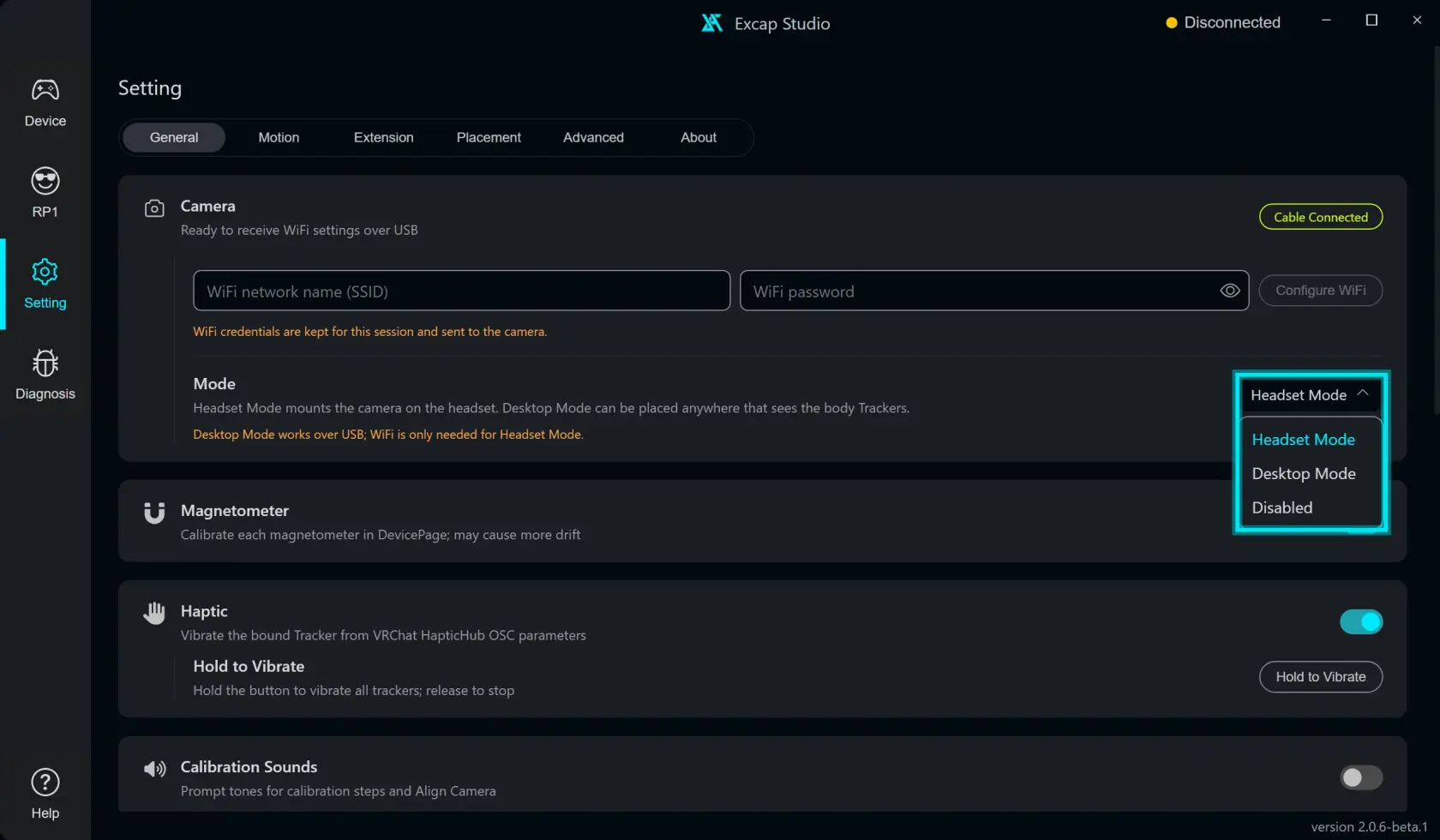
If the PC is connected to a 5 / 6 GHz-only network, do not use that network for this camera. Choose a 2.4 GHz network instead. The current app does not prevent an unsupported band from being sent.
3. Mount the camera and power it
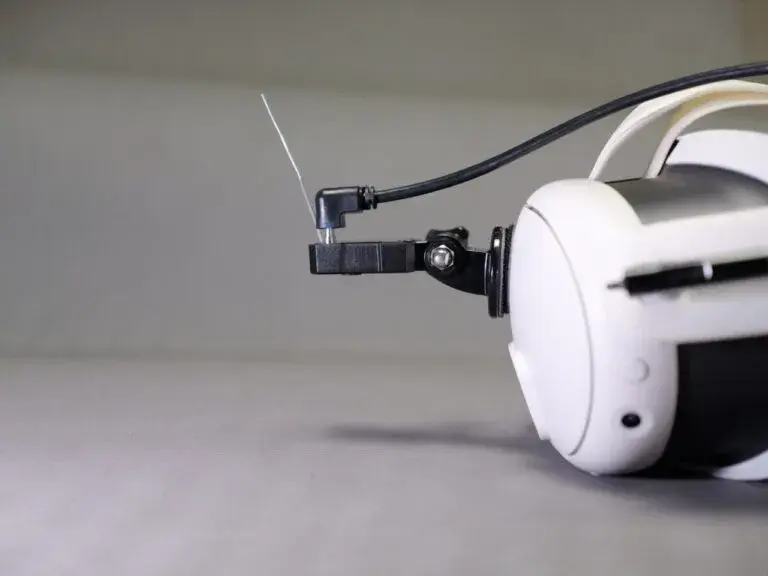
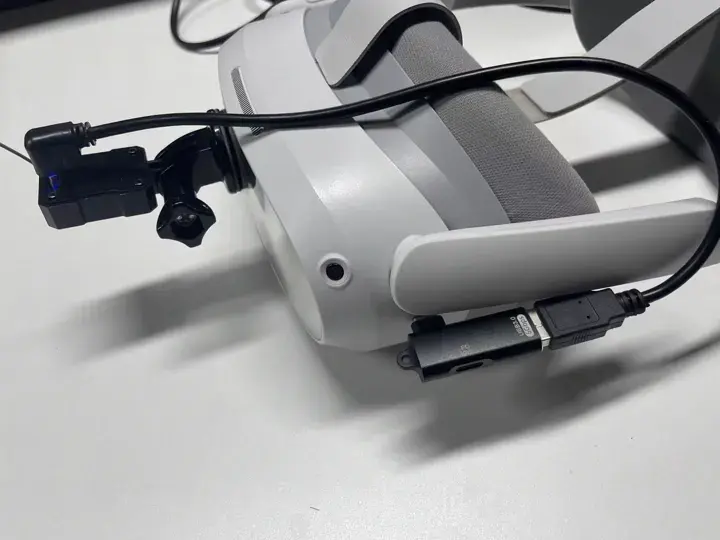
Disconnect the temporary PC setup cable. Fit the camera to the headset with the supplied mount. Route the camera cable along the mount, then connect the other end to the power source specified for your kit.
The first picture shows where the cable plugs into the camera. The second picture shows the cable routed to the USB adapter attached to the headset. Do not use the temporary PC setup cable for this powered HMD connection.
Ready when: the status changes to Wi-Fi Online. If it stays offline, check that the camera has power and was given the 2.4 GHz network details.
4. Check the body marker lights
Open RP1 → Camera View. Aim the headset camera toward the front of your body. Move slightly so you can tell whether the points move.
Ready when: Camera View shows marker groups labeled Waist or Hip, L Lower Leg, and R Lower Leg. This view displays detected light points and connecting lines; it is not a regular webcam picture.
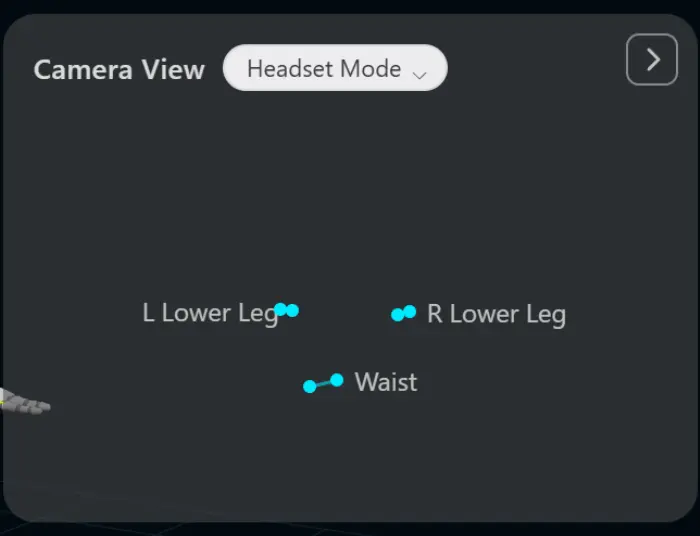
Keep the Trackers on your body front with buttons facing up. When HMD Mode connects successfully, the Tracker assigned to Waist or Hip and both lower-leg Trackers turn green; the Chest, thigh and foot Tracker lights turn off. This is normal light selection for camera markers, not a Tracker disconnection. The eight-point layout uses either Waist or Hip, never both. Check the Device cards for the real connection state.
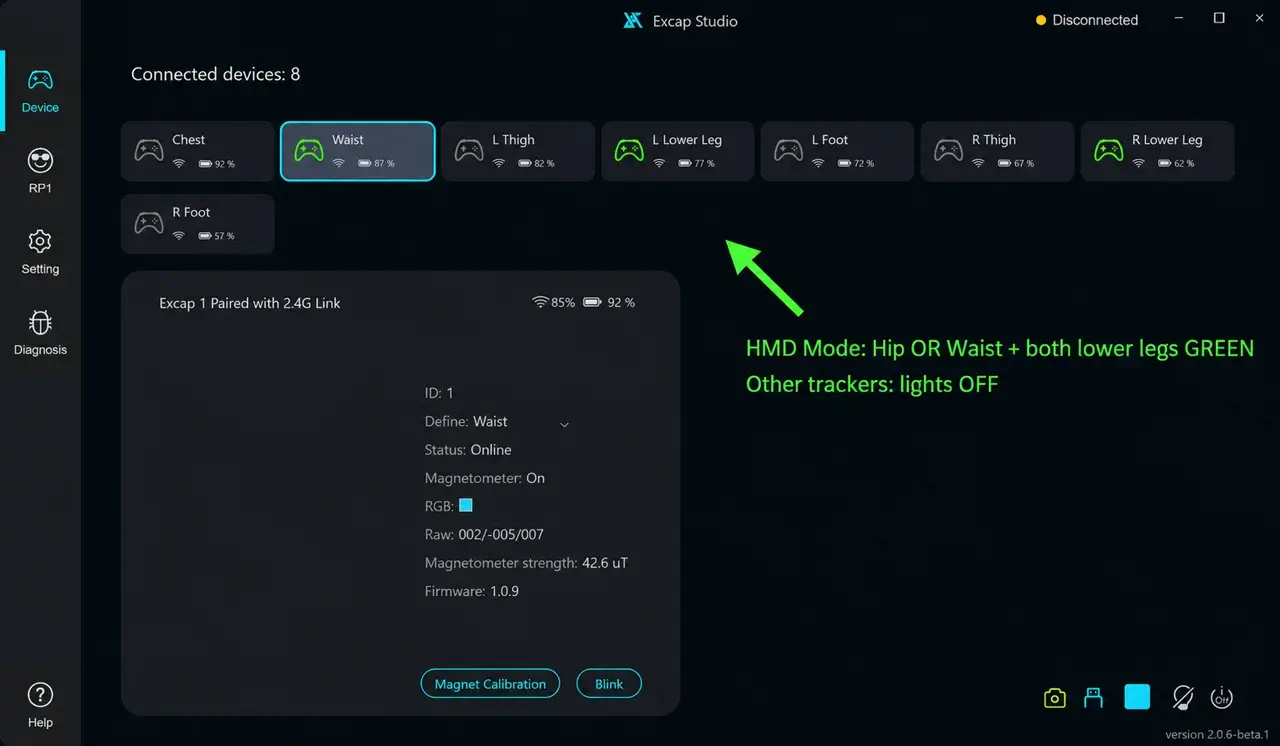
If the camera disconnects, the other Tracker lights return. Recheck Wi-Fi Online and the front-facing Waist/Hip and lower-leg placement before treating the light change as a fault.
5. Let camera correction start, or align it manually
Once Natural Standing is calibrated and fresh marker points are visible, Headset Mode can begin camera yaw correction automatically.
Align Camera is a separate manual adjustment. Use it when you intentionally want to record a camera reference:
- Make sure the headset is online and Natural Standing and Skiing Pose are complete.
- Keep a Waist/Hip or lower-leg marker visible.
- In RP1, select ALIGN CAMERA.
- Copy the C-Pose picture and hold still during the four-second count.
Ready when: Excap reports Camera aligned. Manual alignment needs a connected camera and a fresh Waist/Hip or lower-leg Tracker. If it fails, first confirm the markers and pose calibrations.
The normal camera workflow and manual reference step are different. Do not treat Wi-Fi Online as a camera-alignment result.
Issues found while exploring
- The camera connects over USB, sends settings, then streams over Wi-Fi. The app shows these as separate states, but its Wi-Fi picker still allows unsupported 5 / 6 GHz selections.
- The supplied mount photograph shows the cable entering the camera, but not the cable's far end or a powered light/status. The power-source step needs a photo of the actual accessory included with the kit.