# Device shortcuts and joint binding
Use this page when you want Excap to assign body parts to the Trackers, or when you need one of the extra Device-page shortcuts.
## Open the right-click menu
1. Open **Device**.
2. Right-click an open area of the page.
3. Choose the shortcut you need.
[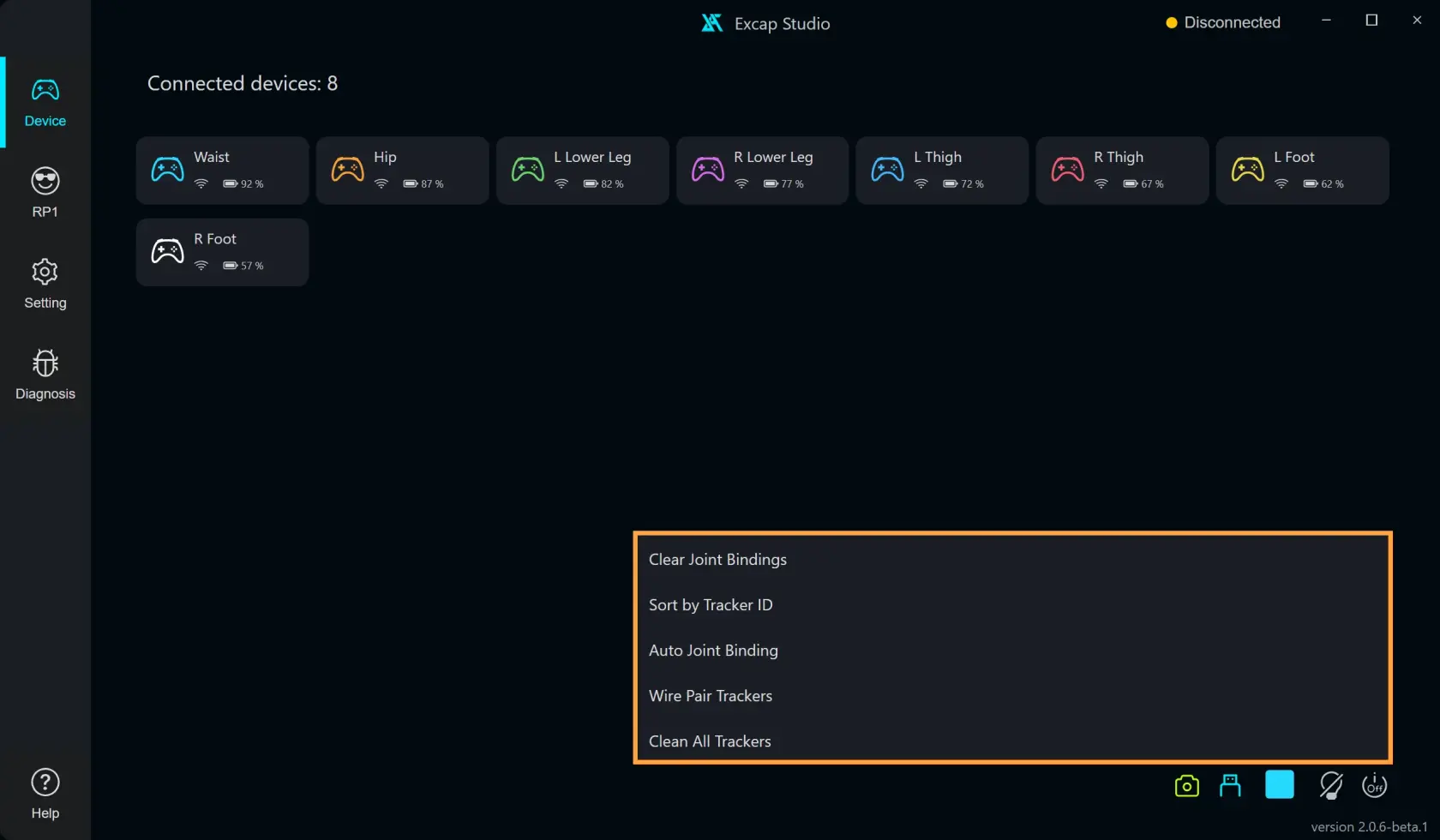](https://wiki.elecholic.tech/uploads/images/gallery/2026-10/scaled-1680-/img-041-highlighted-webp.webp)Example Device screenshot with an orange outline highlighting the native right-click menu. The screenshot state is synthetic; the original image is preserved. · Open image at original size.## Assign the supplied eight-Tracker set
**Auto Joint Binding** opens a preview. It does not apply the new assignments until you click **Apply Joint Bindings**.
1. In the right-click menu, choose **Auto Joint Binding**.
2. In **Wearing Layout**, choose **Standard Full Body · 8 · Recommended**.
3. In **Torso Position**, choose **Waist** or **Hip**, whichever matches the Tracker you wear at your waist/hip. The eight-point layout has one torso position, not both.
4. Read the **Current Binding** and **New Binding** columns. If a new assignment looks wrong, stop and check the layout and torso choice.
5. Leave **Reassign by Tracker ID** unchecked unless you specifically want assignments made in Tracker ID order. Compatible current assignments are kept by default.
6. When the preview matches where you wear each Tracker, click **Apply Joint Bindings**.
The standard eight positions are **Chest**, one **Waist or Hip**, both thighs, both lower legs, and both feet. The preview shows the Tracker IDs and the body part each one will receive.
[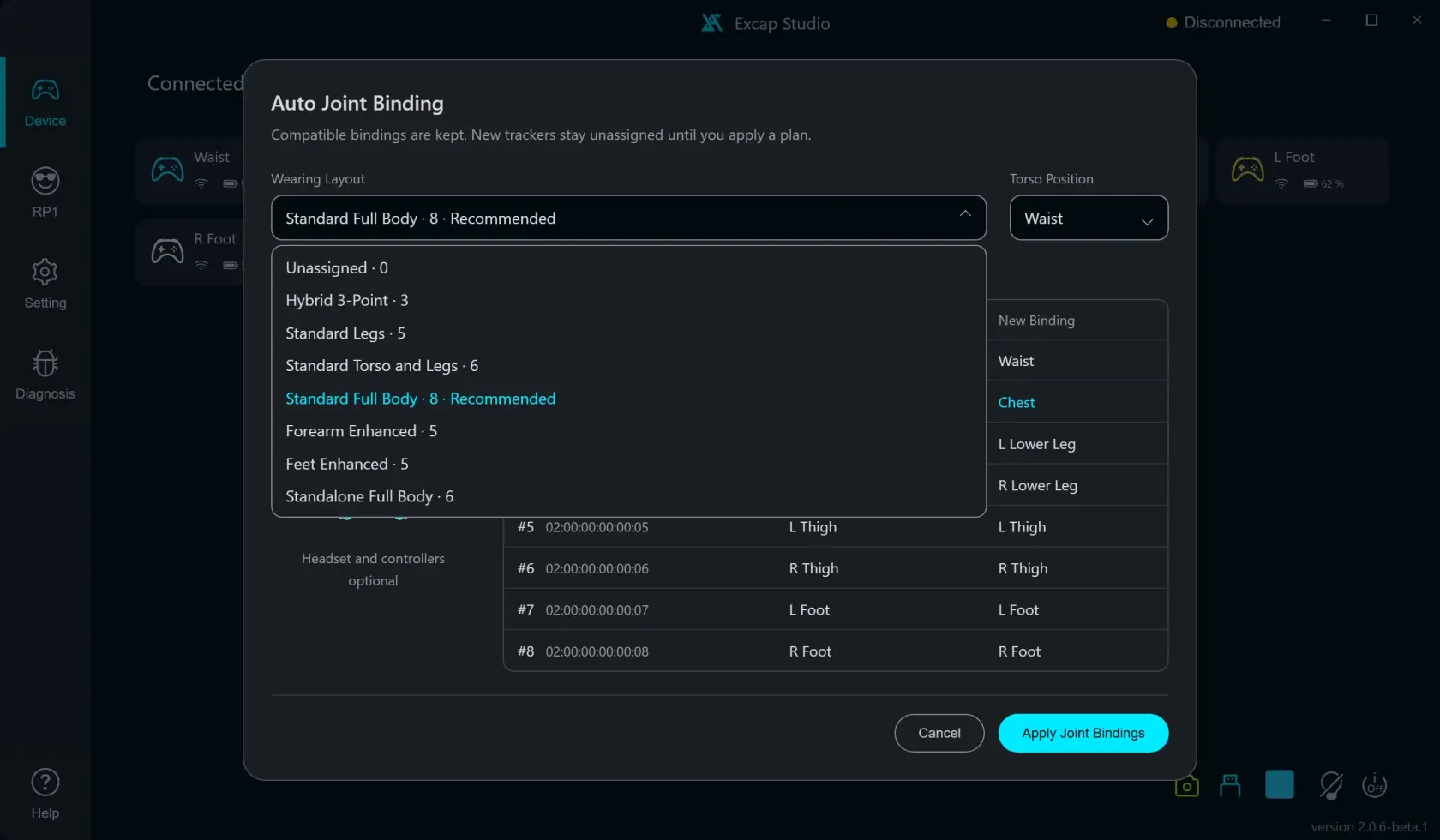](https://wiki.elecholic.tech/uploads/images/gallery/2026-10/scaled-1680-/hviimg-043-webp.webp)Auto Joint Binding layout choices with Standard Full Body · 8 · Recommended selected; fixture Tracker state is synthetic. · Open image at original size.[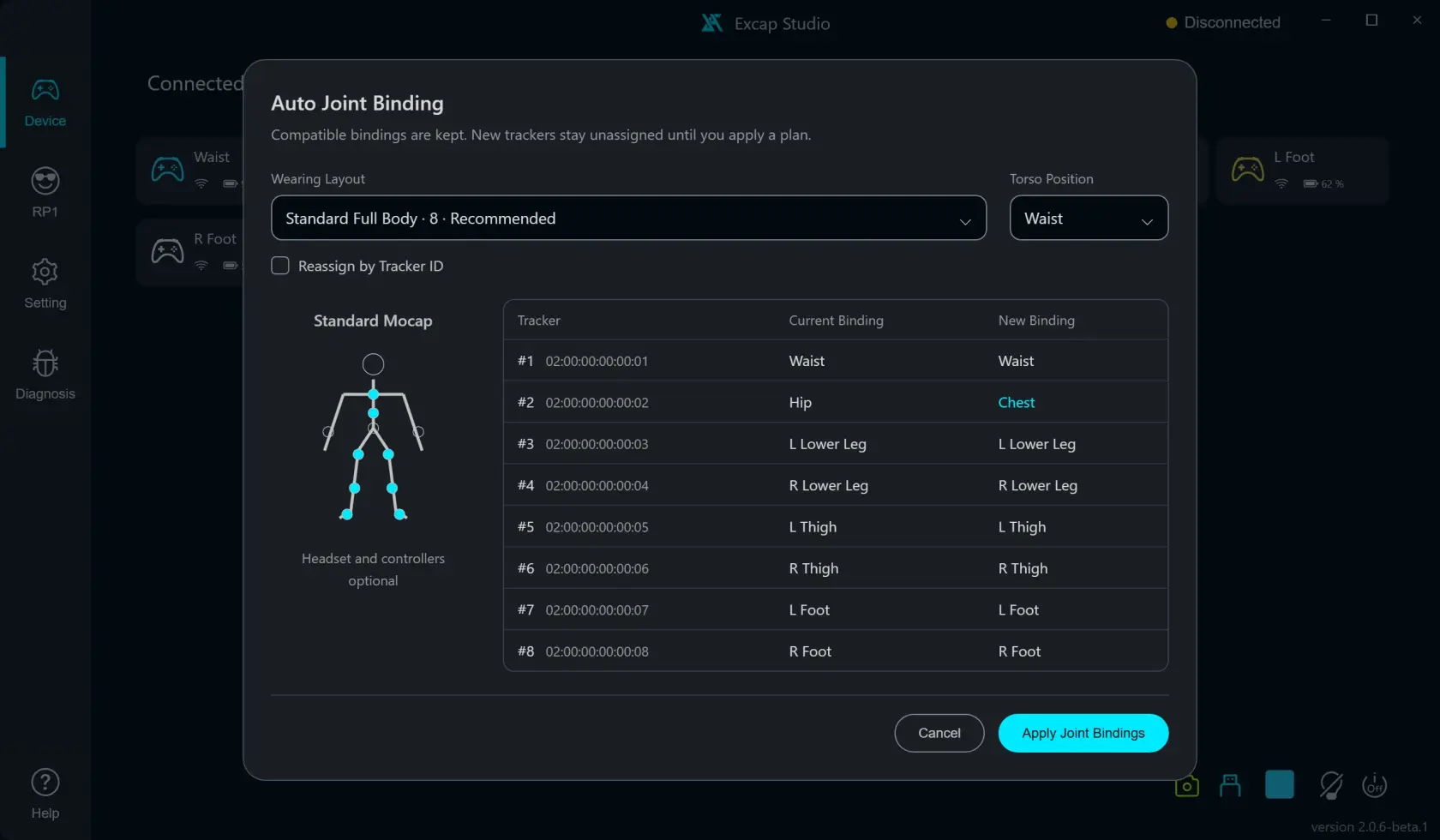](https://wiki.elecholic.tech/uploads/images/gallery/2026-10/scaled-1680-/ThHimg-042-webp.webp)Auto Joint Binding preview table for eight fixture Trackers; example assignments only. · Open image at original size.## What each shortcut does
- **Auto Joint Binding** opens the wearing-layout preview described above.
- **Clear Joint Bindings** removes body-part assignments but keeps the Trackers in the Device list. Use it only when you intend to bind them again.
- **Sort by Tracker ID** changes the order of Tracker cards on the screen. It does not change their assignments.
- **Wire Pair Trackers** opens the USB pairing flow. Follow its prompts and connect one Tracker at a time.
- **Clean All Trackers** clears the Trackers' saved records from Excap's Device list. It does not turn off the physical Trackers. Leave it alone during normal setup.
**Clear Joint Bindings** and **Clean All Trackers** sound similar but do different things. If you only want to redo the body-part map, use **Clear Joint Bindings**.
## Bind one Tracker at a time on RP1
1. Open **RP1** and turn on **Joint Axes**.
2. Click the joint you want on the 3D body.
3. Double-tap the physical Tracker you want to assign.
4. Wait for the “bound” message before choosing another joint.
[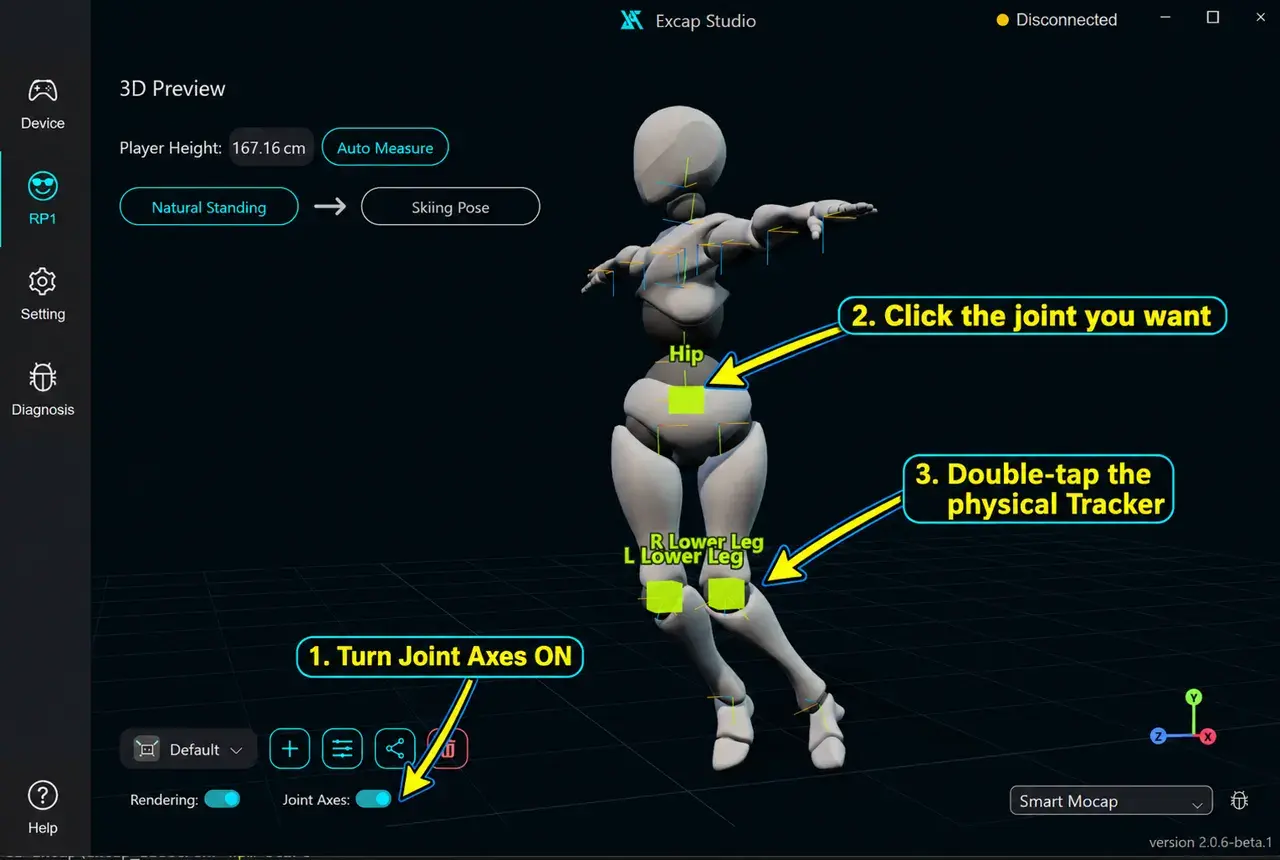](https://wiki.elecholic.tech/uploads/images/gallery/2026-10/scaled-1680-/img-060-webp.webp)Annotated RP1 manual binding example: turn Joint Axes on, click a joint, then double-tap the physical Tracker. · Open image at original size.The picture shows the order on RP1. The green joint is the joint you clicked; it is not a Tracker that appeared inside the model. Keep the RP1 **Mocap** choice on the RP1 page as well.
Choose the motion algorithm from the **Mocap** combobox on **RP1**, not in Settings. After changing it, read the wearing picture and hint. Some options need a live headset or controllers.
### Issue found while exploring
The menu gives **Clear Joint Bindings** and **Clean All Trackers** similar-looking names without explaining their different effects. A first-time user could clear more data than intended. See the UX issue list.