Device shortcuts and joint binding
Use this page when you want Excap to assign body parts to the Trackers, or when you need one of the extra Device-page shortcuts.
Open the right-click menu
- Open Device.
- Right-click an open area of the page.
- Choose the shortcut you need.
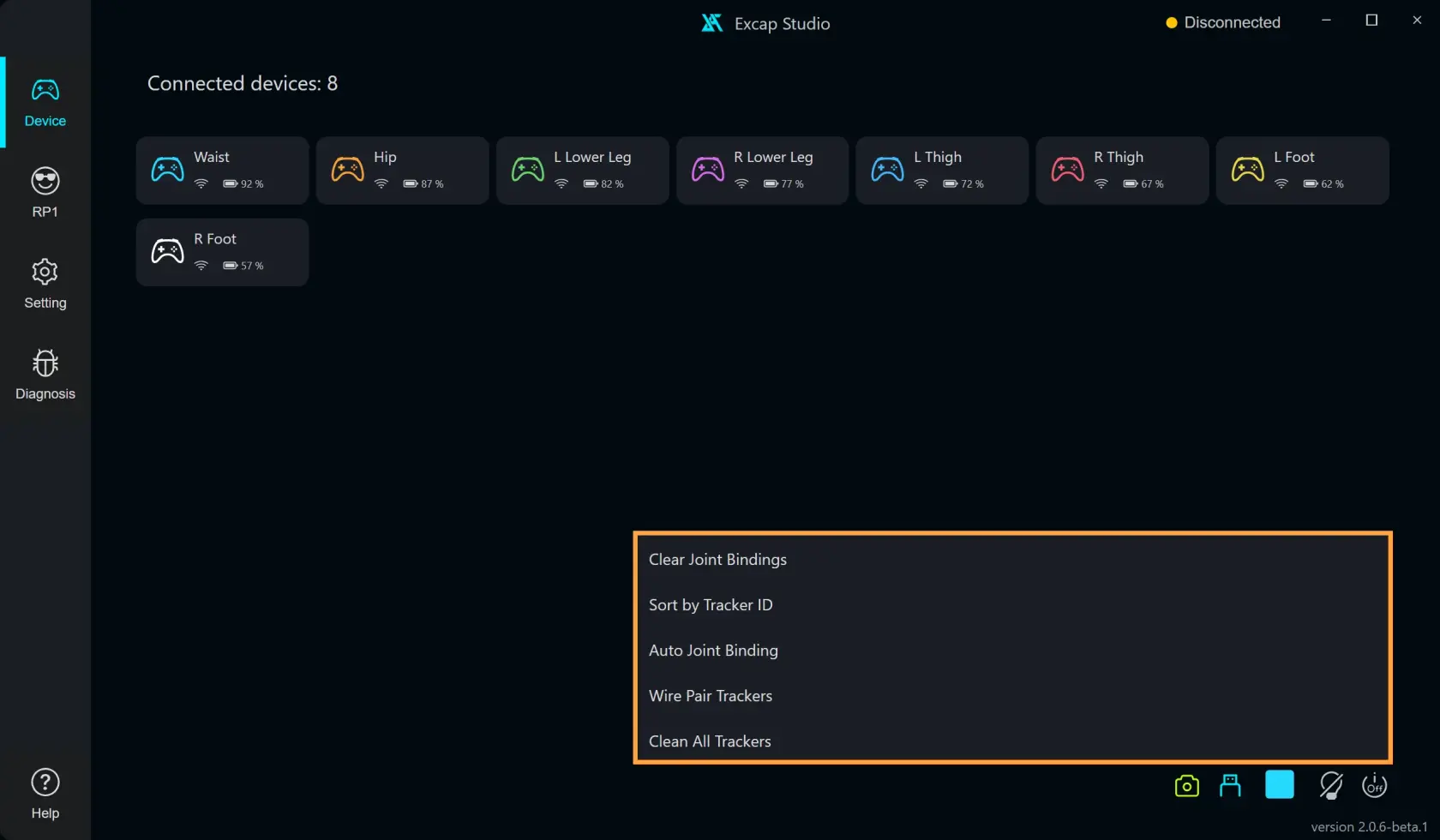
Assign the supplied eight-Tracker set
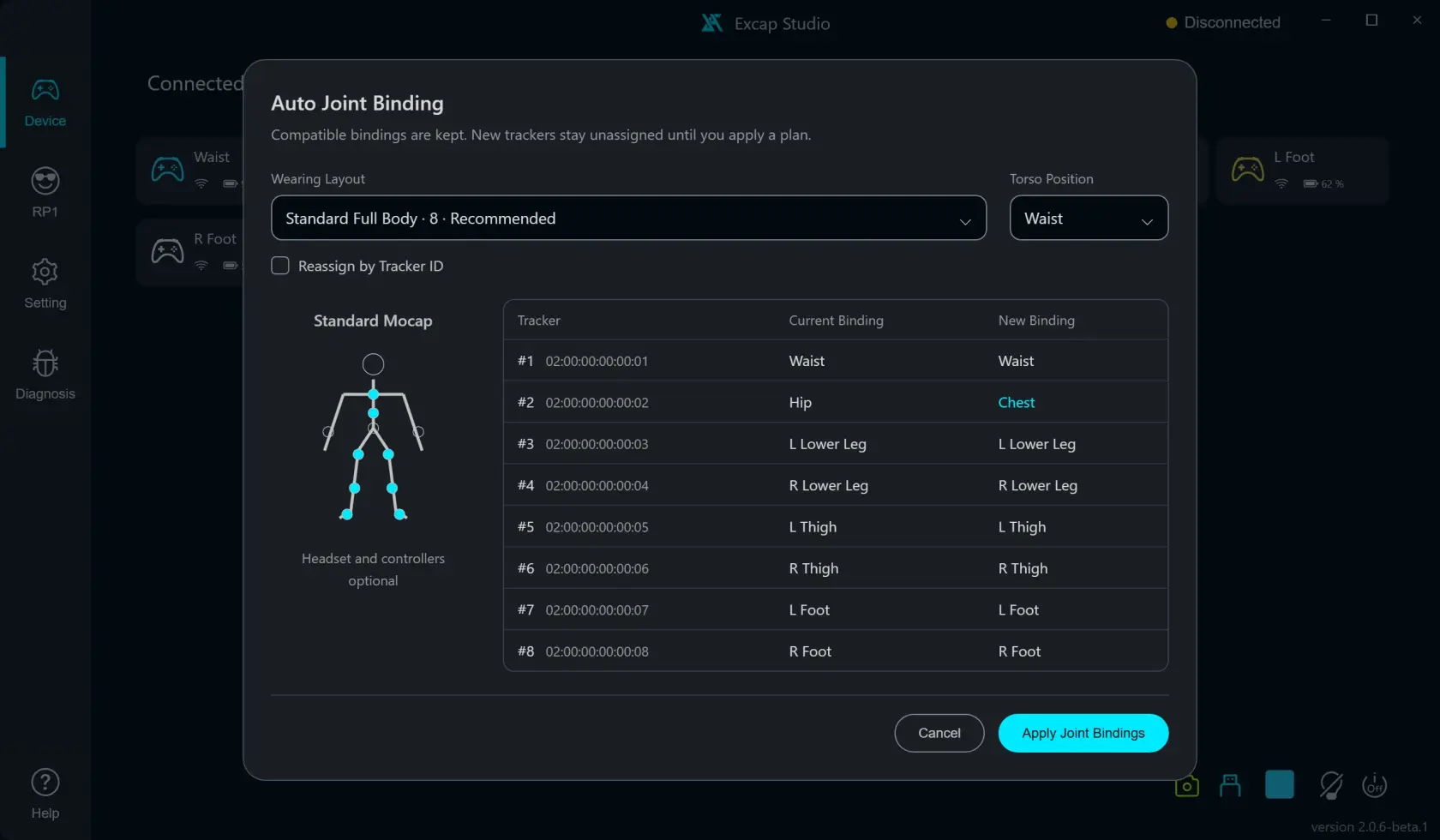
Auto Joint Binding opens a preview. It does not apply the new assignments until you click Apply Joint Bindings.
- In the right-click menu, choose Auto Joint Binding.
- In Wearing Layout, choose Standard Full Body · 8 · Recommended.
- In Torso Position, choose Waist or Hip, whichever matches the Tracker you wear at your waist/hip. The eight-point layout has one torso position, not both.
- Read the Current Binding and New Binding columns. If a new assignment looks wrong, stop and check the layout and torso choice.
- Leave Reassign by Tracker ID unchecked unless you specifically want assignments made in Tracker ID order. Compatible current assignments are kept by default.
- When the preview matches where you wear each Tracker, click Apply Joint Bindings.
The standard eight positions are Chest, one Waist or Hip, both thighs, both lower legs, and both feet. The preview shows the Tracker IDs and the body part each one will receive.
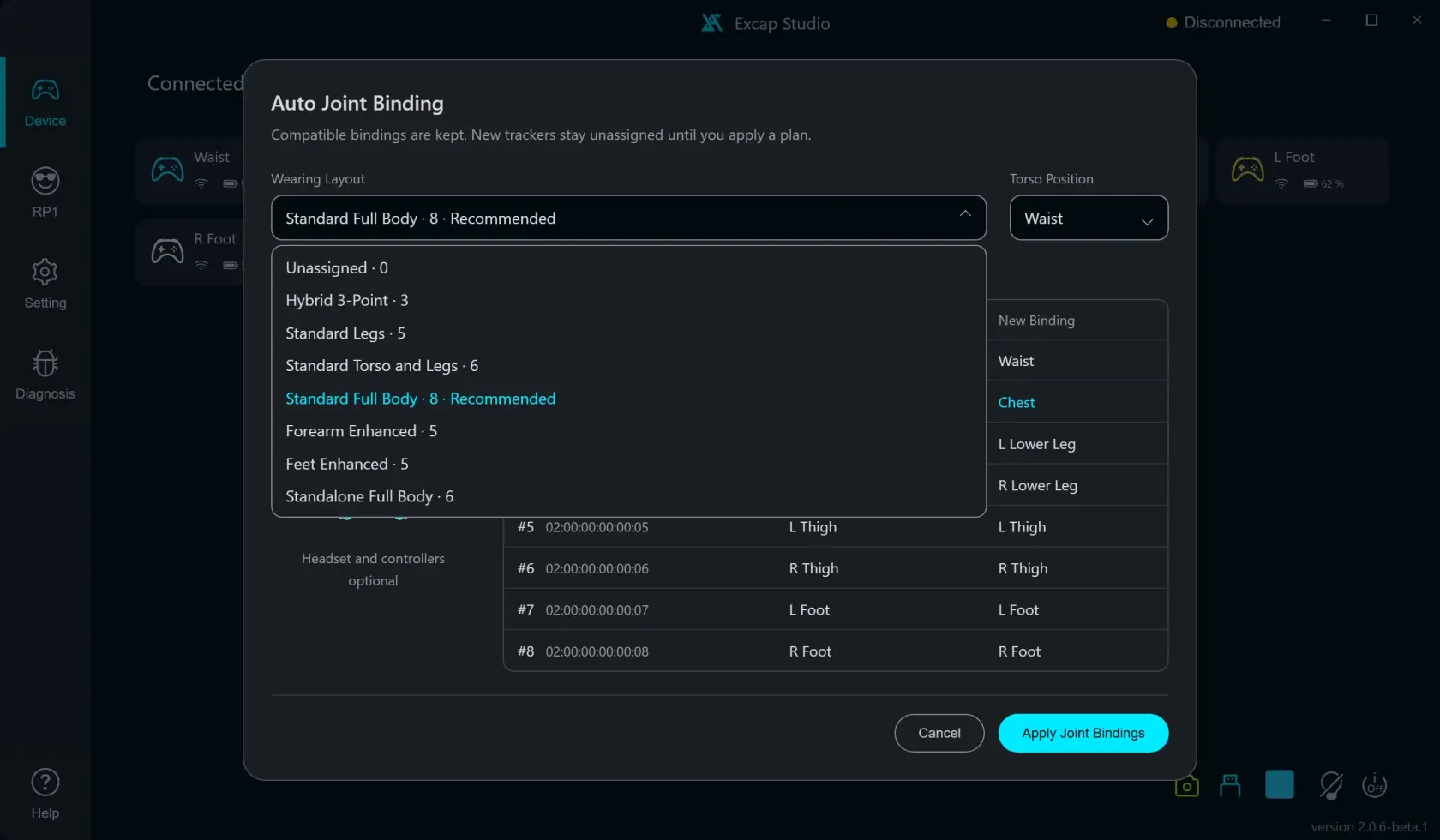
What each shortcut does
- Auto Joint Binding opens the wearing-layout preview described above.
- Clear Joint Bindings removes body-part assignments but keeps the Trackers in the Device list. Use it only when you intend to bind them again.
- Sort by Tracker ID changes the order of Tracker cards on the screen. It does not change their assignments.
- Wire Pair Trackers opens the USB pairing flow. Follow its prompts and connect one Tracker at a time.
- Clean All Trackers clears the Trackers' saved records from Excap's Device list. It does not turn off the physical Trackers. Leave it alone during normal setup.
Clear Joint Bindings and Clean All Trackers sound similar but do different things. If you only want to redo the body-part map, use Clear Joint Bindings.
Bind one Tracker at a time on RP1
- Open RP1 and turn on Joint Axes.
- Click the joint you want on the 3D body.
- Double-tap the physical Tracker you want to assign.
- Wait for the “bound” message before choosing another joint.
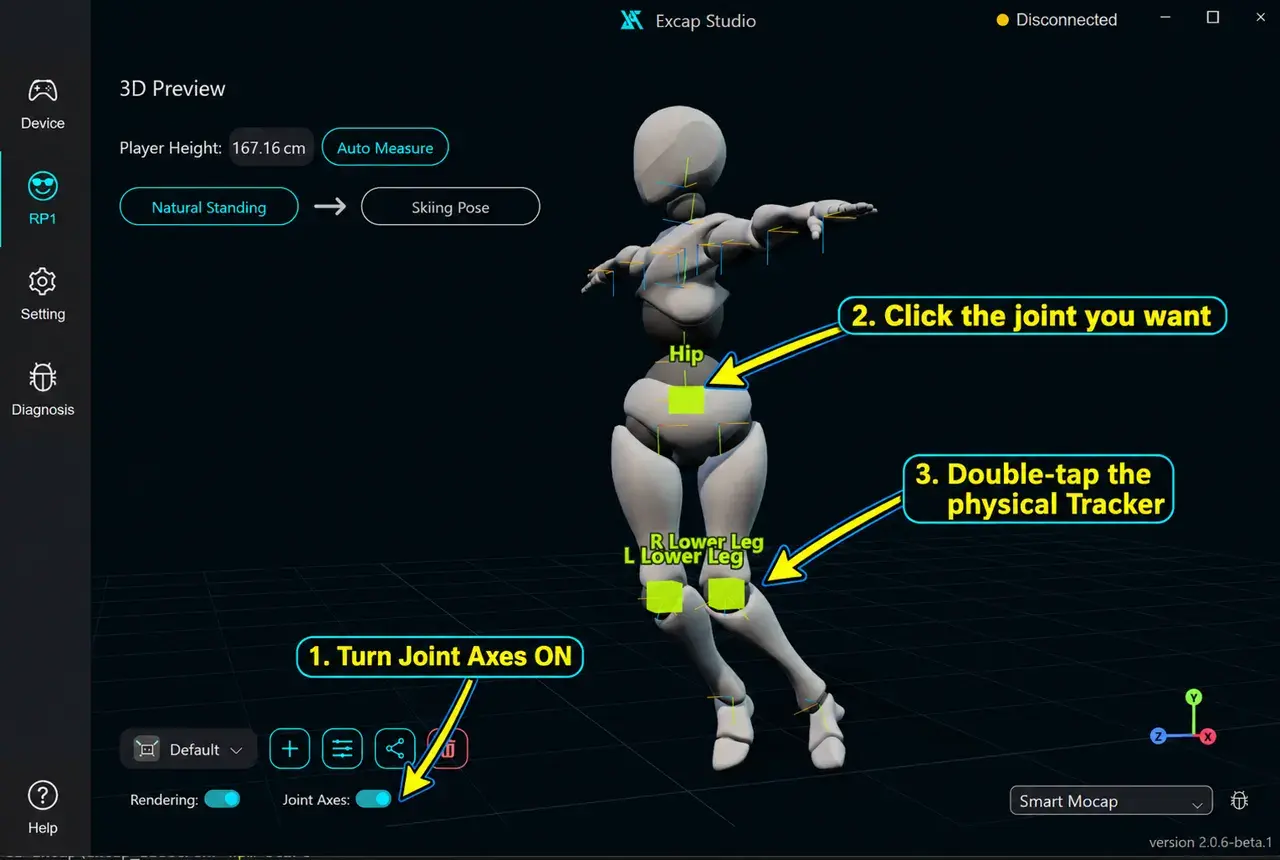
The picture shows the order on RP1. The green joint is the joint you clicked; it is not a Tracker that appeared inside the model. Keep the RP1 Mocap choice on the RP1 page as well.
Choose the motion algorithm from the Mocap combobox on RP1, not in Settings. After changing it, read the wearing picture and hint. Some options need a live headset or controllers.