# 3. Camera and marker lights
The Trackers must already be worn and assigned before this page. The supplied camera connects to **2.4 GHz Wi-Fi only** in Headset Mode.
## Give the camera its network details
1. Connect the camera to the PC with its USB data cable.
2. Open **Setting → General → Camera**. Wait for **Cable Connected**.
3. Choose **Headset Mode** from **Mode**.
4. Choose your router's **2.4 GHz** network and enter its password. Check the band yourself: Excap can currently show and accept 5 / 6 GHz networks even though this camera cannot use them.
5. Click **Configure WiFi**. Wait for **Camera WiFi settings sent**.
[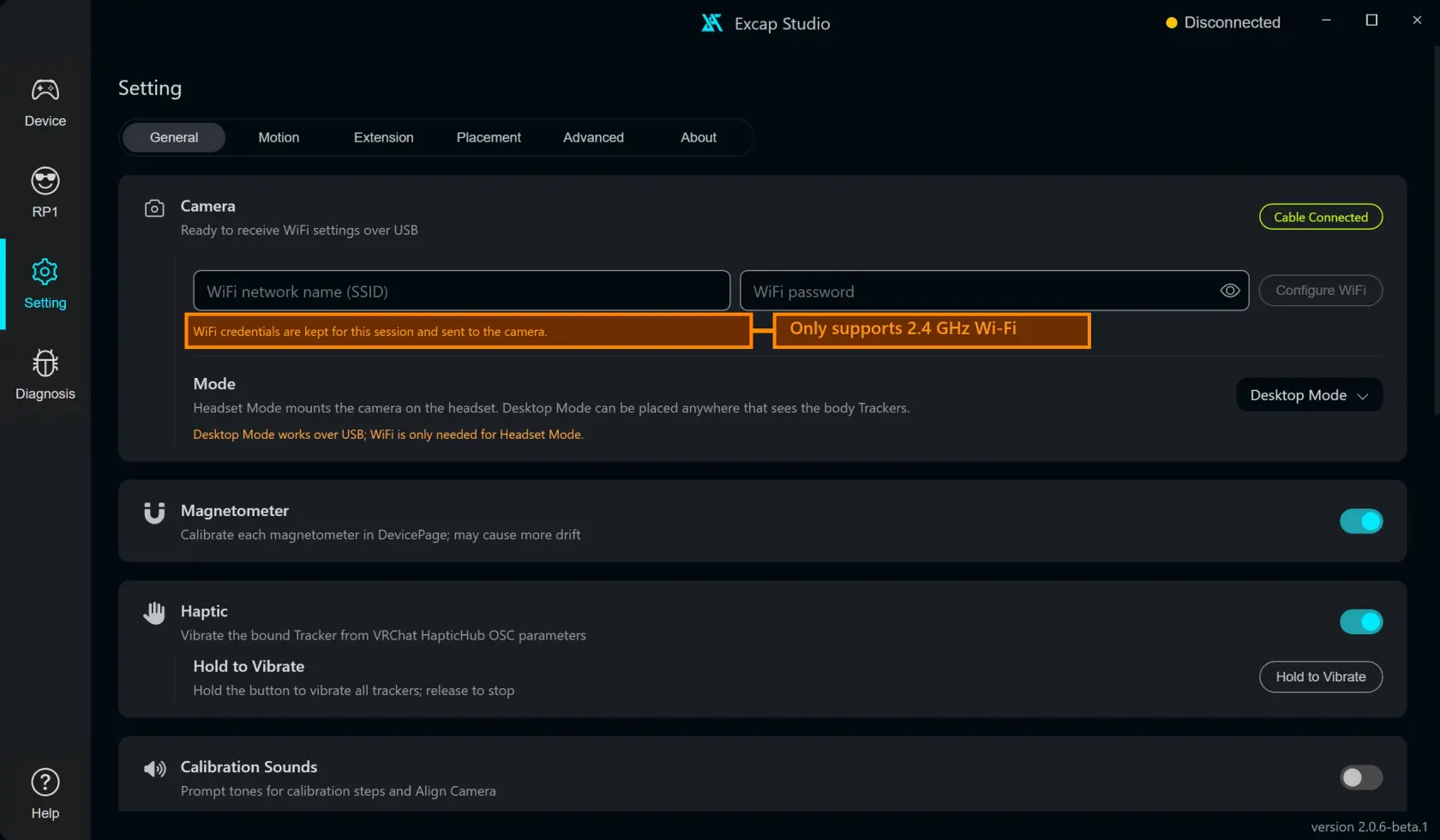](https://wiki.elecholic.tech/uploads/images/gallery/2026-10/scaled-1680-/img-031-webp.webp)Example camera settings form with blank credentials and a scripted Cable Connected status; no real hardware or network is shown. · Open image at original size.**Ready when:** the settings are sent. This confirms the USB write, not the later wireless connection.
## Mount and power the camera
1. Disconnect the temporary PC setup cable.
2. Attach the camera to the headset with the supplied mount. Connect one end of its cable to the camera.
3. Plug the other end into the USB adapter attached to the headset, as shown in the photo. Make sure the headset and adapter are powered, then wait for **Wi-Fi Online** in Excap Studio.
4. Open **RP1 → Camera View** and aim the camera toward the front of your body.
[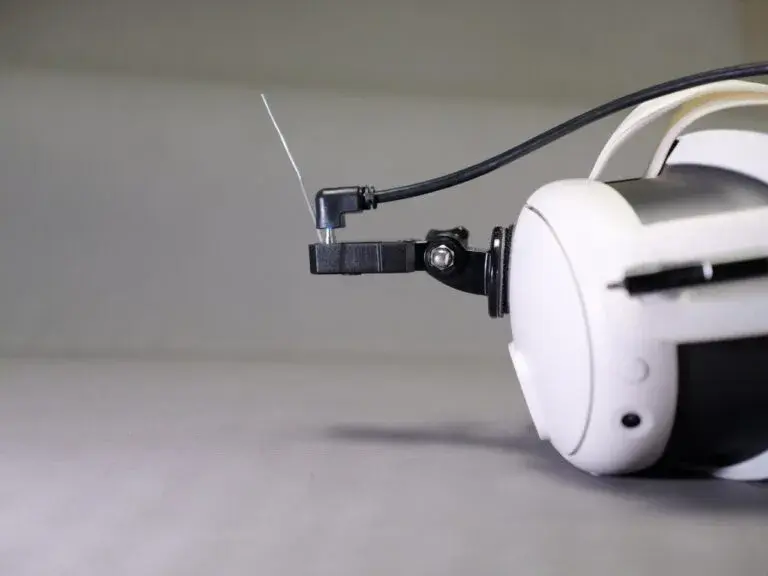](https://wiki.elecholic.tech/uploads/images/gallery/2026-10/scaled-1680-/img-020-webp.webp)Current headset camera mount and its actual power cable connection. · Open image at original size.[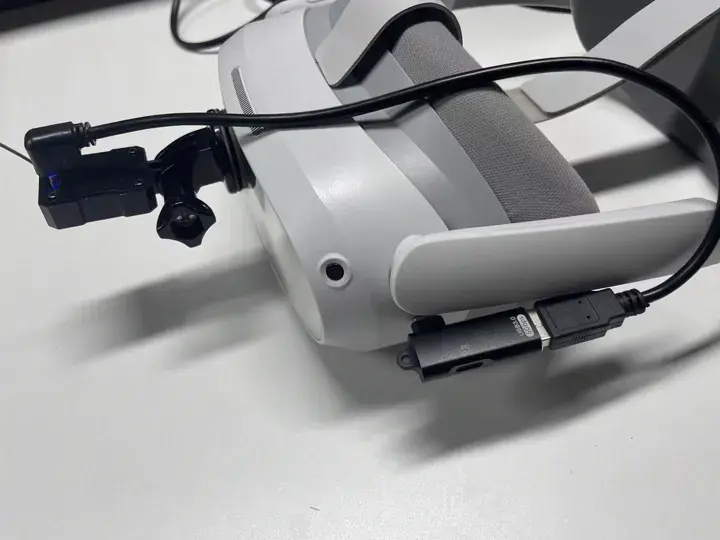](https://wiki.elecholic.tech/uploads/images/gallery/2026-10/scaled-1680-/img-055-webp.webp)Current headset camera mounted on the headset with the camera cable plugged into the headset-connected USB adapter. · Open image at original size.The first photo shows the camera-side mount. The second photo shows the cable running to the USB adapter attached to the headset. Follow the same cable from the camera to the adapter; do not use the temporary PC setup cable for this step.
**Ready when:** Excap Studio says **Wi-Fi Online**. You do not need to see body-marker points yet.
## Check the normal HMD Mode light change
Open **RP1 → Camera View** and aim the camera at the front of your body. When HMD Mode connects successfully, the Tracker used for **Waist or Hip** and both **lower-leg Trackers** show a bright green light. The other Tracker lights turn off. This is expected: it does **not** mean the Chest, thigh or foot Trackers disconnected. Their cards should remain **Online** in **Device**.
The eight-point layout has one torso position, either **Waist** or **Hip**. It does not use Waist and Hip at the same time. The example below uses Waist; if your binding says Hip, read that green torso light as Hip.
[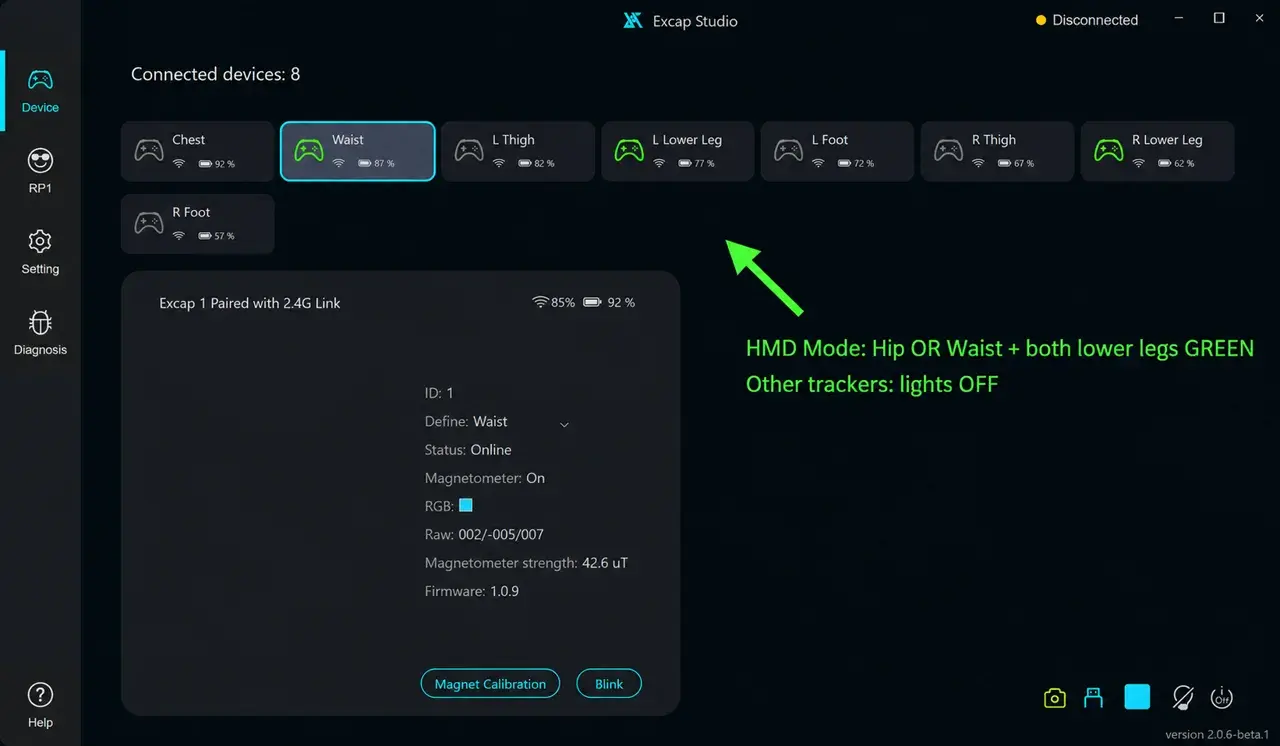](https://wiki.elecholic.tech/uploads/images/gallery/2026-10/scaled-1680-/img-059-webp.webp)Annotated HMD Mode example: one Waist or Hip torso Tracker and both lower-leg Trackers are green; Chest, thighs and feet are off. · Open image at original size.If the camera disconnects, the other Tracker lights return. That is also expected. First check **Wi-Fi Online**, then check that the green Waist/Hip and two lower-leg lights appear again. If a Tracker card is actually offline in **Device**, fix that hardware connection separately.
**If Wi-Fi Online does not appear:** check camera power, the password and the 2.4 GHz band. Make sure the PC and camera can reach each other on the local network. If this remains unresolved, continue to the body-following check using Tracker IMU data, and return to the [full camera setup](https://wiki.elecholic.tech/books/excap-beginner-guide/page/headset-mode-camera-setup) afterward. This fallback confirms body tracking without camera correction.