# 2. Wear and bind
Every Tracker must stay snug while you move. Wear each one with its **power button facing up**. For the headset camera route, put the marker Trackers on the **front** of your body so the camera can see the waist/hip and both lower legs.
1. Put one Tracker at the **chest**, one at **Waist or Hip**, one on each **thigh**, one on each **lower leg**, and one on each **foot**.
2. Fasten each new v2 strap so its Tracker does not slide when you take a step. Keep every Tracker's **power button facing up**. The photo below shows the correct direction on a worn v2 Tracker.
3. Open **Device**. Right-click an empty part of the page and choose **Auto Joint Binding**.
4. Set **Wearing Layout** to **Standard Full Body · 8 · Recommended**. Set **Torso Position** to **Waist** or **Hip** to match where you wore it.
5. Compare each **New Binding** row with the Tracker on your body. Click **Apply Joint Bindings** only when all eight match.
6. Add the matching stickers after checking each Tracker with **Blink**.
7. Check that all eight cards still show **Online** after fastening the straps. Camera marker lights are checked on the next page, after the camera is connected.
[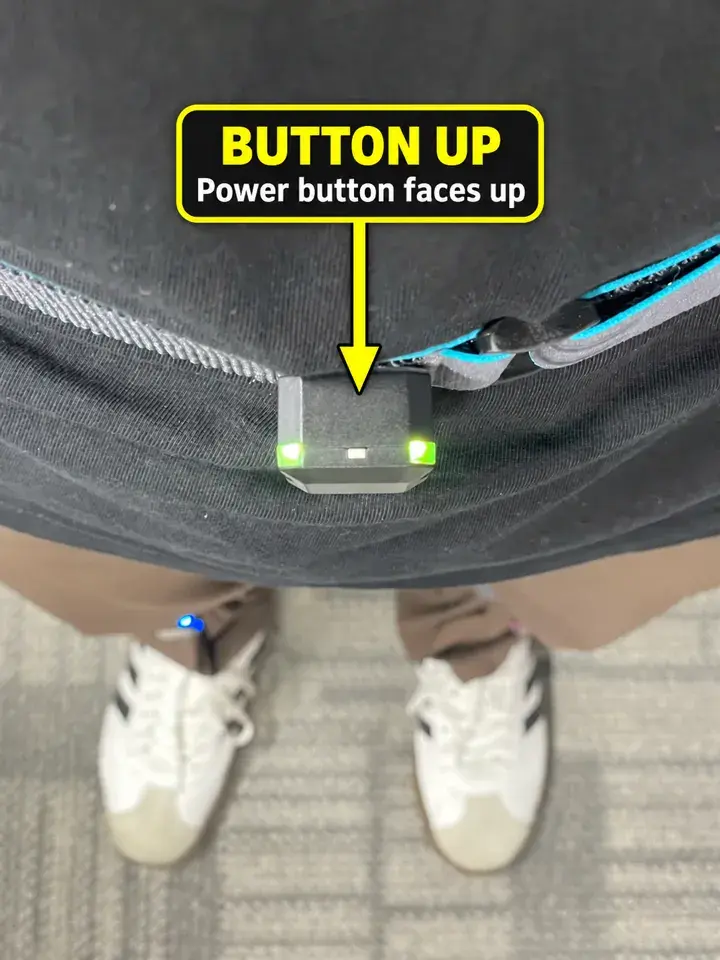](https://wiki.elecholic.tech/uploads/images/gallery/2026-10/scaled-1680-/img-056-webp.webp)Annotated real v2 shell and new strap worn on the body; the power button is facing up. · Open image at original size.[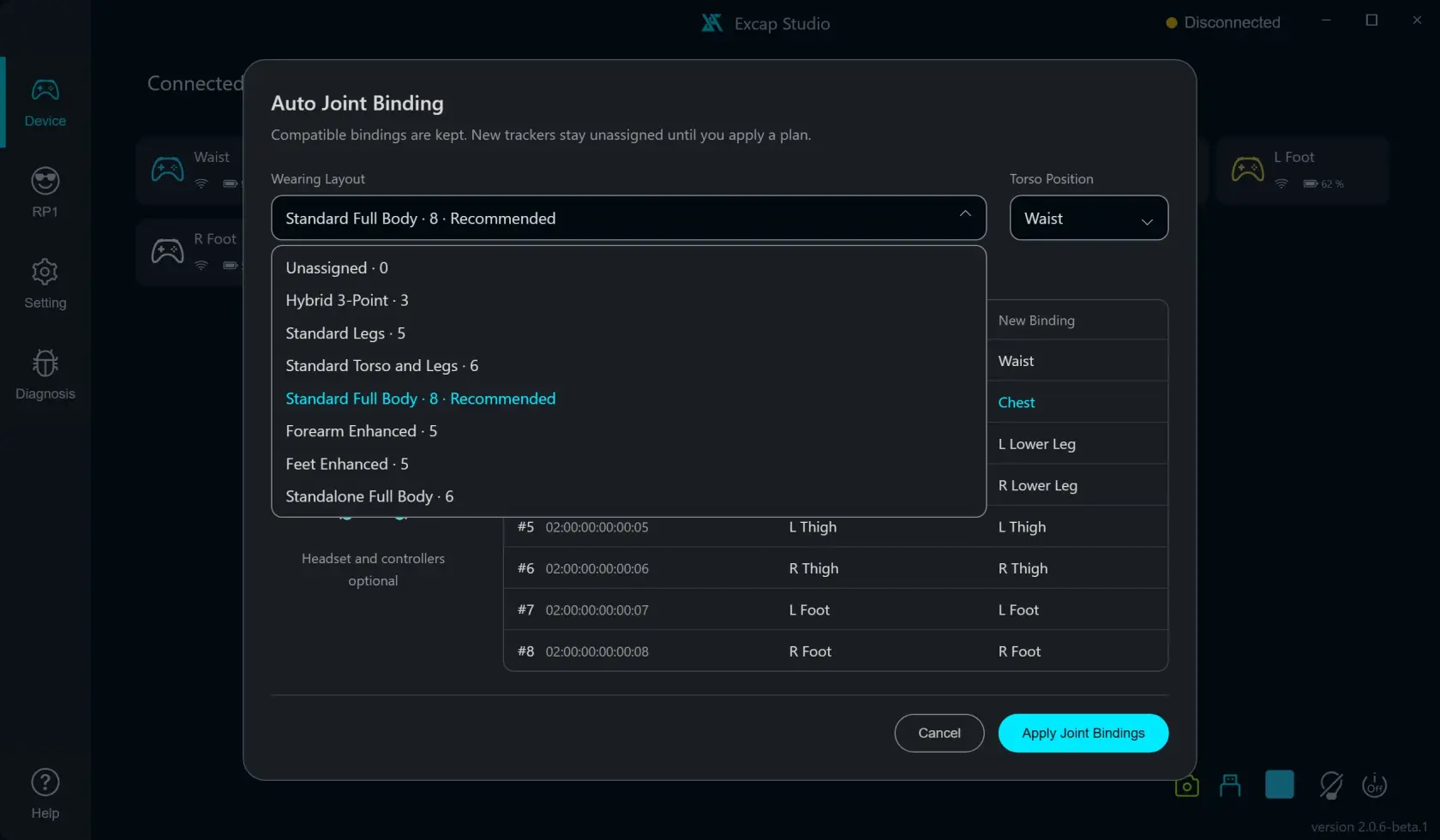](https://wiki.elecholic.tech/uploads/images/gallery/2026-10/scaled-1680-/img-043-webp.webp)Auto Joint Binding layout choices with Standard Full Body · 8 · Recommended selected; fixture Tracker state is synthetic. · Open image at original size.[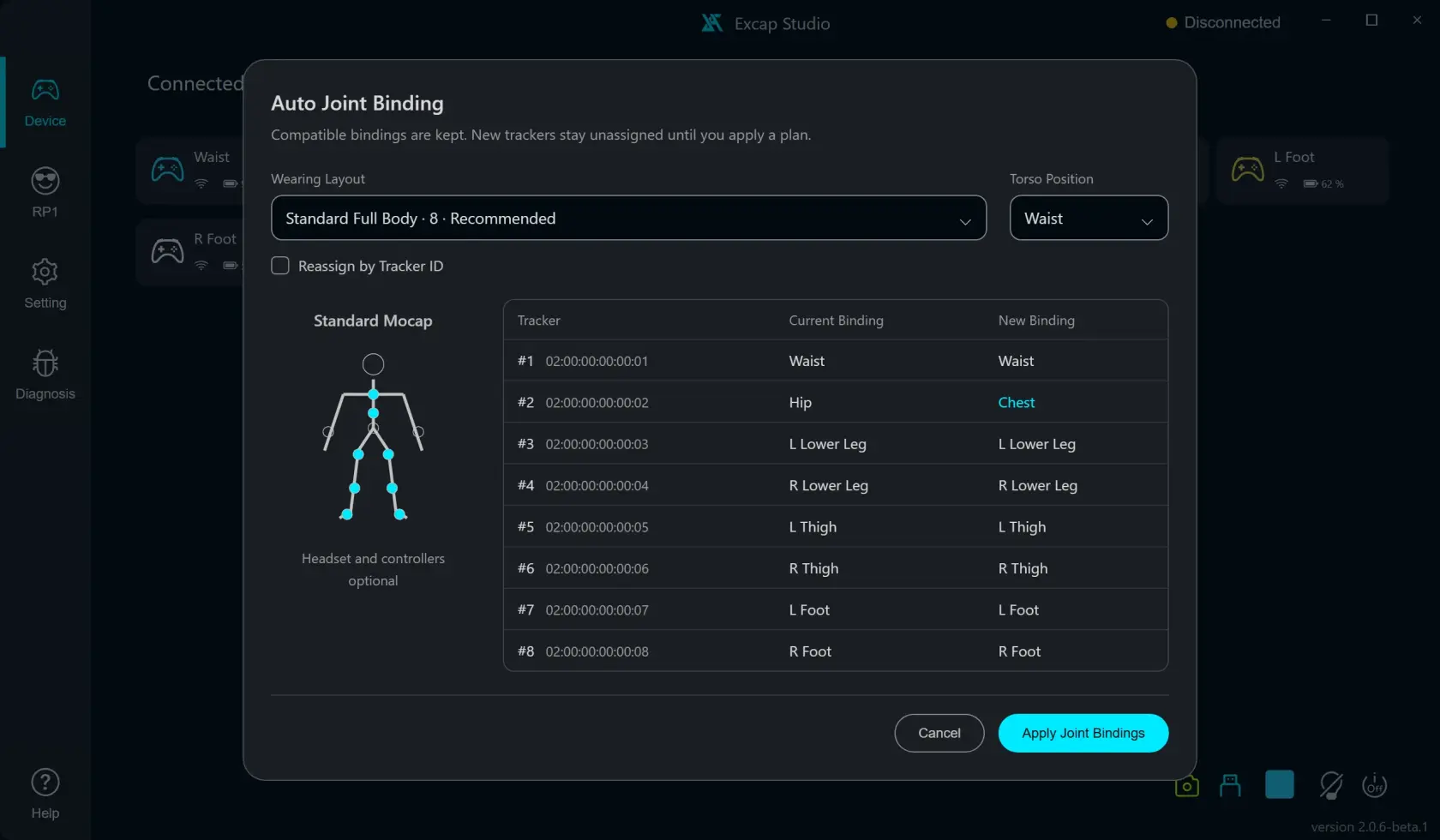](https://wiki.elecholic.tech/uploads/images/gallery/2026-10/scaled-1680-/img-042-webp.webp)Auto Joint Binding preview table for eight fixture Trackers; example assignments only. · Open image at original size.**Ready when:** eight **Online** cards in **Device** match where you wear the Trackers, every button faces up, and no Tracker slides during a small step. The screenshot below is a real worn Tracker example; the other screenshots use scripted example devices.
**If a label is wrong:** open the [binding guide](https://wiki.elecholic.tech/books/excap-beginner-guide/page/device-shortcuts-and-joint-binding) and correct it before continuing. If a Tracker slides or its button points sideways/down, fix the strap first. In **Setting → Placement**, keep the direction equal to the way the Tracker is actually worn. Changing placement later means repeating both pose calibrations.