2. Wear and bind
Every Tracker must stay snug while you move. Wear each one with its power button facing up. For the headset camera route, put the marker Trackers on the front of your body so the camera can see the waist/hip and both lower legs.
- Put one Tracker at the chest, one at Waist or Hip, one on each thigh, one on each lower leg, and one on each foot.
- Fasten each new v2 strap so its Tracker does not slide when you take a step. Keep every Tracker's power button facing up. The photo below shows the correct direction on a worn v2 Tracker.
- Open Device. Right-click an empty part of the page and choose Auto Joint Binding.
- Set Wearing Layout to Standard Full Body · 8 · Recommended. Set Torso Position to Waist or Hip to match where you wore it.
- Compare each New Binding row with the Tracker on your body. Click Apply Joint Bindings only when all eight match.
- Add the matching stickers after checking each Tracker with Blink.
- Check that all eight cards still show Online after fastening the straps. Camera marker lights are checked on the next page, after the camera is connected.
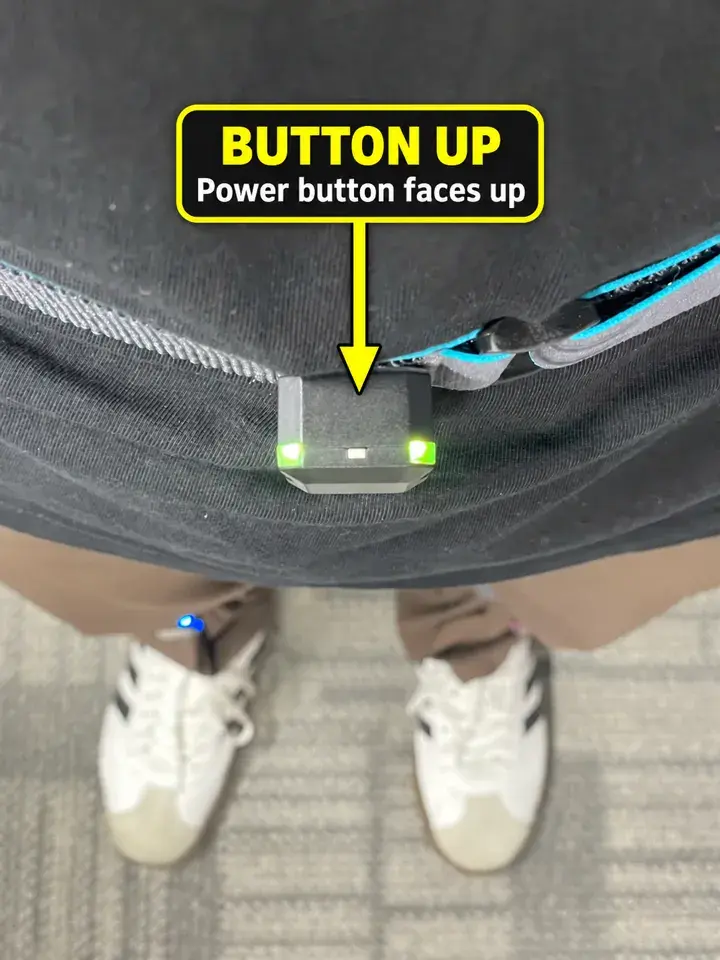
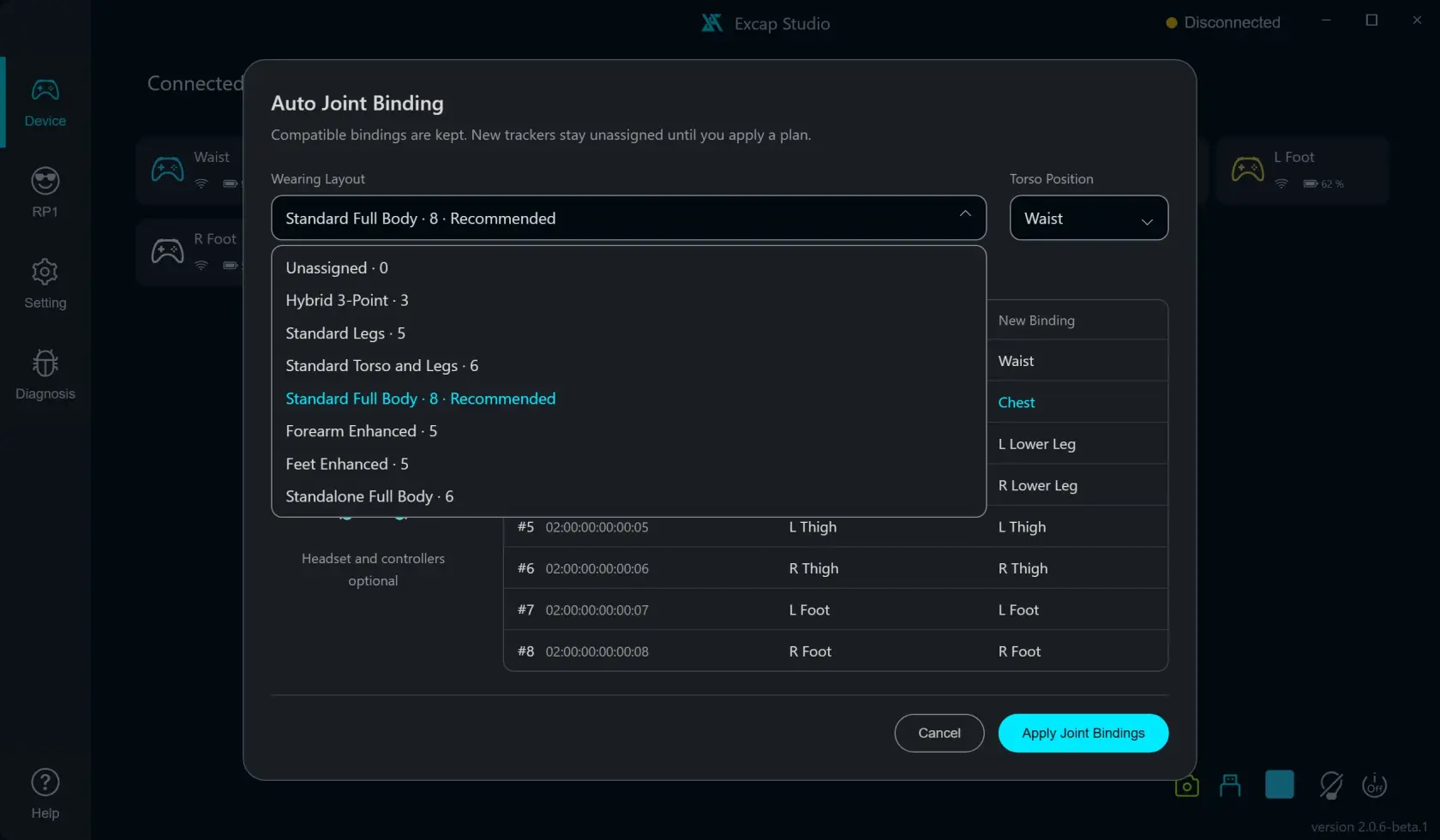
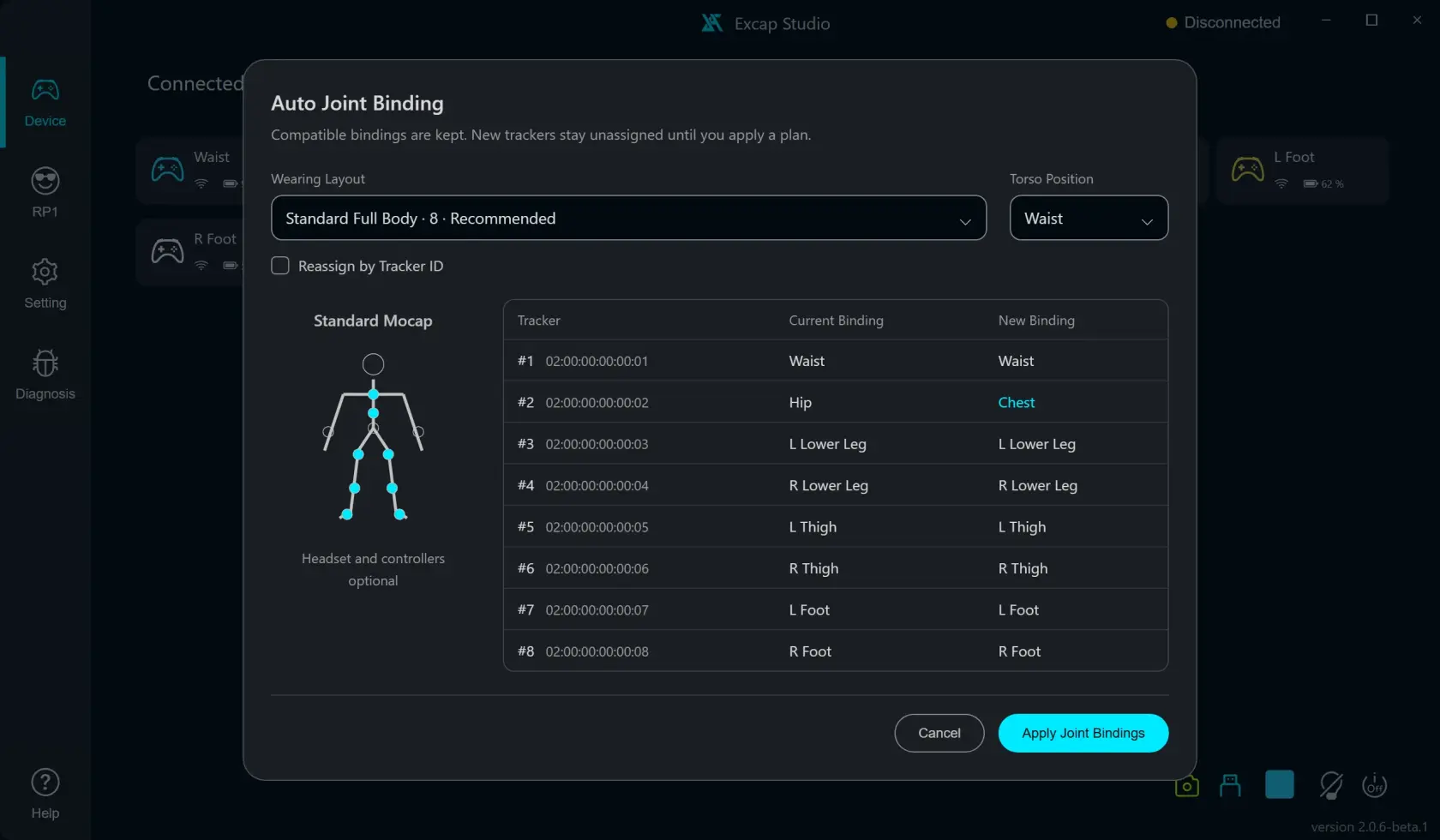
Ready when: eight Online cards in Device match where you wear the Trackers, every button faces up, and no Tracker slides during a small step. The screenshot below is a real worn Tracker example; the other screenshots use scripted example devices.
If a label is wrong: open the binding guide and correct it before continuing. If a Tracker slides or its button points sideways/down, fix the strap first. In Setting → Placement, keep the direction equal to the way the Tracker is actually worn. Changing placement later means repeating both pose calibrations.