# 1. Kit and installation
Lay the kit on a table. The current eight-Tracker set includes eight Trackers, the Excap Link 2.4G Dongle, a camera and its mount/cable, a charger and charging cable, stickers, and the new straps: two long, two medium, and four short. Your shipped Trackers use the v2 shell that fits these straps.
[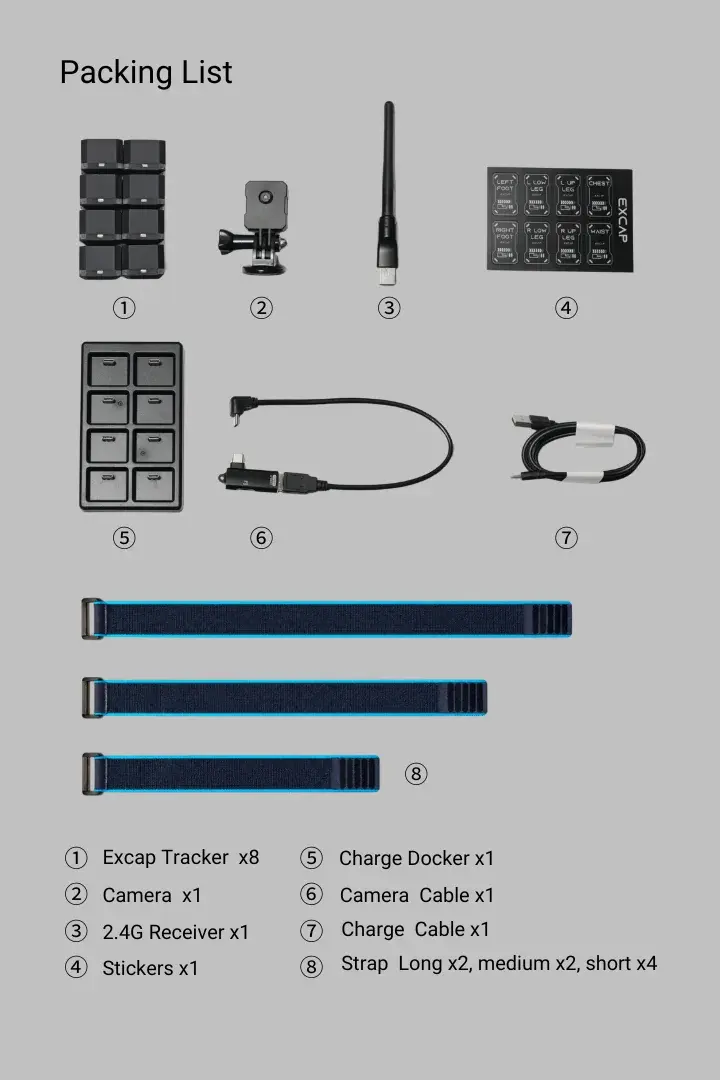](https://wiki.elecholic.tech/uploads/images/gallery/2026-10/scaled-1680-/img-051-webp.webp)User-provided packing list: eight Trackers, camera, Dongle and new v2-compatible straps. · Open image at original size.## Get SteamVR and VRChat ready
If you already play VRChat through SteamVR on this PC, go to the next section. Otherwise, install [Steam](https://store.steampowered.com/about/), then install [SteamVR](https://store.steampowered.com/app/250820/SteamVR/) and [VRChat](https://store.steampowered.com/app/438100/VRChat/) from Steam. Connect and wake your headset, start SteamVR, and wait until SteamVR shows the headset as tracked. **Do not continue with SteamVR output while the headset still says Not Ready or Disconnected:** SteamVR can be open without a live headset, and Excap cannot send the full-body tracking data into that SteamVR session until the headset is connected and tracked. Then leave VRChat closed while you install Excap.
## Install Excap Studio
1. Open the [official Excap Studio downloads page](https://www.elecholic.tech/resource/downloads/). Choose the **Windows Installer**.
2. Run the installer. On **Installation options**, leave **2.4G Dongle driver** and **Excap SteamVR driver** selected, then click **Install**. The installer may request administrator access and close Steam/SteamVR to install its driver.
3. Open **Excap Studio** after installation.
You do not need to download and run a second driver installer for first setup. The downloads website may show an older separate driver link; use the **2.4G Dongle driver** included in Excap Studio for this route.
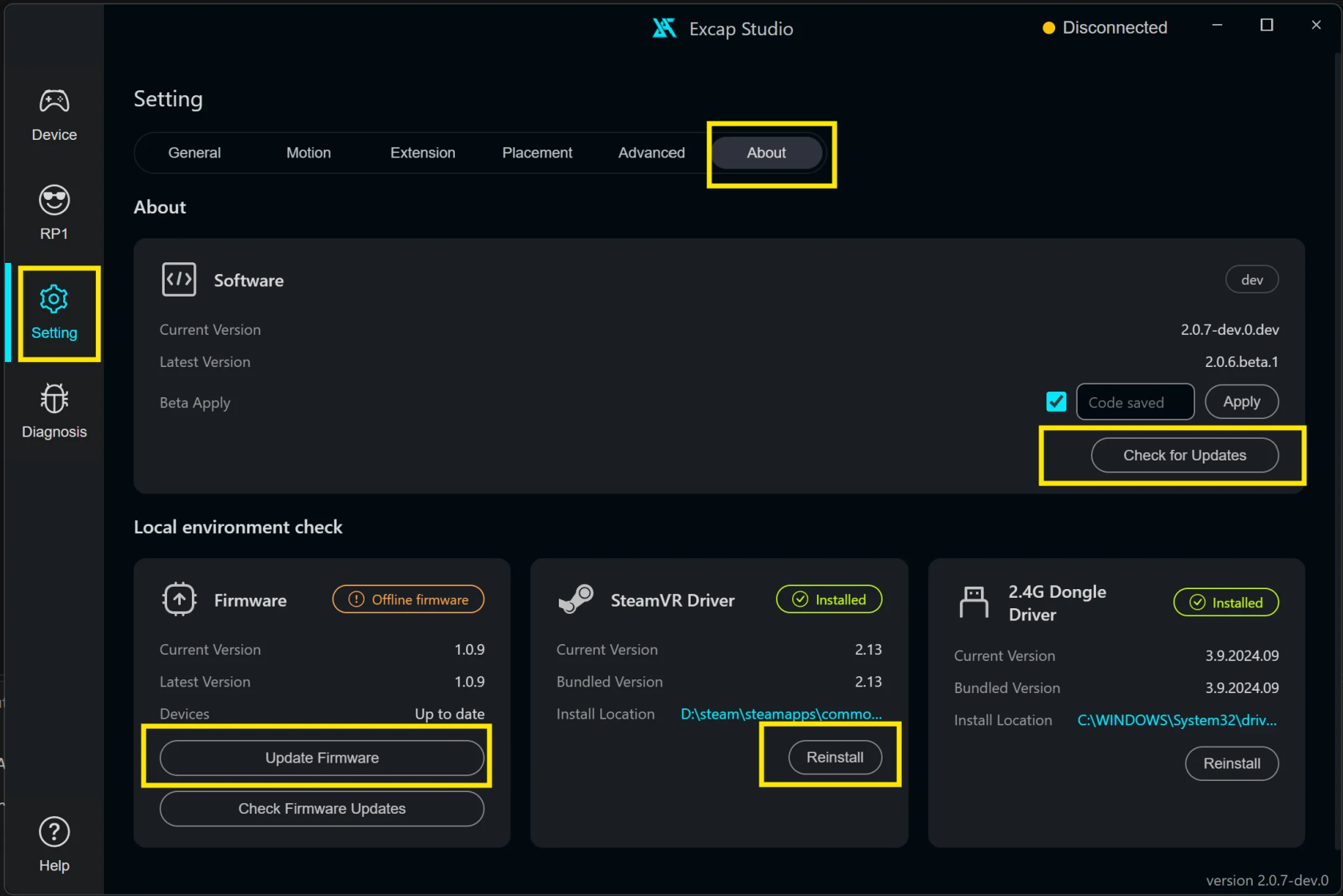
**If Excap SteamVR driver says “SteamVR not detected” and its box cannot be selected:** finish installing SteamVR first. Then open **Setting → About → SteamVR Driver** in Excap Studio and use its **Install** action. This is a recovery step for installation order, not a separate download.
[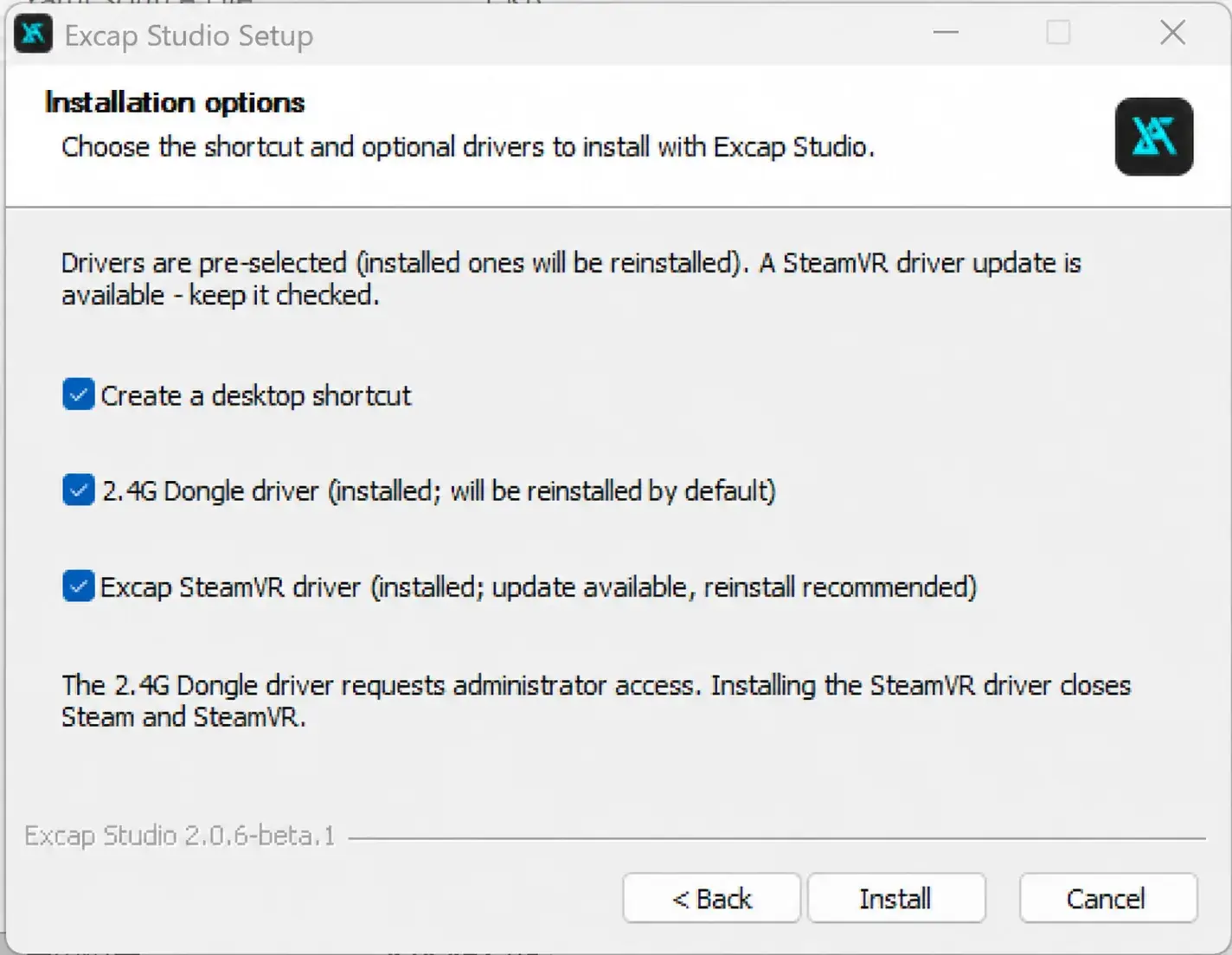](https://wiki.elecholic.tech/uploads/images/gallery/2026-10/scaled-1680-/img-054-webp.webp)Illustrative installer edit: 2.4G Dongle driver and Excap SteamVR driver selected. Replace with a capture from the shipping installer before production. · Open image at original size.## Connect the receiver and Trackers
1. Plug the supplied **Excap Link 2.4G Dongle** into the PC.
2. Open **Device** in Excap Studio. Check the 2.4G Dongle status icon.
3. Turn on each Tracker with a short press of its button. Wait for eight Tracker cards to appear.
4. Pick up one Tracker and use **Blink** in its detail panel to match the card to the physical Tracker. Add its body-part sticker after you confirm its assignment in step 3.
[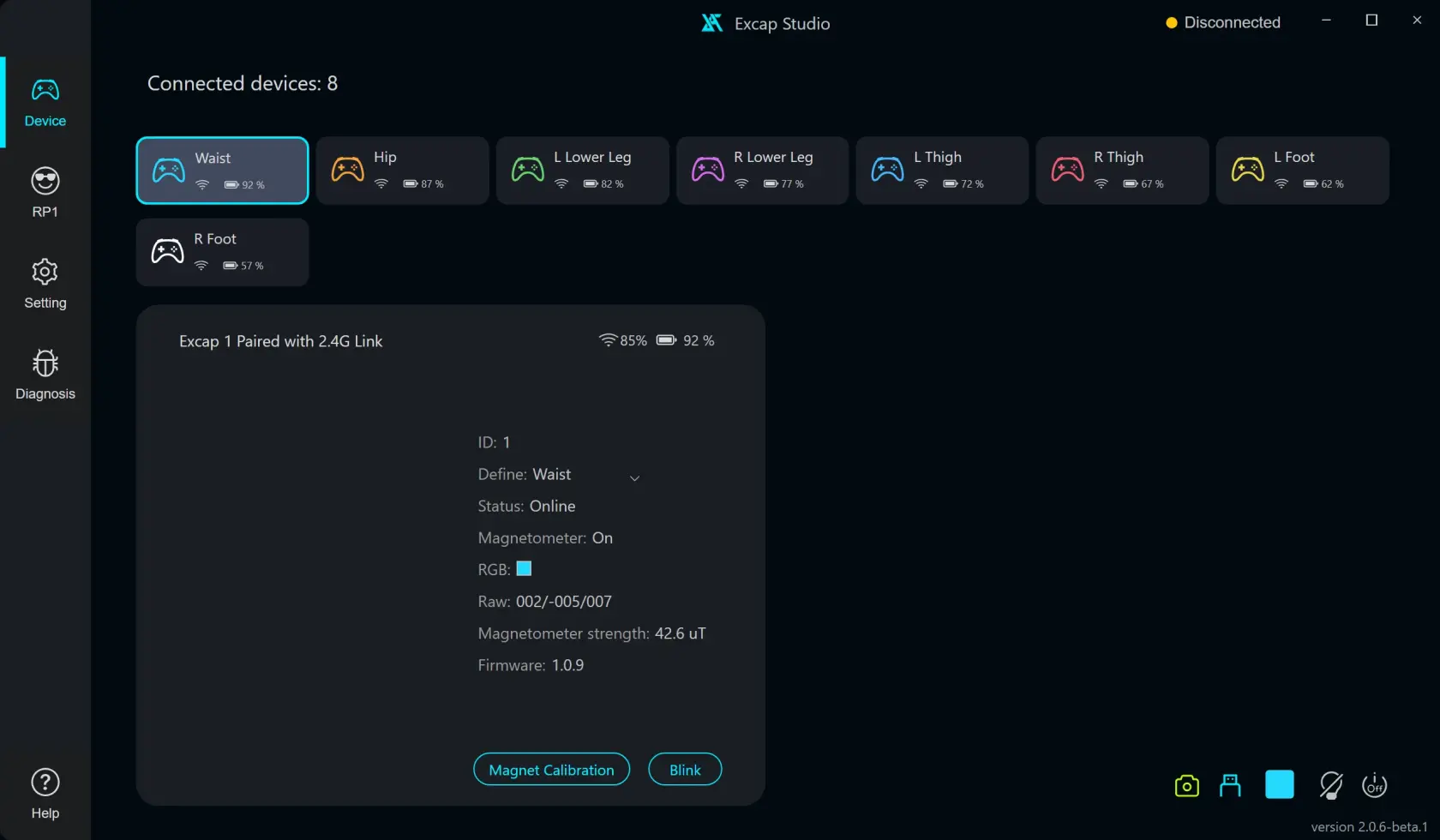](https://wiki.elecholic.tech/uploads/images/gallery/2026-10/scaled-1680-/img-024-webp.webp)Example Device page showing eight scripted Tracker cards and the selected Tracker details; not proof of live hardware. · Open image at original size.**Ready when:** the Dongle is online and all eight physical Trackers have matching cards in **Device**. The screenshot is an example with scripted Tracker data; check your own screen.
The yellow **Disconnected** text at the top of Excap Studio is the **data forwarding mode**. It can still say Disconnected at this step even when the Dongle and eight Tracker cards are online. You will select **SteamVR** there in step 4.
**If the Dongle is missing:** reconnect it and open **Setting → About → 2.4G Dongle Driver** to check the installed driver. **If fewer than eight Tracker cards appear:** charge and turn on the missing Tracker, then check the Dongle. Use [Wire Pair Trackers](https://wiki.elecholic.tech/books/excap-beginner-guide/page/pair-trackers) only if a Tracker is unpaired or on a different channel.
[](https://wiki.elecholic.tech/uploads/images/gallery/2026-10/image.png)